
Set up CYP mailbox on your iPhone, iPad, or iPod touch
When you add your Exchange ActiveSync account, you can sync your Mail, Contacts, Calendars, Reminders, and Notes wirelessly with your iOS device.
Add your Exchange account
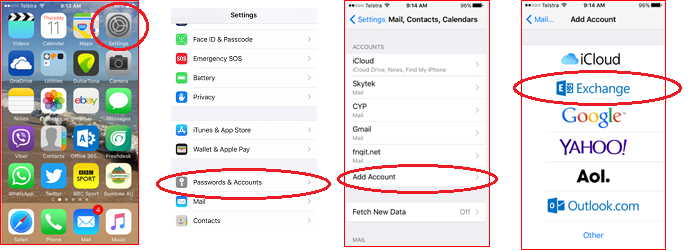
Tap Settings > Passwords & Accounts > Add Account > Exchange.
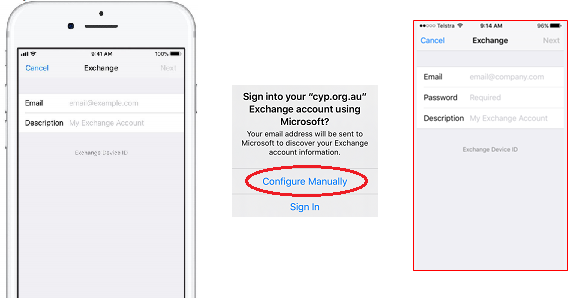
Enter your address and password
Enter your email address in both the "Email" field and the "Description" field.
Tap Next
Tap Manual
Enter your Password (same as what you use to log into your work computer)
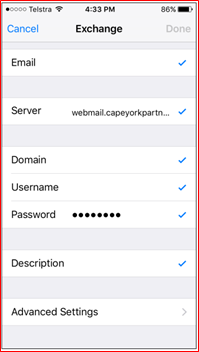
Enter Exchange Server settings
Server: webmail.capeyorkpartnerships.com
Domain: CYP or CYH or BAMA
Username: your current network log in username e.g msmith
Tap Done. You should see the blue ‘ticks’ indicating successful login to your email. If you don't, check spelling of all fields (taking care that there are no spaces before or after the text in any field), and check password.
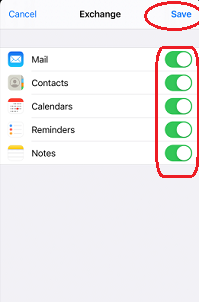
Sync Options
Confirm all options are turned on.
Tap Save
Editing and setting out of office auto response to your Exchange settings
Tap Settings > Accounts and Passwords, and select your Exchange account.
You can also set up automatic out-of-office replies, and change how often you want Mail to sync. You can also tap your account name to change Advanced Settings like SSL and S/MIME.