Open the power apps admin panel - https://admin.powerplatform.microsoft.com/environments?l=en-AU
Under "Environments" click on cyp.org.au (default)
On the right-hand side of the screen locate the power apps Icon - 
Then find the app you wish to give permissions to and click on the ... Icon
- Click "Details"
- Click "Share"
- Enter the name or email of the user you wish to share it with
- If you wish to send an email, check the "Send an email invitation to new users" and enter a message
- Click "Share"
This will allow users to Access the Power App that you have shared.
Note: For the WHS_Reporting_System, this can be done by adding the user to the "CYP WH&S Reporting System Members" group in Azure
Allow Users to view Data in the WHS_Reporting_System Power App
Firstly, check to make sure that the user in question is a member of the group "CYP WH&S Reporting System Members"
Then, follow the below steps:
- Navigate to CYP WH&S Reporting System SharePoint Site (either through the SharePoint Admin centre or via this link CYP WH&S Reporting System)
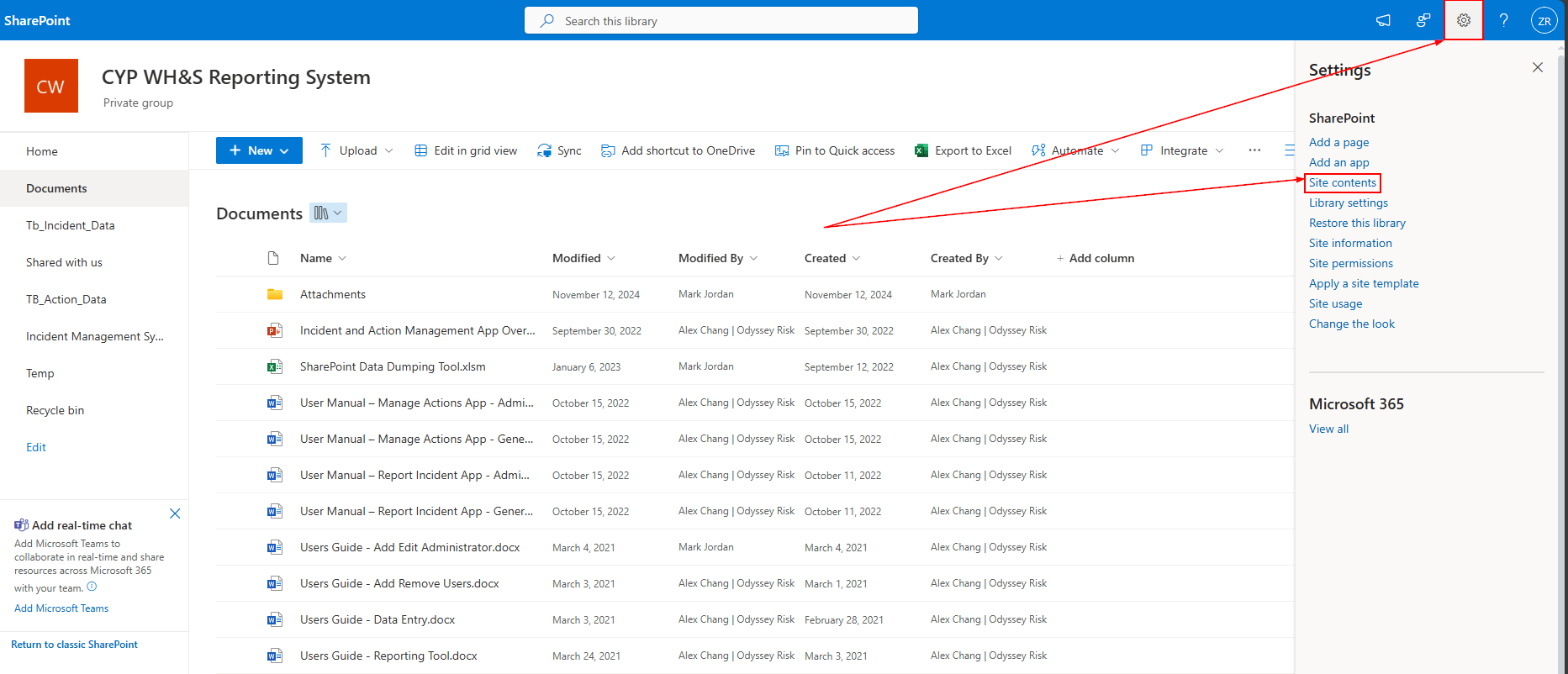
- Go into Settings > Site Contents
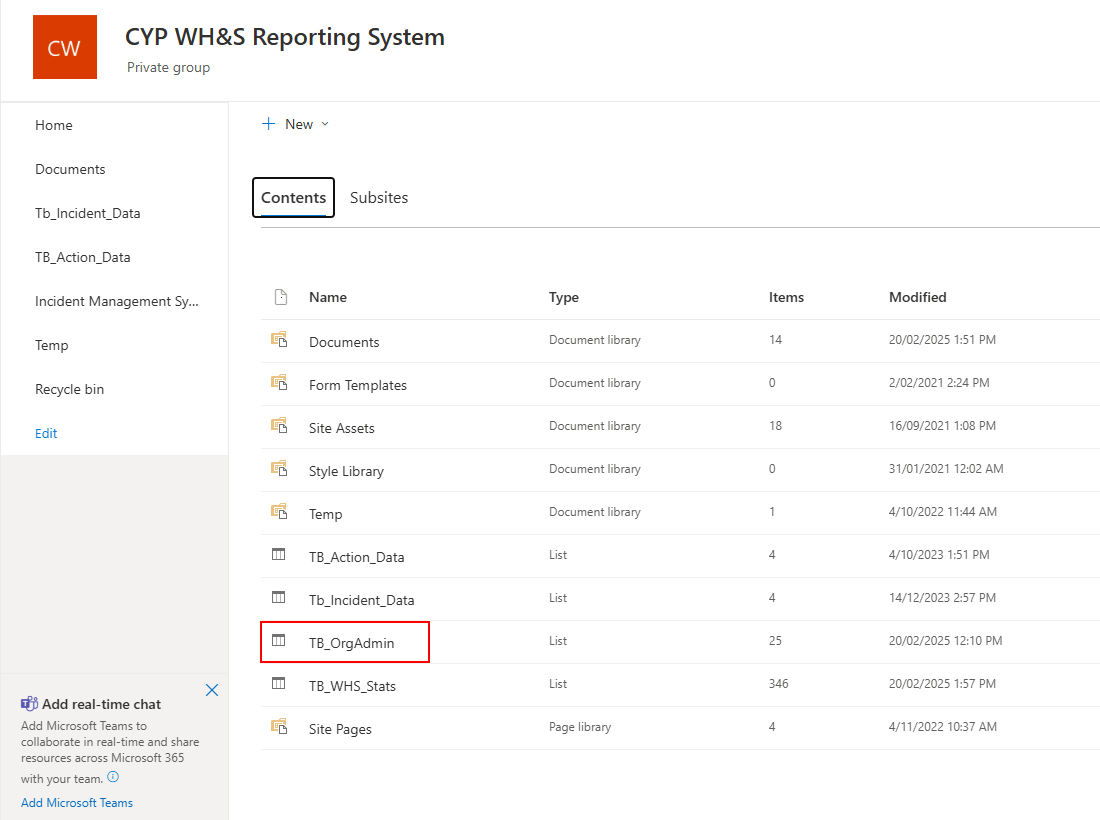
- Open the "TB_OrgAdmin" list
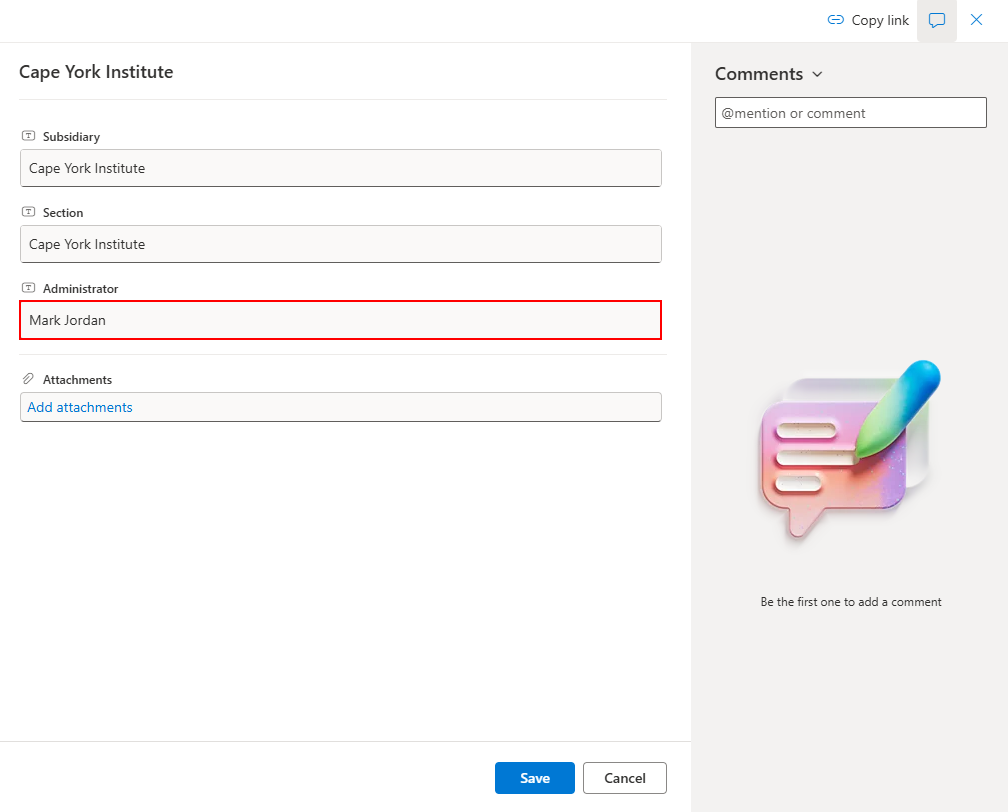
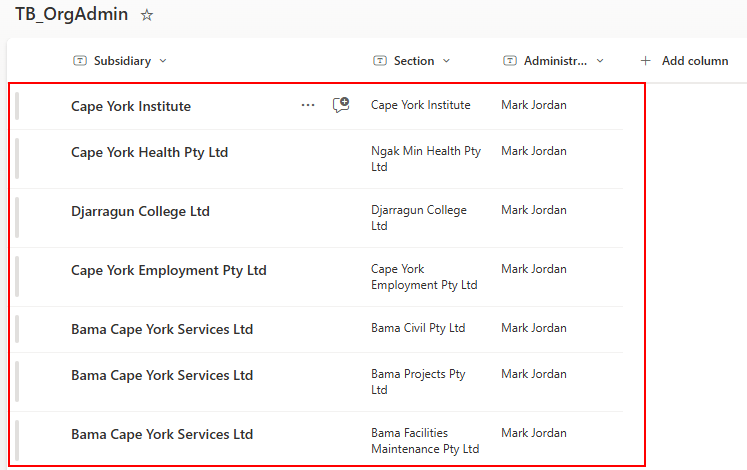
- Take note of the existing entries (There should be 7 in total) and copy these as required, making sure that the "Administrator" field has the Users Full name as per their O365 Account (exact spelling). If unsure of what access they will need, check with the WHS Coordinator (at date of writing this, Mark Jordan)
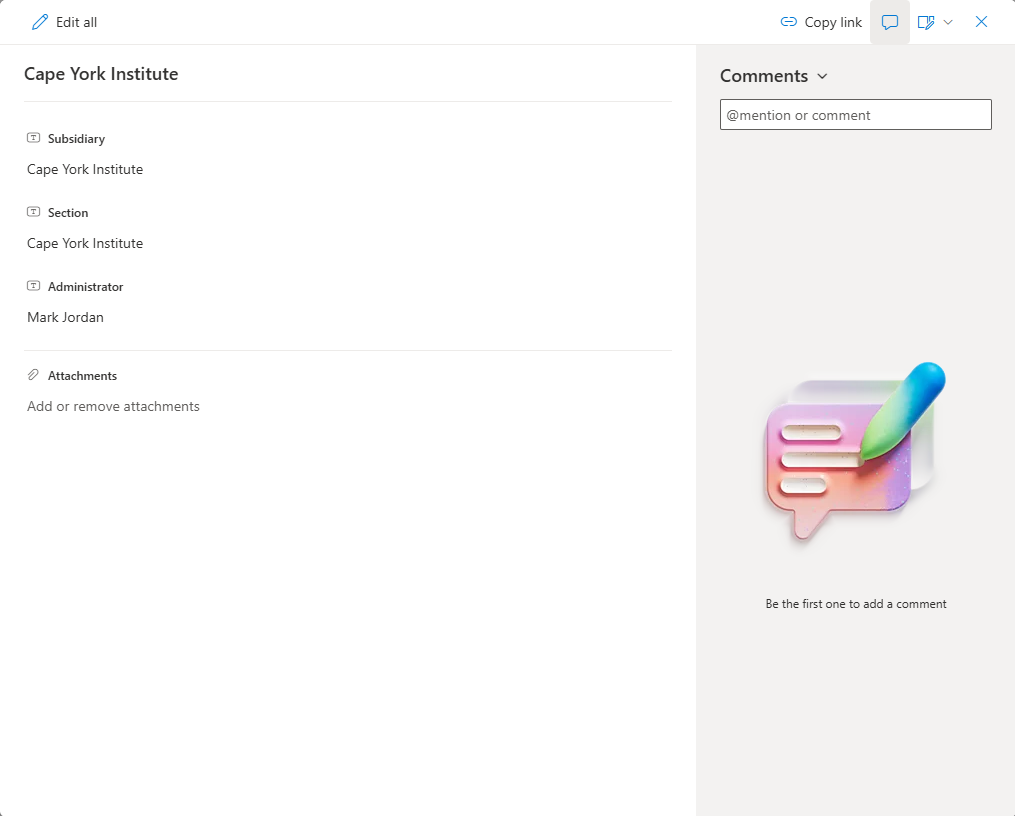
- In the case of a Staff member being replaced, just edit the entries for the staff member who has left and update the "Administrator" section as required.