
Ask Charmaine to log into proda. This needs to be done on her login.
Then follow these steps to request a new nash certificate..
Request and link NASH and PKI certificates
A Services Australia PKI site certificate can be used to access the Healthcare Identifiers Service (HI Service). A NASH certificate can be used to access both the HI Service and My Health Record system. You can use HPOS to:
- request NASH PKI organisation certificates and new Services Australia PKI site certificates
- check your NASH PKI certificate expiry date
- link existing Services Australia PKI site certificates and PBS site certificates.
If you’re a pharmacy OMO, you can link your existing Services Australia PKI or PBS site certificate to access the HI Service.
To link an existing certificate you need your certificate registration authority (RA) number. You can find your RA number printed on the certificate CD, or by contacting your software vendor.
You need to log on to your PRODA account, then select:
- Go to service on the HPOS tile
- My programs
- Healthcare Identifiers and My Health Record
- Healthcare Identifiers - Manage existing records
- your required organisation record
- My organisation details
- Certificates tab.
When selecting the required organisation record, you may need to navigate to the correct record. Read more about Healthcare Identifiers Service for health professionals.
To request a NASH certificate:
- select Request a NASH PKI site certificate
- select either the Software Product or I cannot select a product because
- enter a mobile number
- tick the relevant check box or boxes
- save changes and submit.
When your certificate is ready for downloading, your Personal Identification Code (PIC) will be sent in a text message. You need the code to activate the certificate.
- select the Link existing PKI certificate link
- enter in the RA number of the certificate you want to link
- save changes and submit.
To Import into Best Practice..
Renew your NASH certificate (bpsoftware.net)
Import the NASHCertificate
- Copy your downloaded digital NASH certificate file (or files wish to use separate NASH certificates for individual locations) to the Bp Premier server, or insert the memory stick that contains the certificate file(s).
- From the Bp Premier home screen, select Setup > Configuration. The Configuration screen will appear.
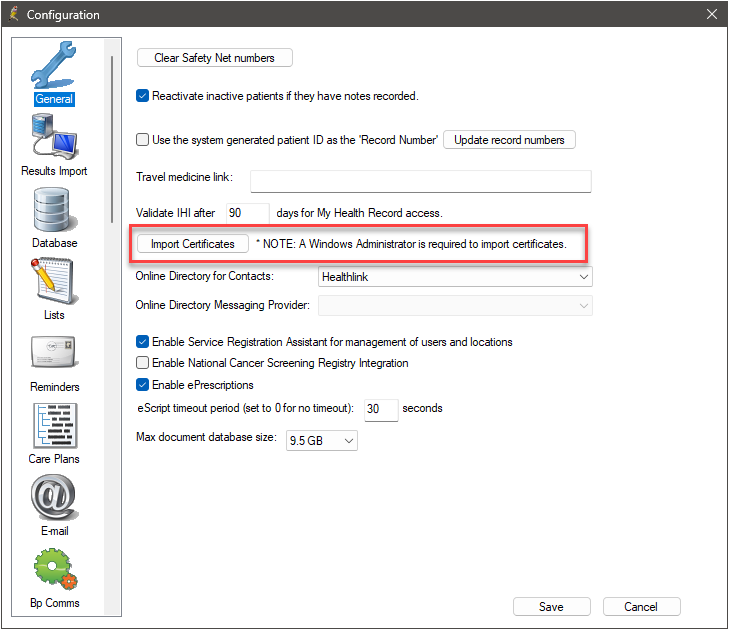
- Click Import Certificates. If prompted by Windows, select Yes to Do you want to allow this app to make changes to your device?. The Certificate Manager Login screen will appear.
- Select your name from the User: drop-down menu, enter your password and click Login. The Bp eHealth Certificate Import Tool will appear.
- Select NASH. The Location: menu will be enabled.
If you wish to use separate NASH certificates for individual locations, from the Location: menu, select the location that you wish to add a NASH certificate to.
If you wish to add a default NASH certificate for all locations, select Default.
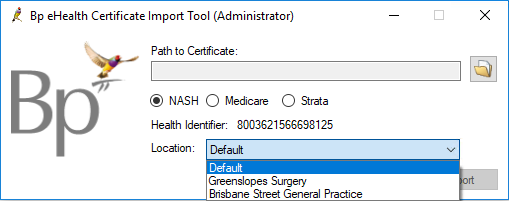
- Select the folder icon, navigate to and select the NASH certificate, and click Open.
- Type your Certificate Passphrase in. This is the PIC code provided to the practice by Medicare when you applied for your NASH certificate.
- Click Import.
- If you wish to use separate NASH certificates for individual locations, repeat this process for all locations that require a NASH certificate.
- Once all required NASH certificates have been imported, click Save.