
In Outlook if you open your calendar, then at the top of the screen you will see Share Calendar as below..
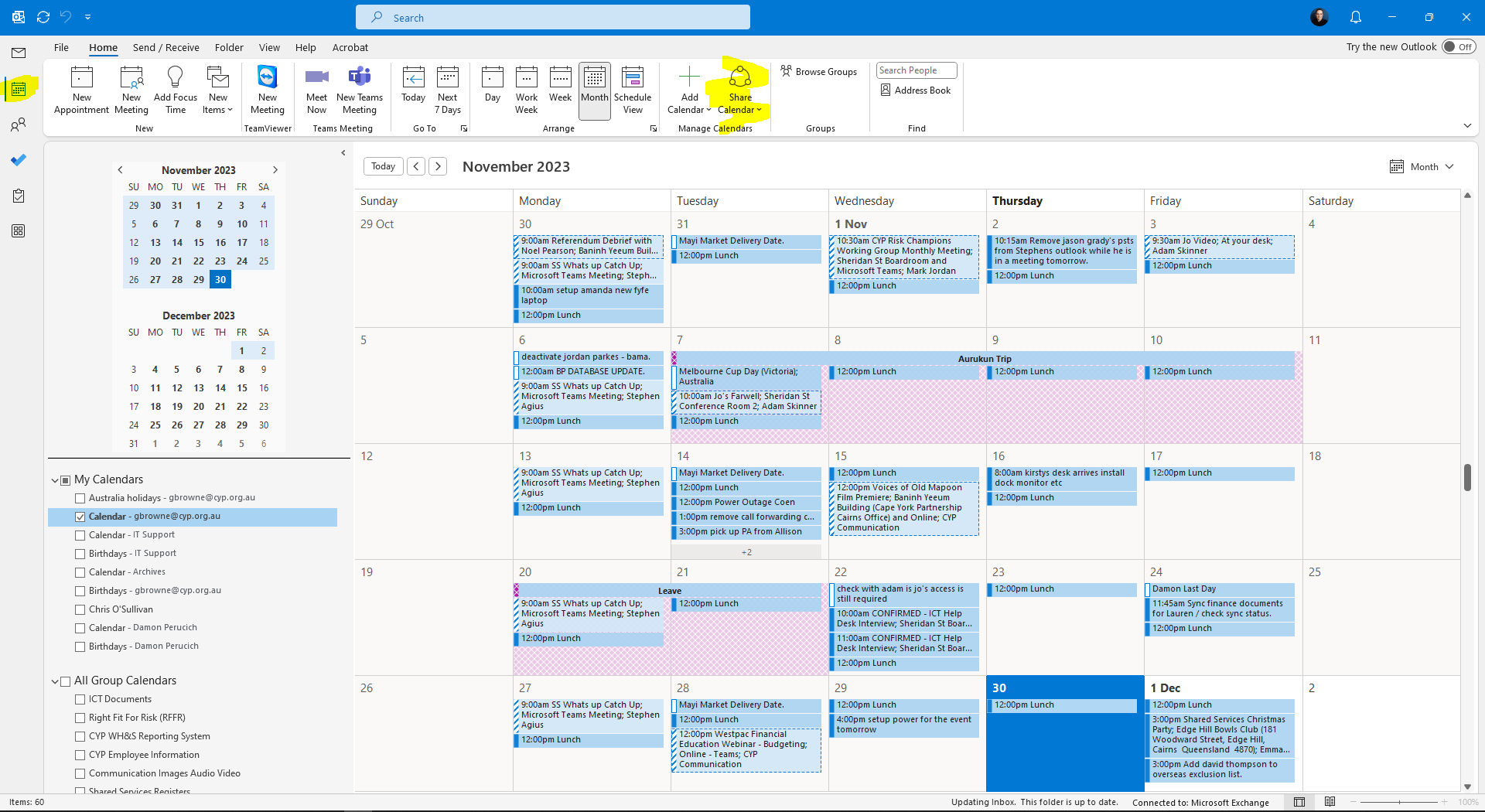
From the drop down, click “calendar” underneath the calendar you would like to share.
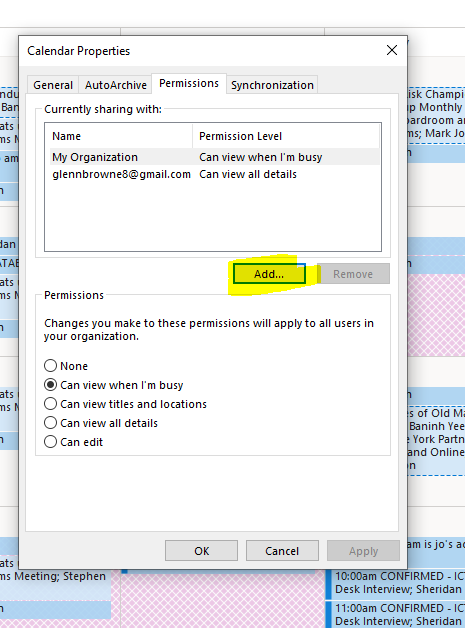
Next, click “add”
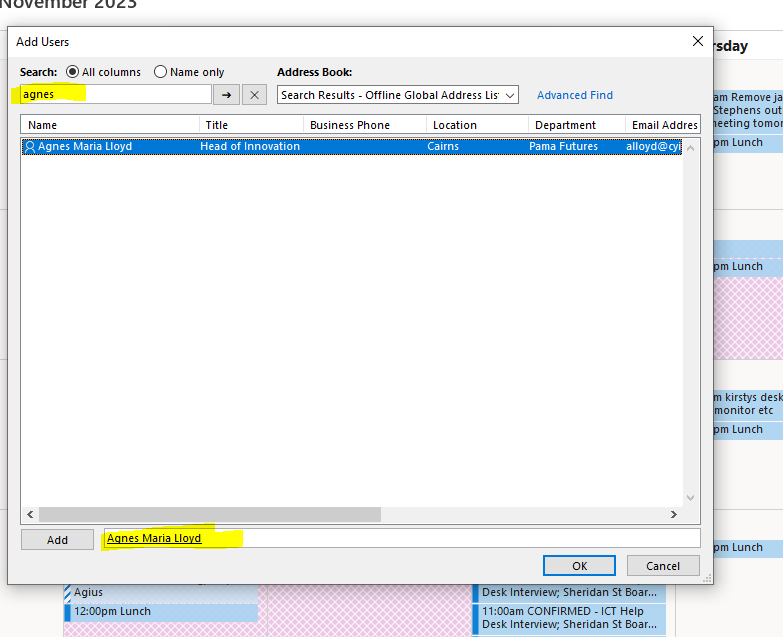
Then search for your contact, double-click the contact once you have found it and make sure it’s added at the bottom of the screen and then click “OK”..
Once the user is added, now you can select the type of access you would like to give, the options are highlighted below, just make sure the contact you would to change the permissions for is selected..
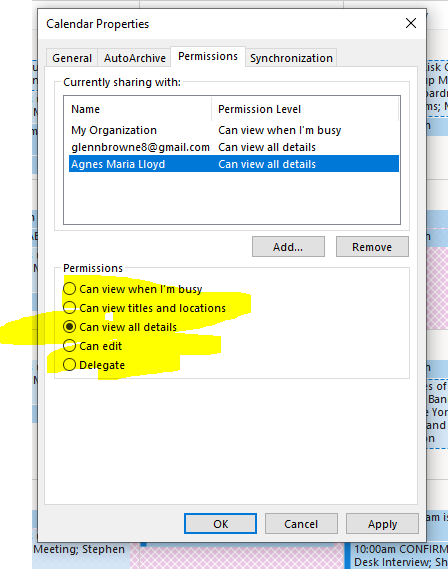
Here is a list that explains all of the different permission levels..
Can view when I’m Busy
This is the default permission level for your colleagues in your Organization. Your colleagues can open your calendar and only see if you have an appointment and if you are available, busy, or out of the office.
Can view titles and locations
For your direct colleagues or your manager, you probably want to show a bit more details when it comes to your calendar. Showing the titles (subject) and location of your meeting allows your colleagues to better judge if they can invite you for another meeting before or after a planned meeting.
Meetings that are marked private are displayed as a “private appointment” and only show if you are out of office, tentative or busy. Any notes or attachments that you have added to the appointment won’t be displayed.
Can view all details
The view all details permission level looks almost the same in the Outlook calendar view. The difference is that also the attendees are displayed, and any meeting notes and attachments of the meeting when you click on the meeting or open it.
Can edit
Colleagues with the can edit permission level in Outlook can add, remove or add appointments in your calendar. The difference with the delegate permission is that they don’t receive the meeting requests and meeting invite responses for you.
For a secretary you often want to assign the delegate permission, so he or she can fully handle of all incoming and outgoing meeting requests.
Keep in mind that external users can be assigned the can edit permission.
Delegate
The last permission level that we can set in the Outlook calendar is Delegate. Is permission level can only be assigned to users or groups, and not the whole organization or external users. When assigning the delegate permission, you can optionally also give access to view private events.