
The Trustpak Server Migration PDF it is very straight forward.
Here is a link to the Server Install: "ATTACHED BELOW"
Before you start you may have to check where the current INI files are on the workstation, I don't think they are not located in C:/WINDOWS as the document attached suggests. As of Windows 10 and Trustpak Release 5.0.1.0 they should reside in the same location as the TRUSTPAK.EXE or same location as where the desktop ICON points to. Check this before you start.
------------------------------------------------------------------------------------------------------------
Migration of the Trustpak SQL Server
This is a very easy process and takes only a few minutes
Pre-requisites: Log into the infobizsolutions.com website and download the installer for your country
E.g.: for Australia: trustpakaus.exe
One the Current Server
1) Make sure all users are logged out of Trustpak.
2) Backup the entire server Trustpak directory before you decommission
On the New Server
1) Make sure you have admin rights
2) Run the trustpakaus.exe as administrator
a. Note this will install a Trustpak directory tree which you must delete and replace with the existing Trustpak directory from the ‘Current Server’ backup.
Click ‘Next’ button to Continue’

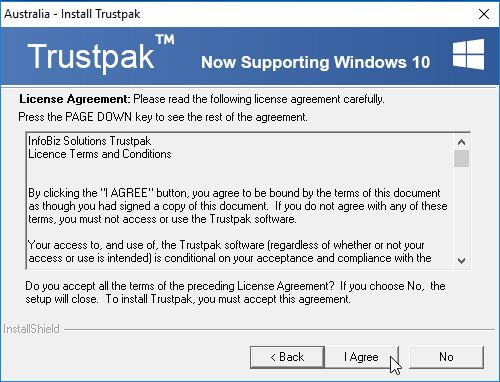
Click ‘I Agree’ button to continue
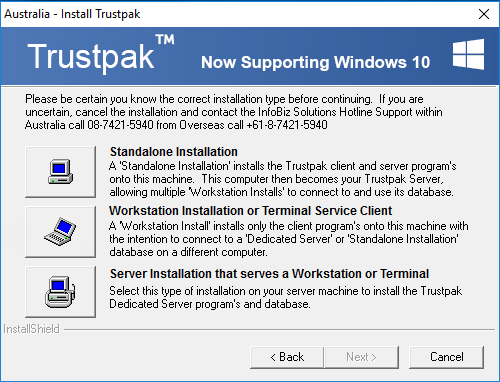
Click “Server Installation…” button to install the Firebird SQL Database server
3) Copy the Trustpak directory from the old server to the new server
a. Make a note of the absolute path on the new server of the live database e.g.: D:\DataFiles\Trustpak
b. NOTE: Delete the installed Trustpak directory on the new server as it will be missing potential updates etc. and copy over the existing Trustpak directory from the ‘Current Server’ backup.
c. There is no need to stop any services to copy the directory, just make sure all users have exited Trustpak and make sure no users go back into Trustpak until you have completed the migration
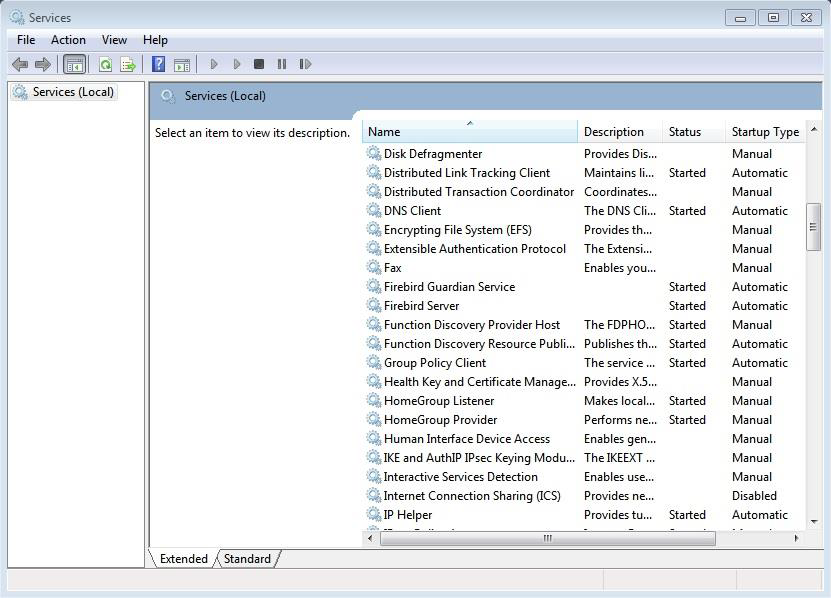
4) Reboot the server and check that in Control Panel | Administrative Tools | Services the following are up and running
a. Firebird Guardian Service
b. Firebird Server
c. Note: The Firebird SQL Server uses port 3050
On Each Workstation
1) Open windows explorer
2) Navigate to C:\WINDOWS\
3) Edit the file TRUSTPAK.INI
You will find two areas to change [Trustpak] and [Archive]
Change the Server to the new server name
Note: The ServerPath and ServerHome are absolute paths as on the server not the mapped paths from the workstation
Note: Make sure any mappings on the workstations to the Current Server are replicated for the New Server
[Trustpak]
Server=WIN10-01
ServerPath=D:\DataFiles\Trustpak\dbSQL\TRUSTPAKFB.GDB
ServerHome=D:\DataFiles\Trustpak
MappedDrive=T
[Archive]
Server=WIN10-01
ServerPath=D:\DataFiles\Trustpak\dbSQLArchive\TPARCHIVE.GDB
ServerHome=D:\DataFiles\Trustpak
MappedDrive=T
4) Start Trustpak on each workstation you change to test and make sure all changes are correct, you will see Trustpak connecting to the new server.
5) MIGRATION COMPLETE!
Reports will likely not work, follow this guide to get those working too...
Now we need to check the ODBC connectors the Trustpak report system uses
- (remote desktop server ) Open Windows Explorer
- Navigate to: C:\Windows\SysWOW64
- Find the file/program called: 'odbcad32.exe' double click and run as Administrator
- Click the tab 'System DNS' and you should see an item called 'XTGTP' highlight this and click configure
- Check the reference here eg: : (server name):(server drive):\Trustpak\dbSQL\TRUSTPAKFB.GDB
- Note: This is the absolute path on the server
- This may be different because you have changed servers
- Click 'OK'
- Click 'OK' again to exit the ODBC setup
- Log back into Trustpak and check your reports.