
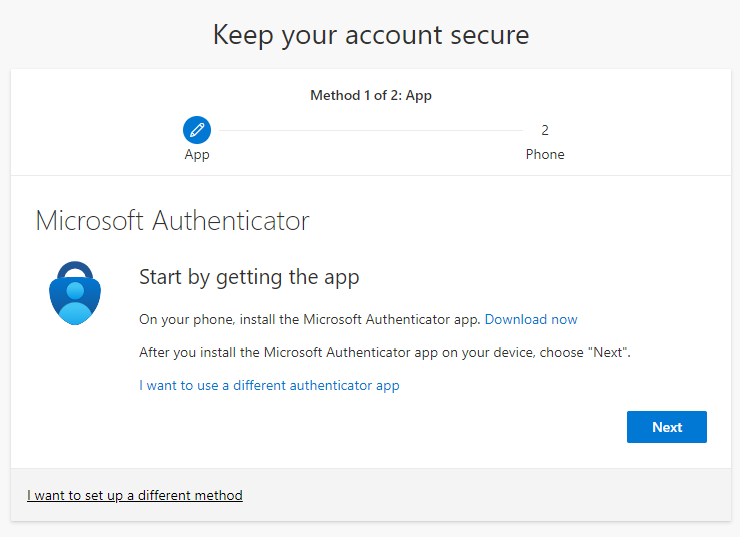
When attempting to sign into a 365 related BAMA site or application such as outlook you will be prompted to provide more information to keep your account secure. When you see this notification, Click on “Next
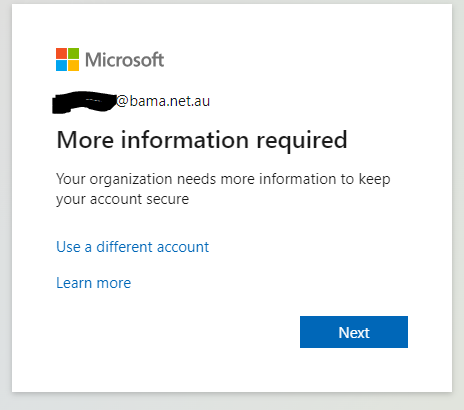
On the Next step, you will be directed to download the Microsoft 365 Authenticator App for your iPhone or Android Device.

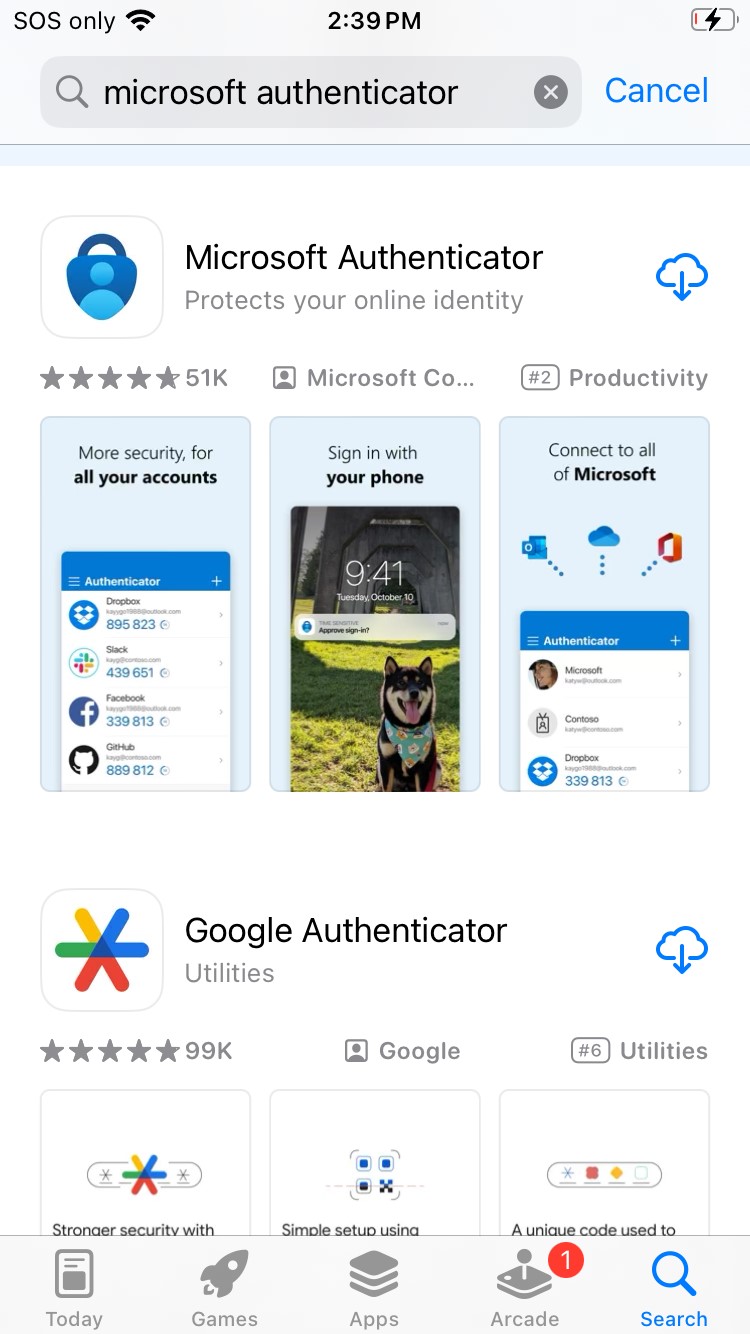
Open either the Appstore (for iPhone) or the Play store (for Android) and search for “Microsoft Authenticator”. You should find the application in the first few results, ensure that you confirm the correct application is selected by checking the details below, checking that the Author is Microsoft and that the app icon matches that shown below…
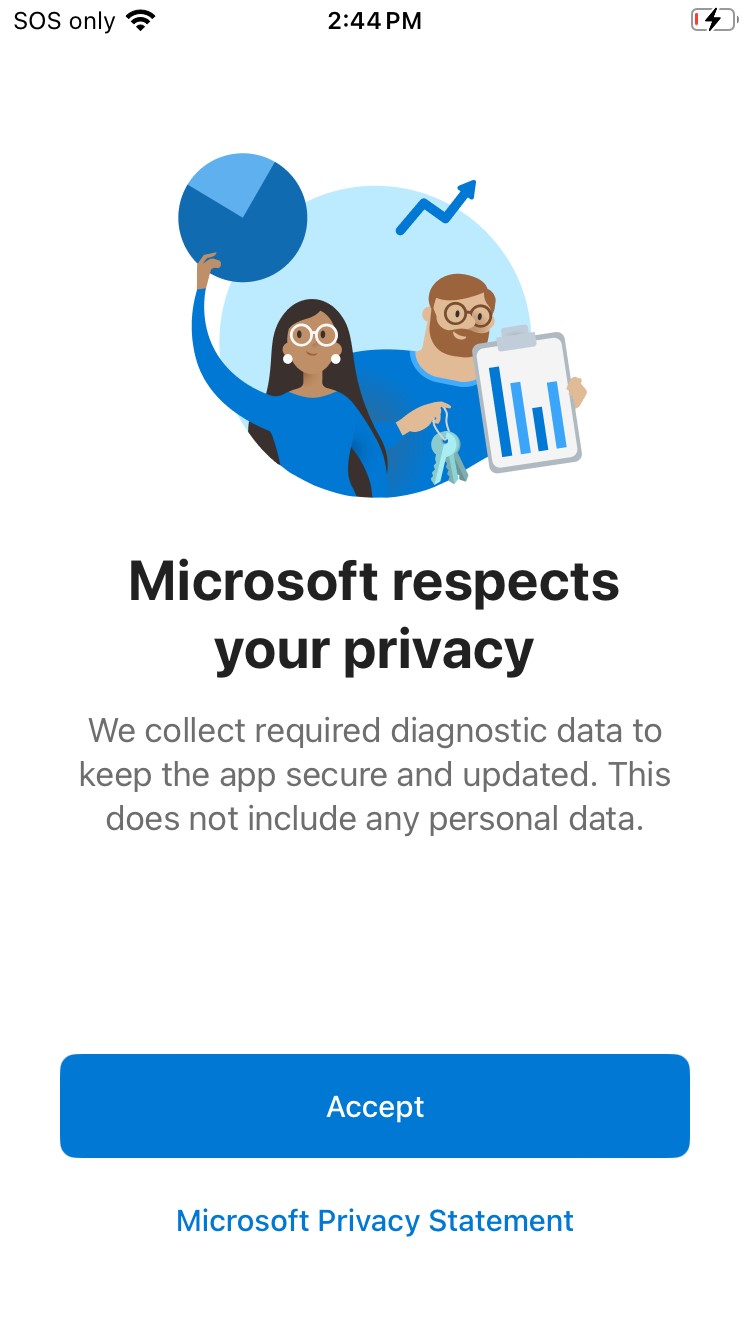
Open the Authenticator app, accept the Privacy policy, by pressing on “Accept”
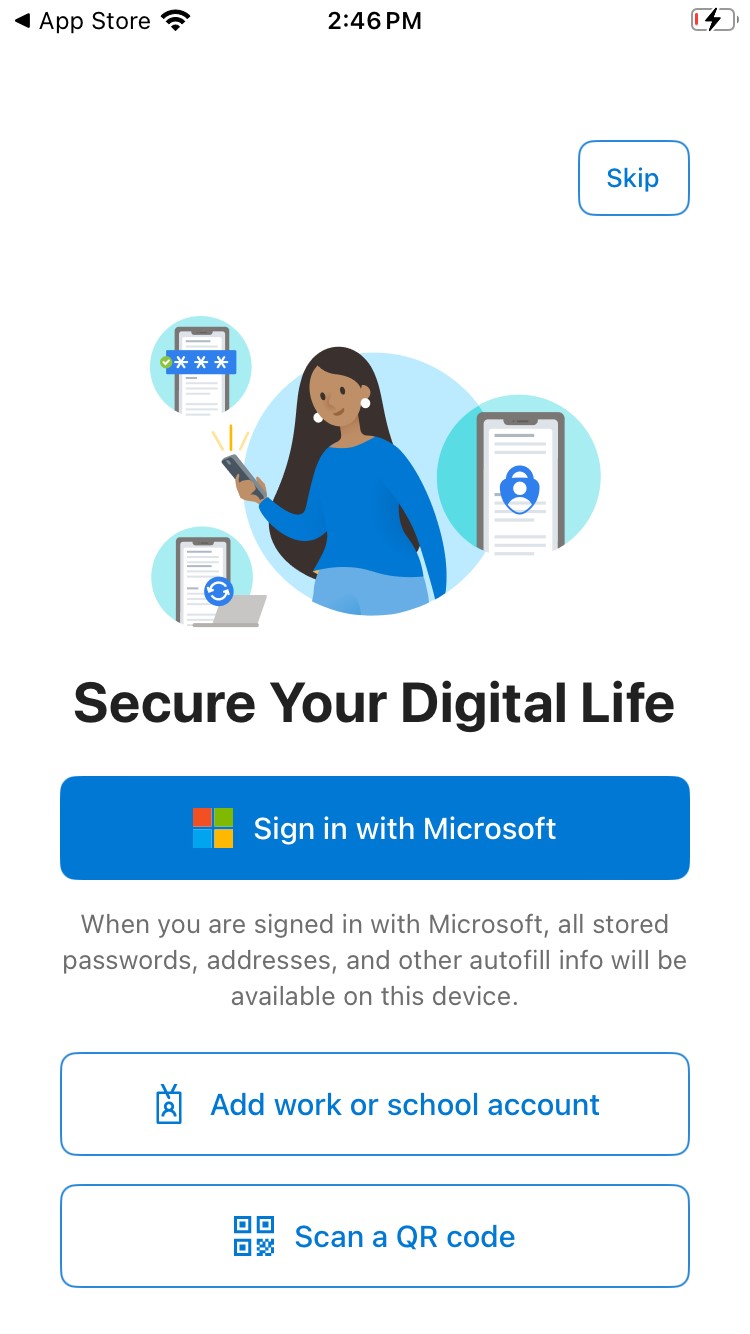
Click “Skip”
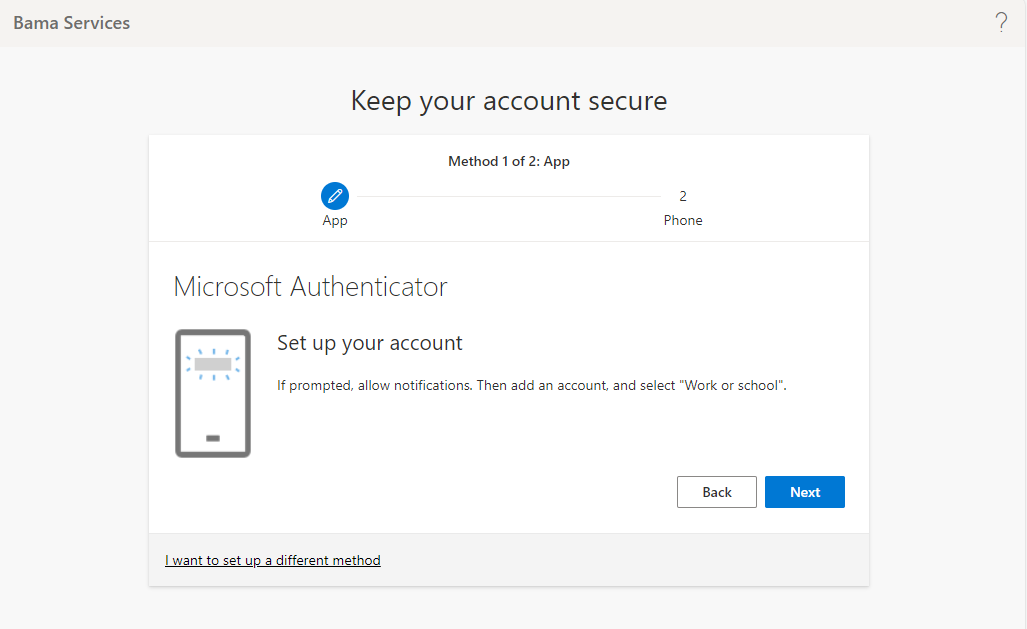
Back to the Computer / Laptop, click on “Next”.
Again at the next screen, click Next.
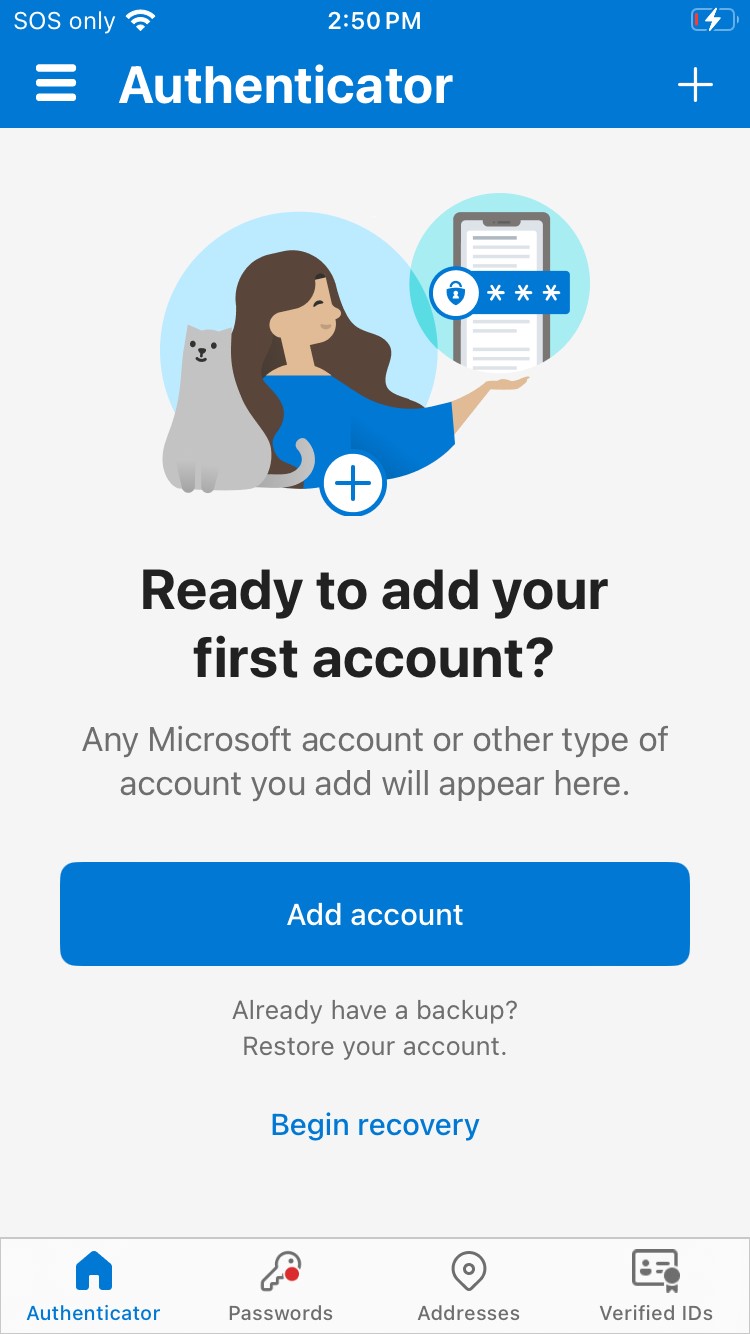
On your phone, either click the + icon in the top-right corner of your app or click “Add Account” if shown.
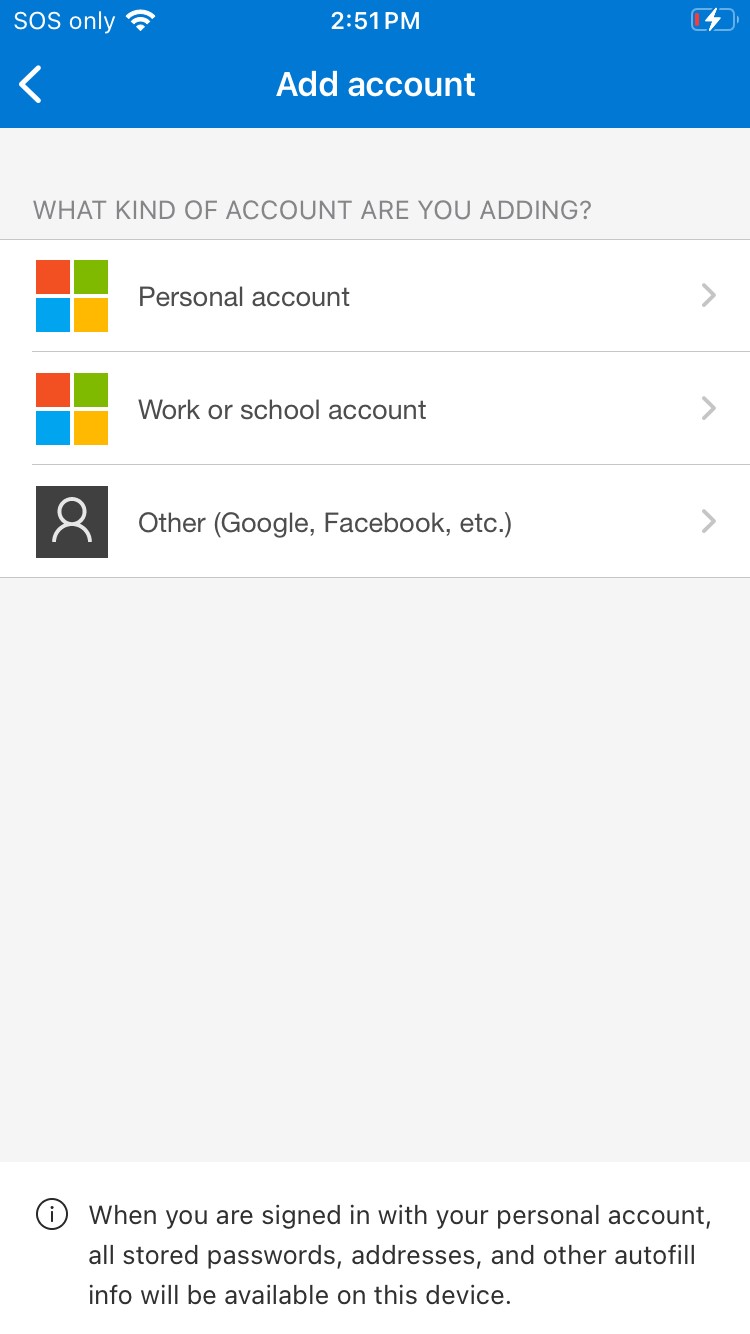
On the next screen, select “Other (Google, Facebook etc)”.
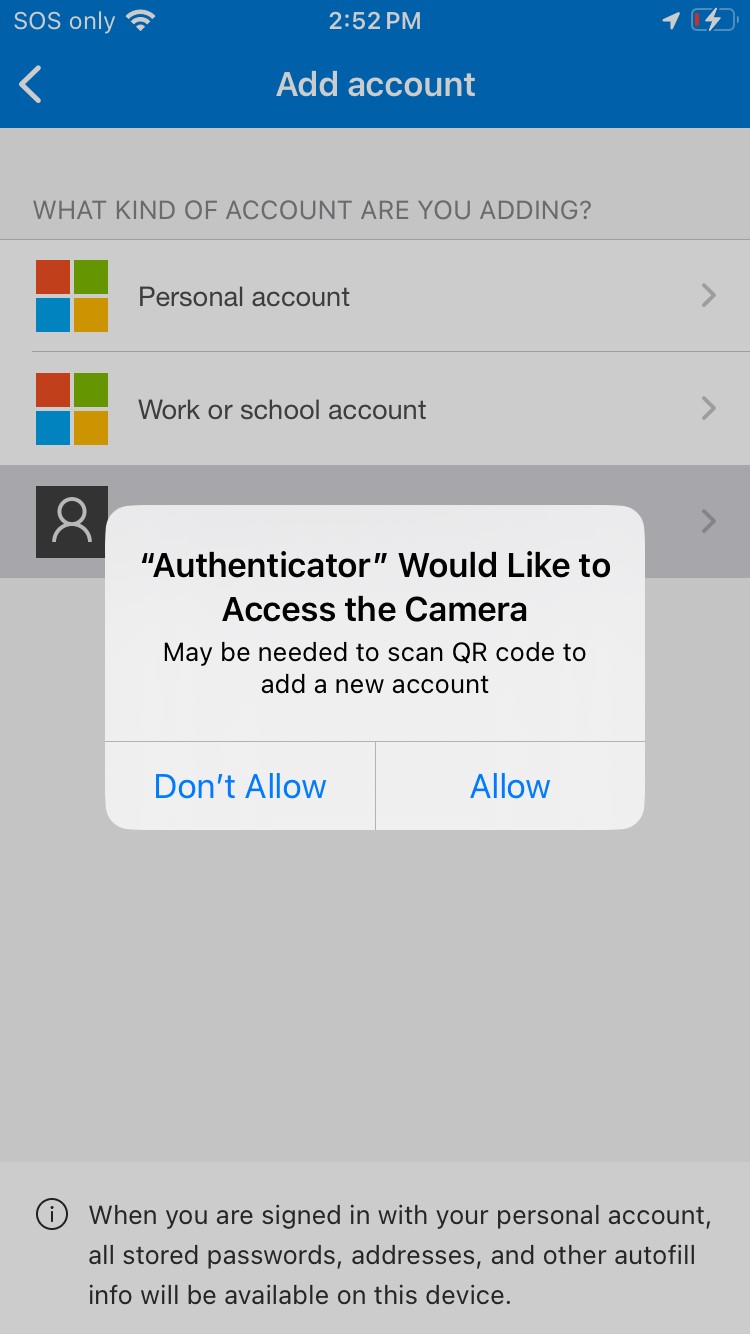
If prompted, allow the 365 app to use your camera. If the option “Allow while using app” is suggested, please use that on Android, on Iphone, Select “Allow”.
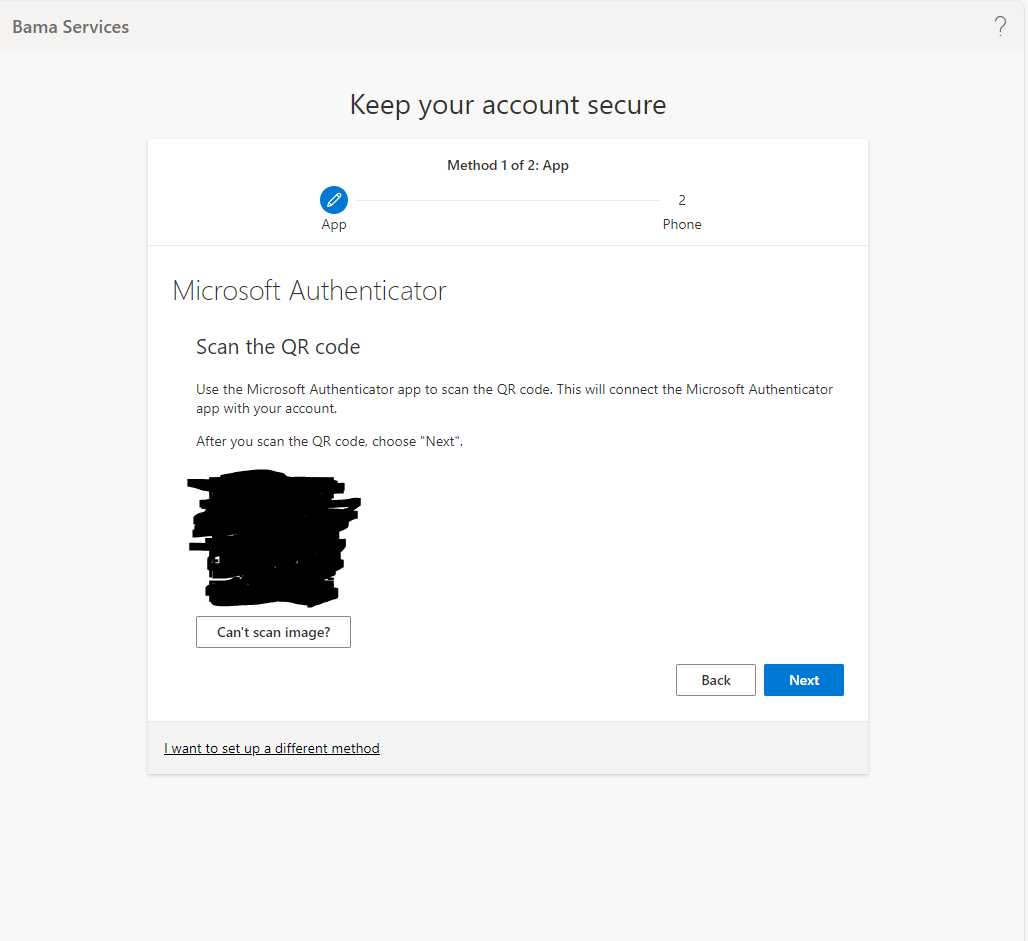
A QR Code will now appear, your phone will be in camera mode, use your camera to scan the QR code displayed. Please do not share your QR code with anyone else.
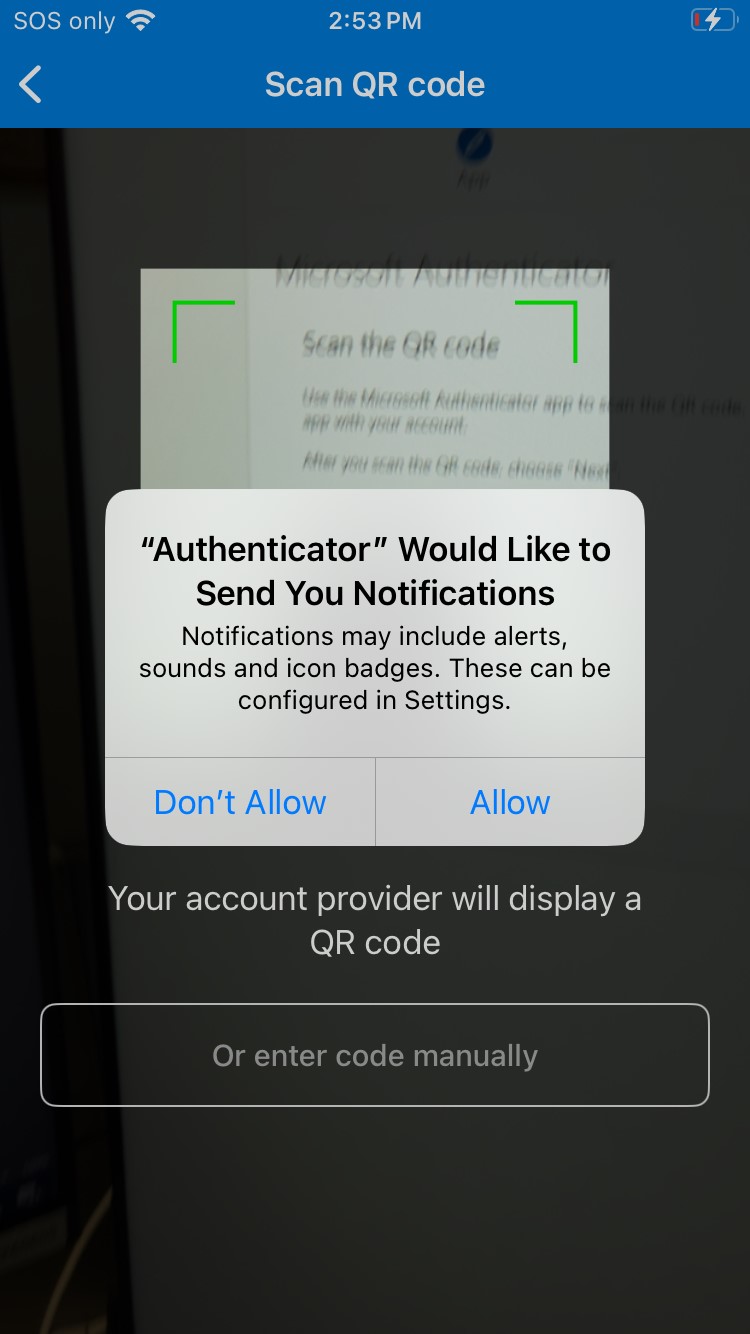
You will then be prompted to Allow Notifications from Authenticator, click “Allow”
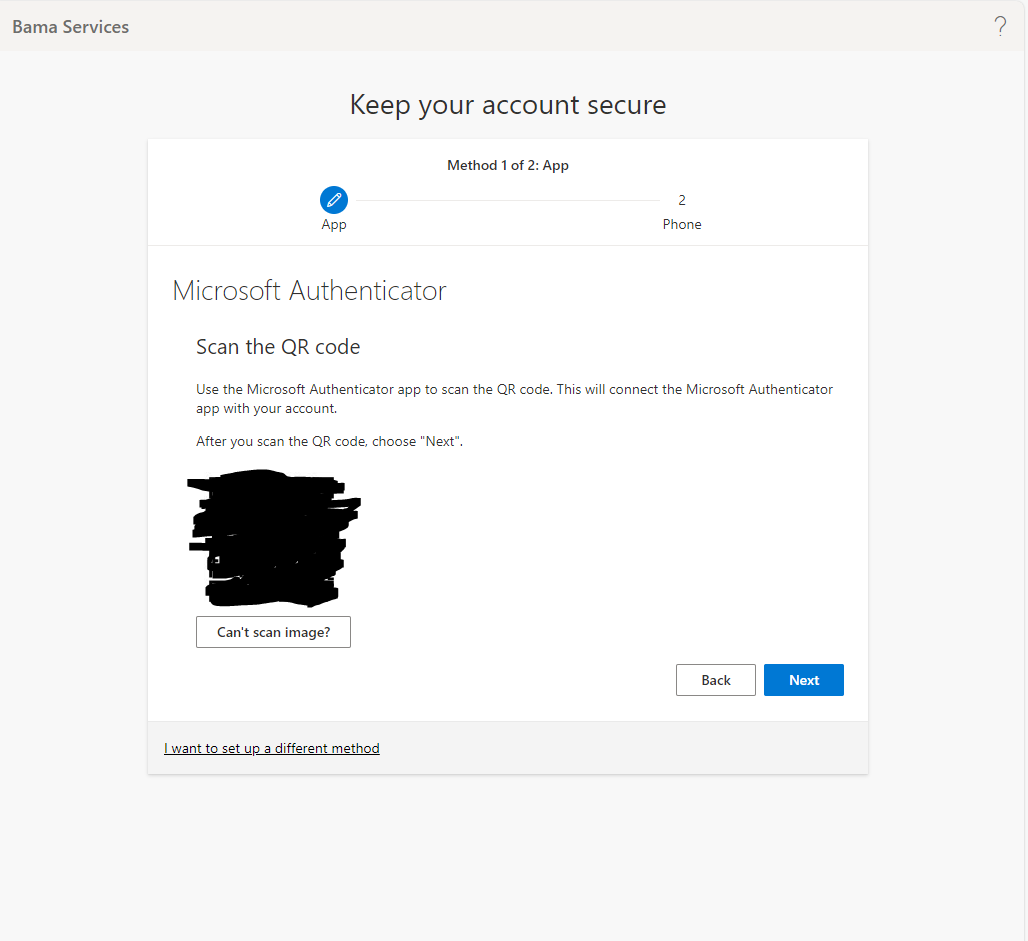
Back to your laptop, click on the “Next” button.
Next, you will be required to approve an initial notification, enter the number displayed on your screen and copy that into your phone, you will be prompted immediately.
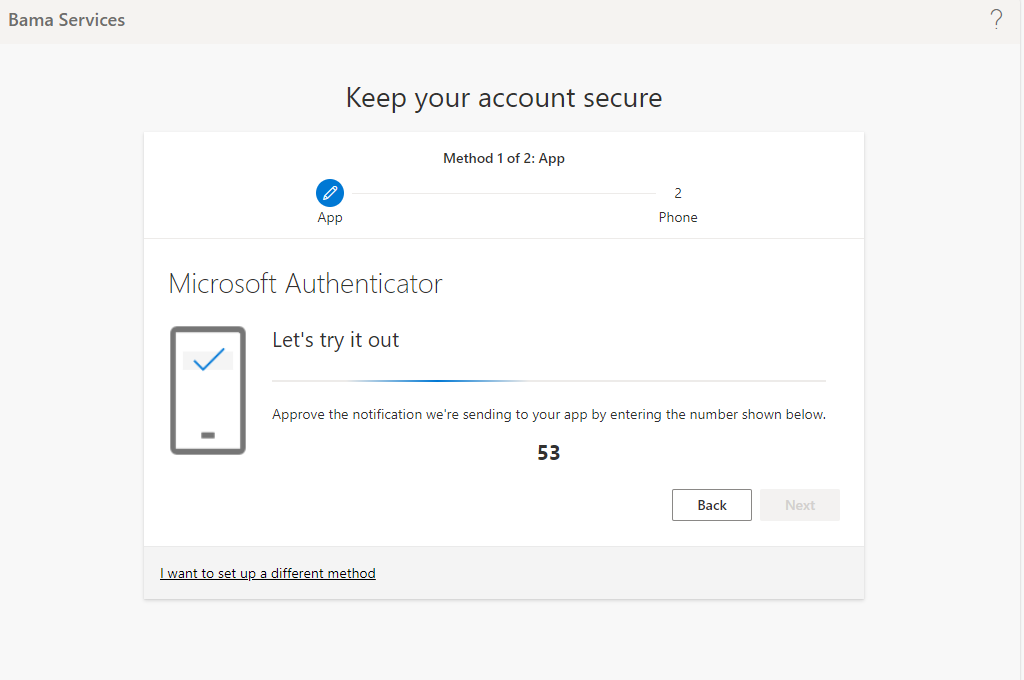
When asked, enter the number supplied from your Laptop and Click “Yes”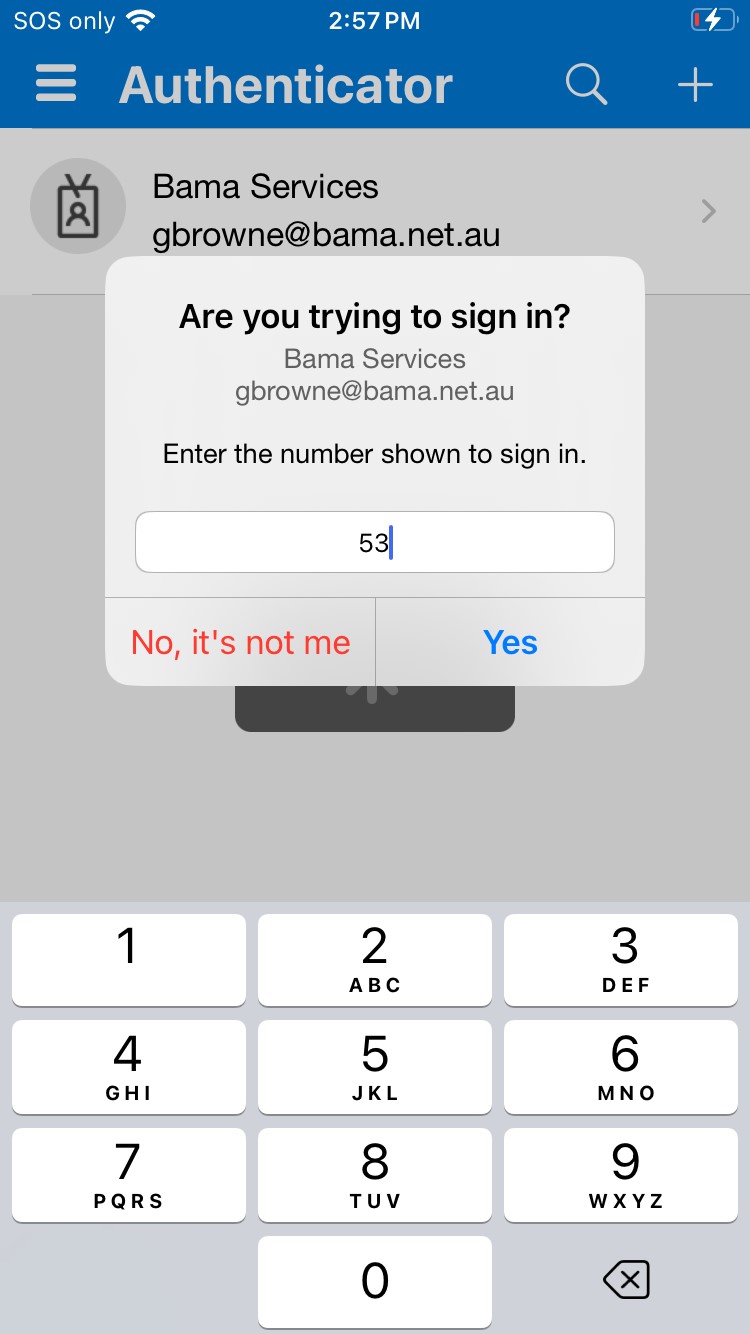
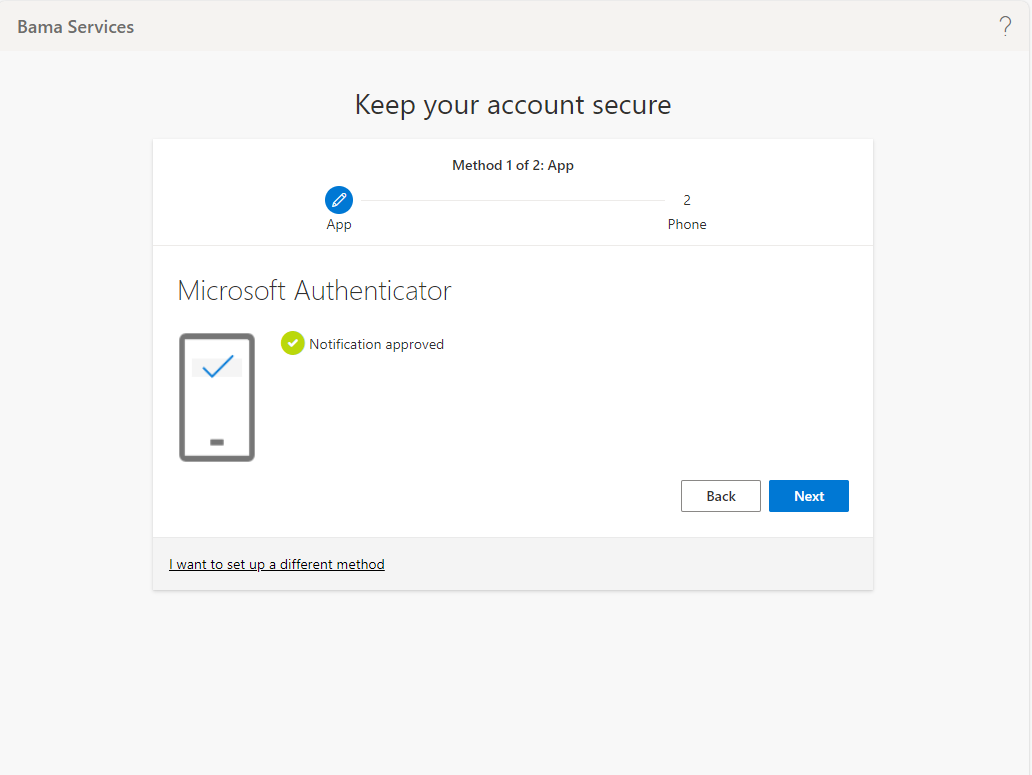
Now that the authenticator app is setup, we now need to setup a phone number as an alternative sign in method. At this screen, click the “Next” Button.
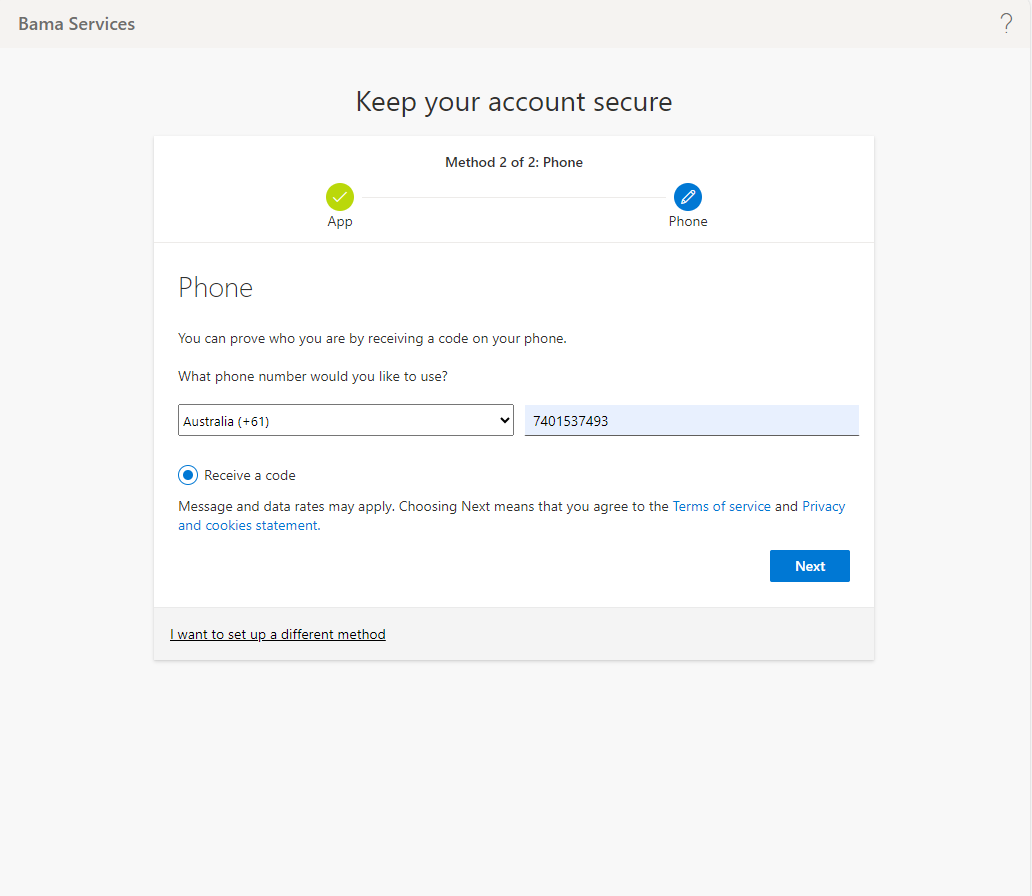
Next, Select Australia as the Area Code and enter your desired phone number as the one to receive the security code.
Enter the code you received and click Next, then you should receive a notification advising that your verification is complete.
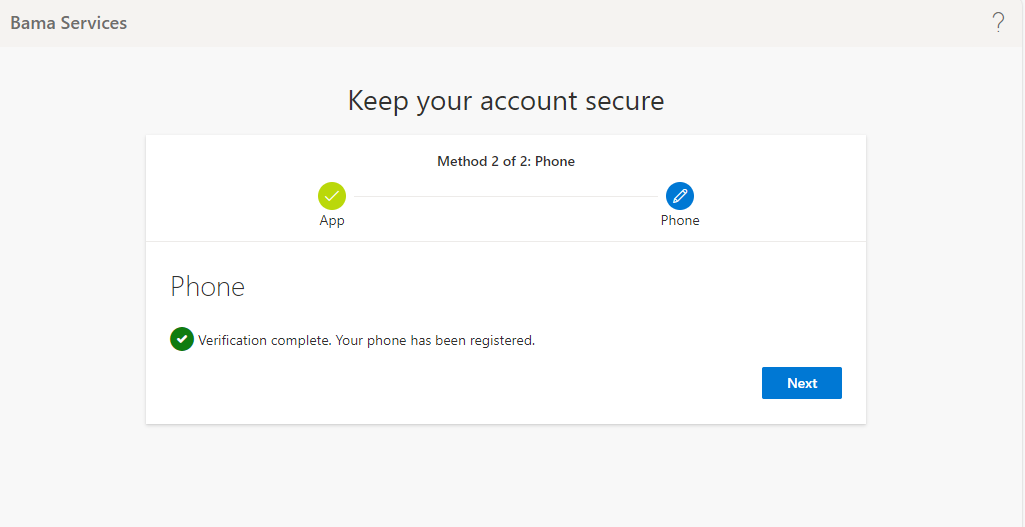
If you receive the following notification your multi-factor authentication setup is now complete!
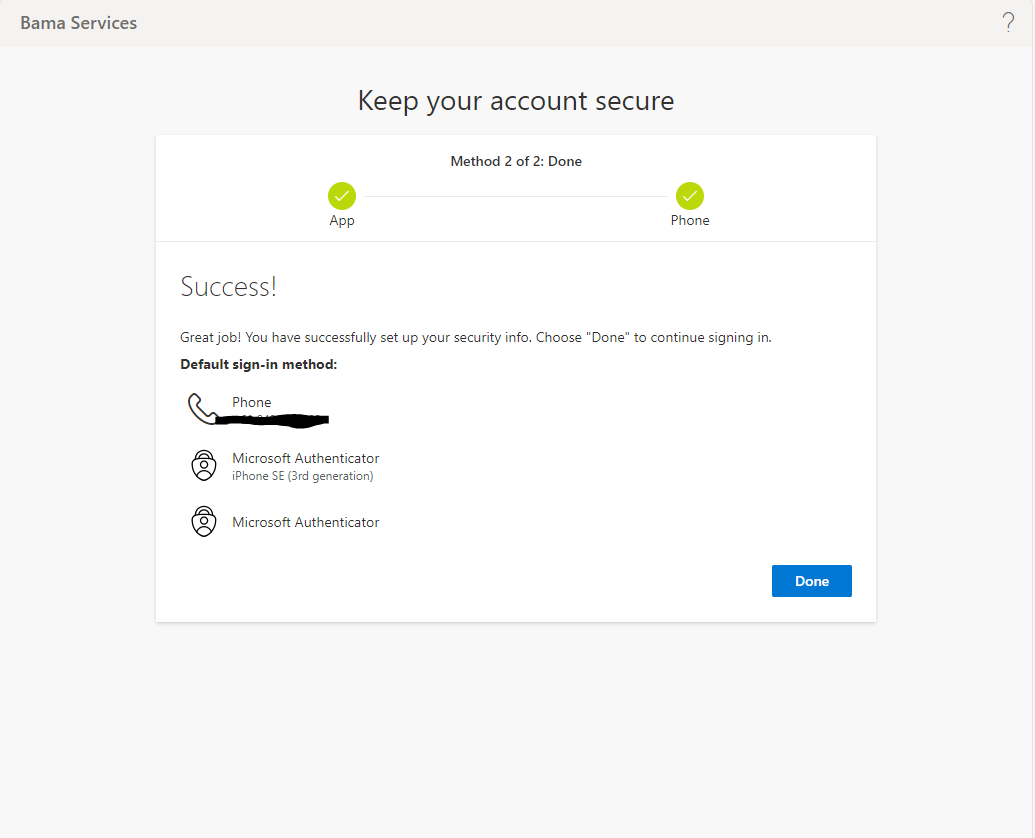
Thank you for following this guide. If you have any questions, please let the ICT Team know – itsupport@cyp.org.au.