Caution!
Firstly, please do not use this method to install office 365 on your work laptop, this guide is only for personal laptops only! If you require your work laptop to have office 365 installed, please contact the IT HelpDesk at itsupport@cyp.org.au
If you are replacing your office 2013/2016/2019 version with office 365, please ensure that you have your licence key before proceeding. You may require your key to reinstall those versions again in the future, if you cease employment as the licence will be deactivated. If you do not feel confident reinstalling your previous copy of office, or locating / retaining your key, please do not proceed! CYP cannot assume responsibility for personal copies of Microsoft Office.
Tutorial.
1. If you have office 2013/2016/2019 installed, please uninstall it from "apps and features" Inside Windows settings. If you do not have any of those currently installed you do not need to perform this step, please move onto step 2.
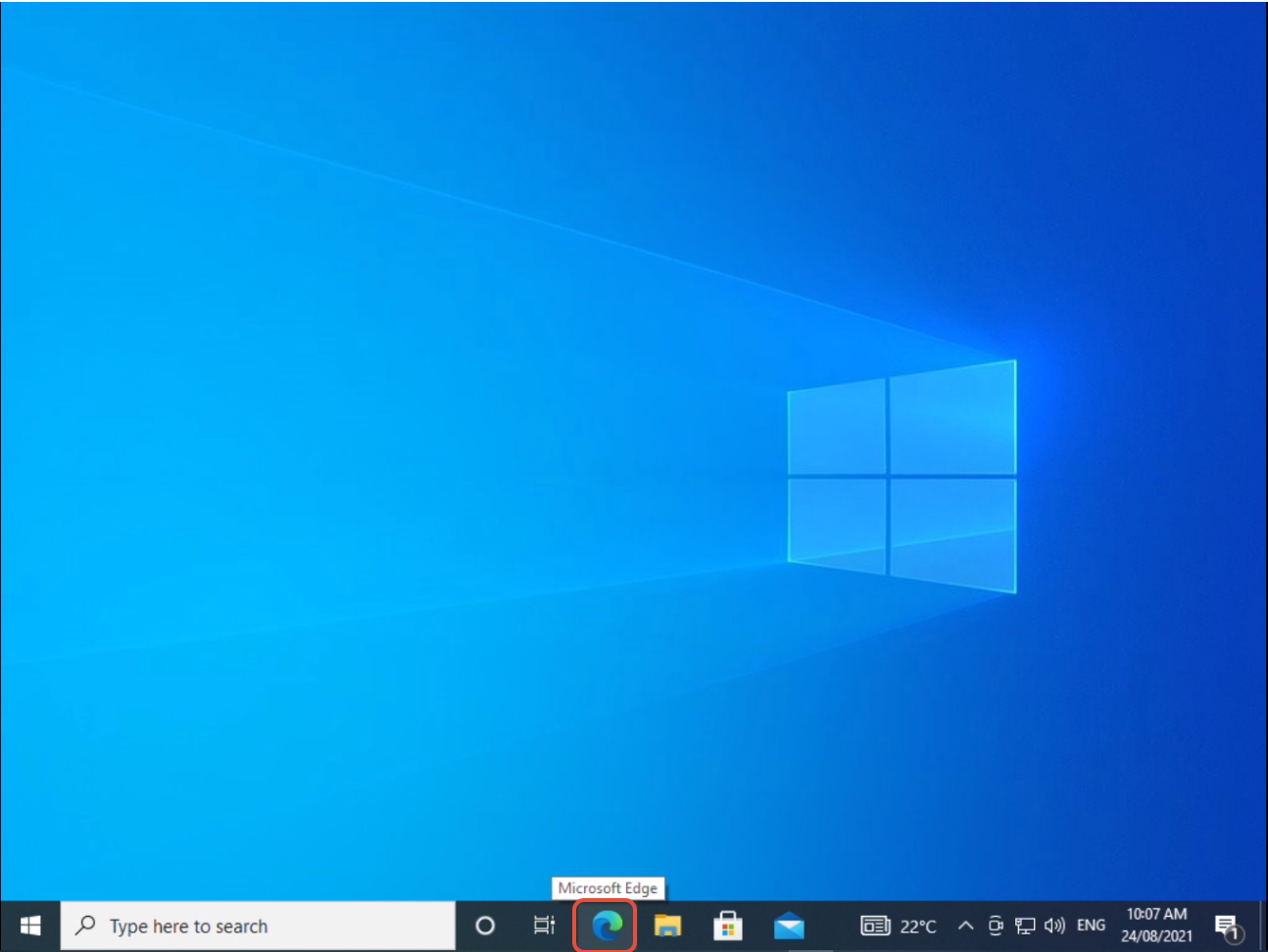
2. Launch Microsoft Edge.
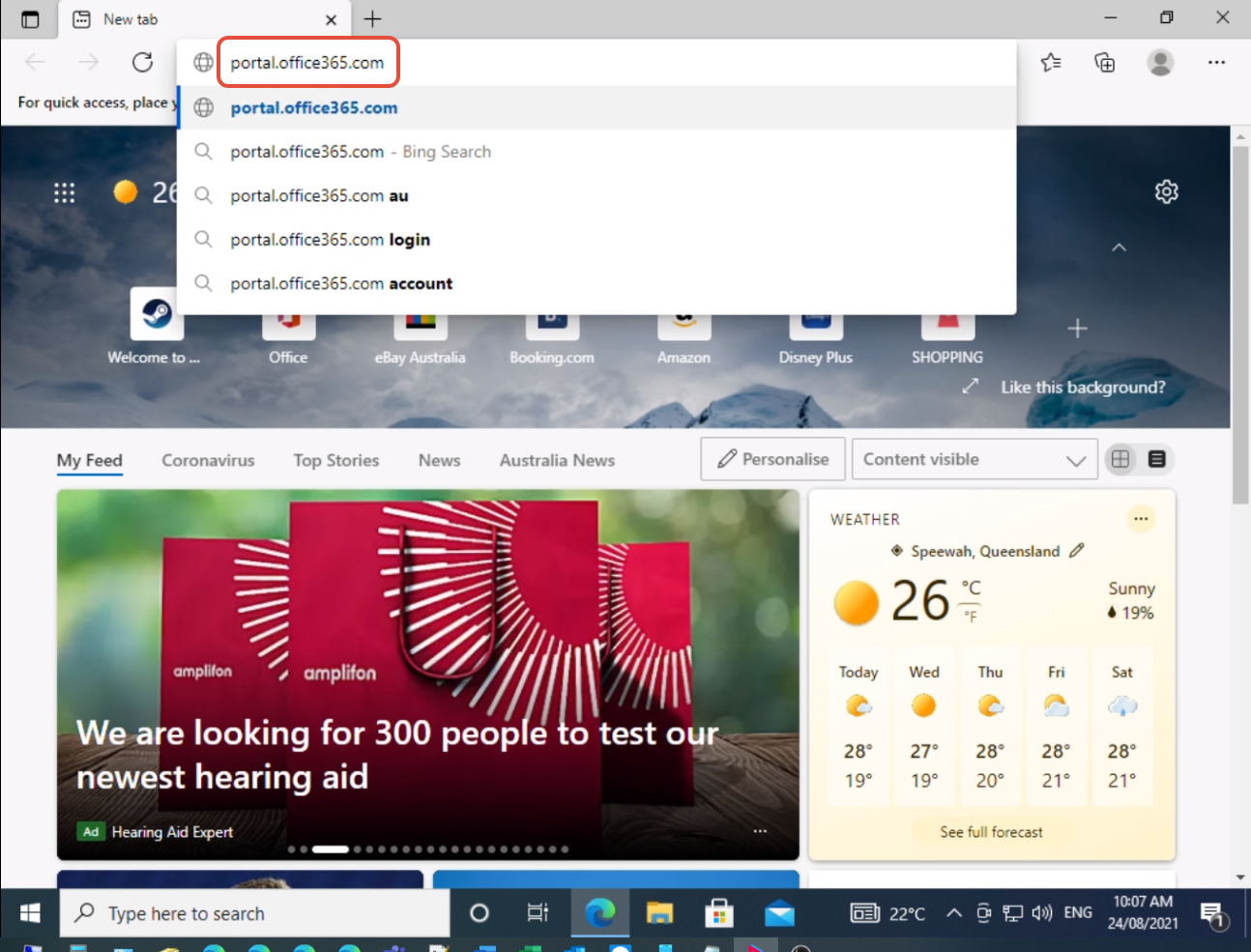
3. In the address bar, type the address portal.office365.com and press enter.
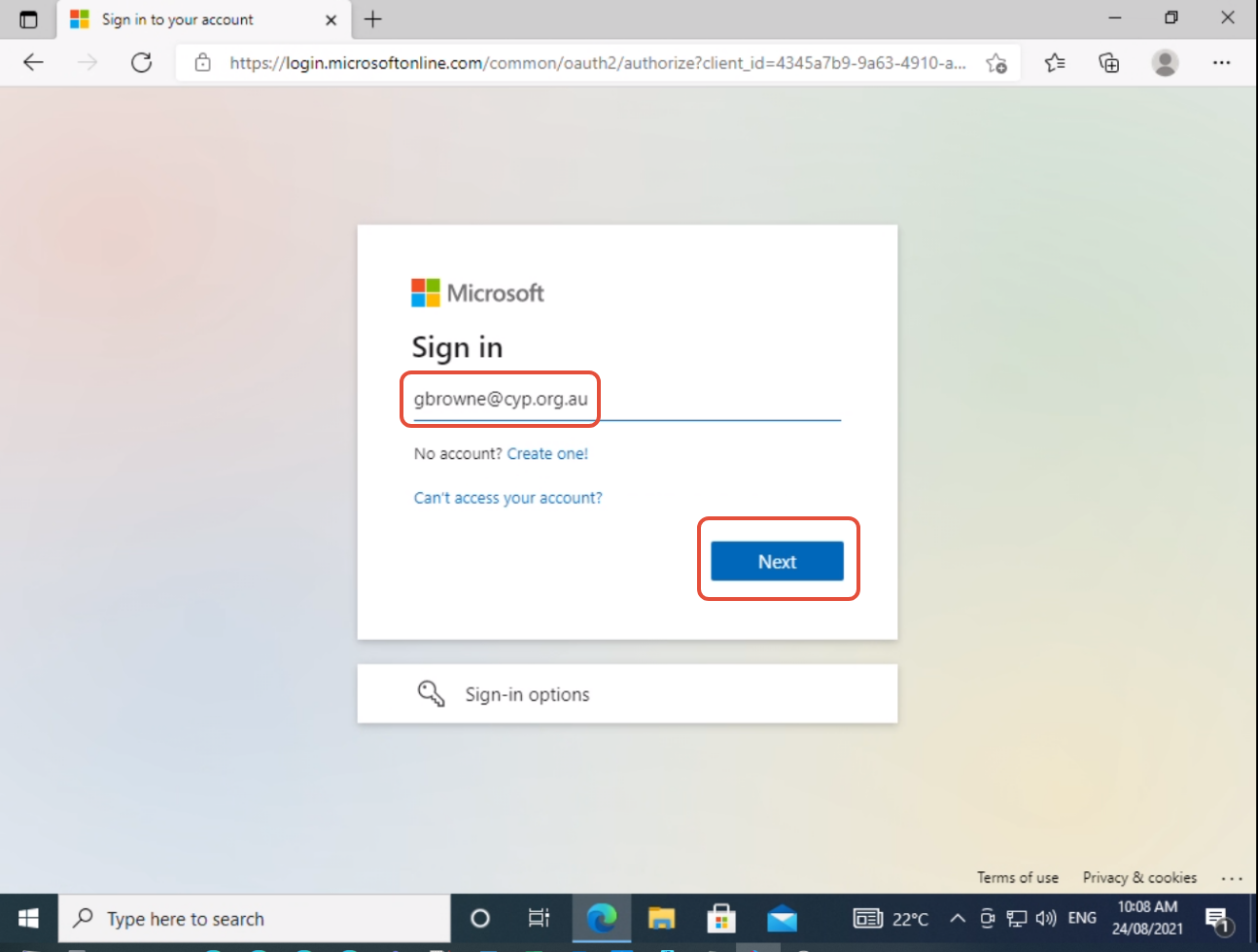
4. Next you will be taken to the Sign in page. Use your work email address as the sign-in name then click "Next". An example is below..
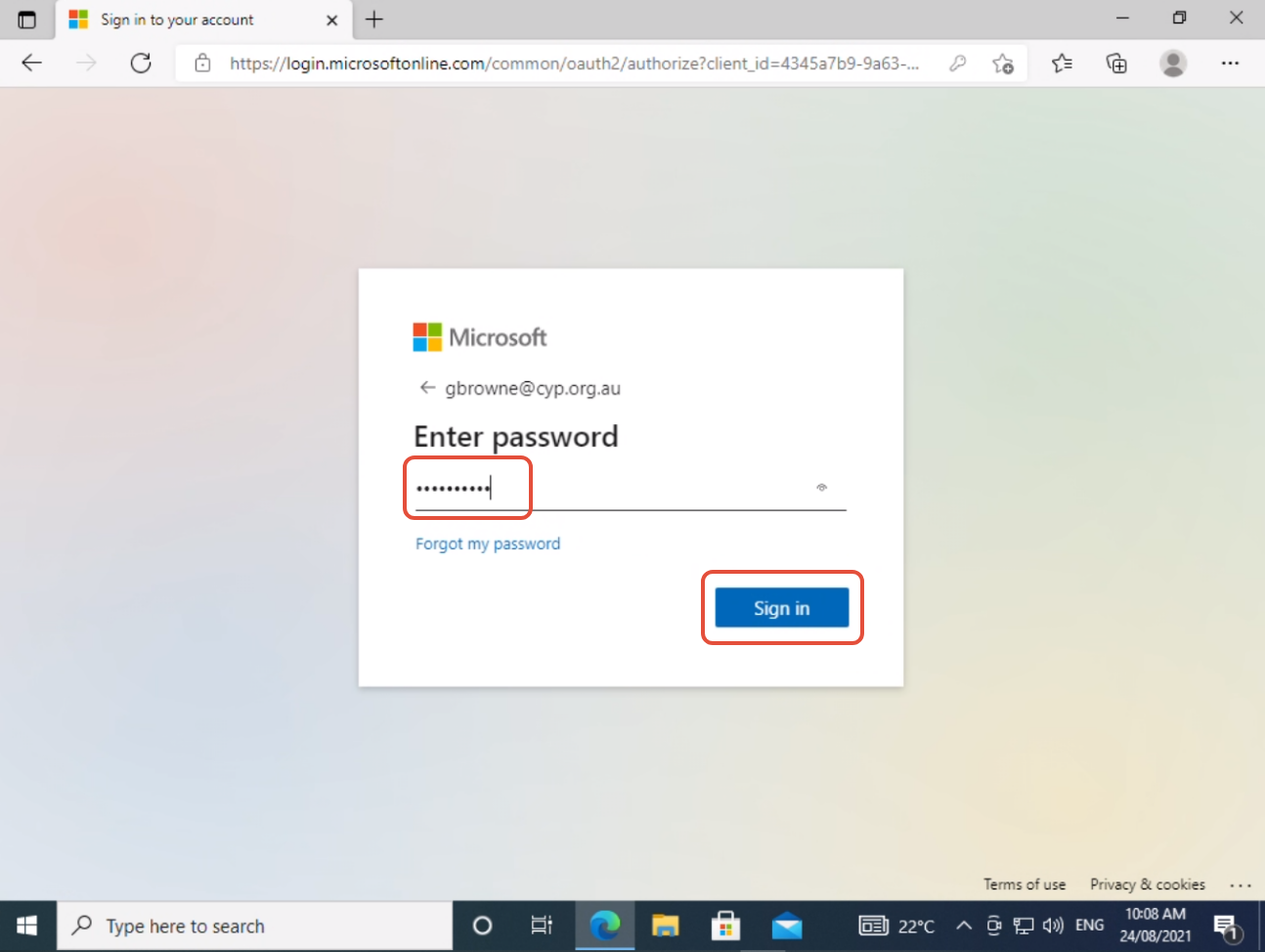
5. Next enter your password. This should be the same password you use to log-in to your laptop at work everyday. Click "Sign in"
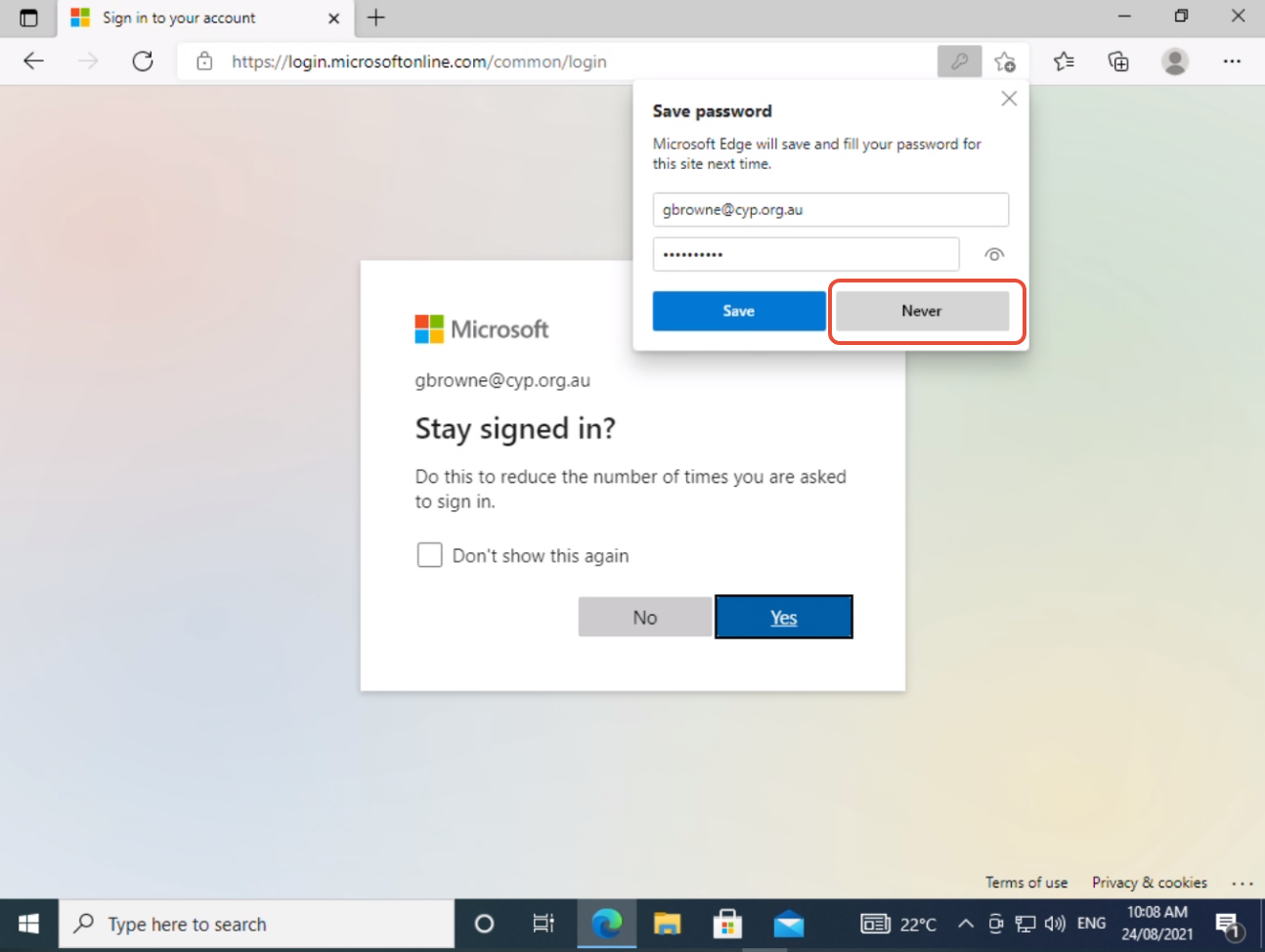
6. Edge will offer to save your password, the choice is your's however we recommend clicking "Never" to prevent your work account conflicting with your personal account within your web-browser.
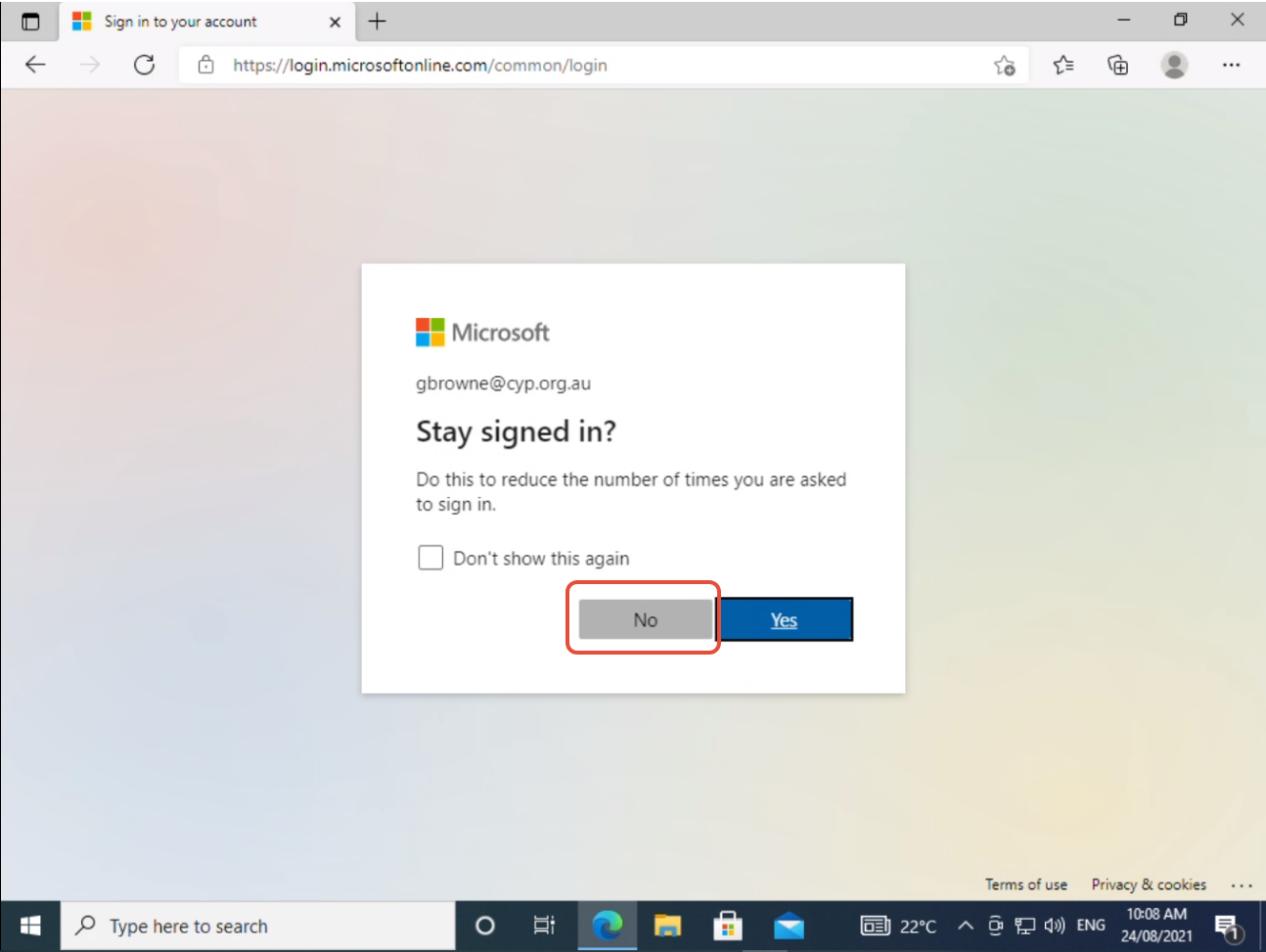
7. Edge will offer for you to stay signed in, again the choice is yours, but we recommend clicking "No" to prevent conflicts.
8. At the next page click "Install Office"
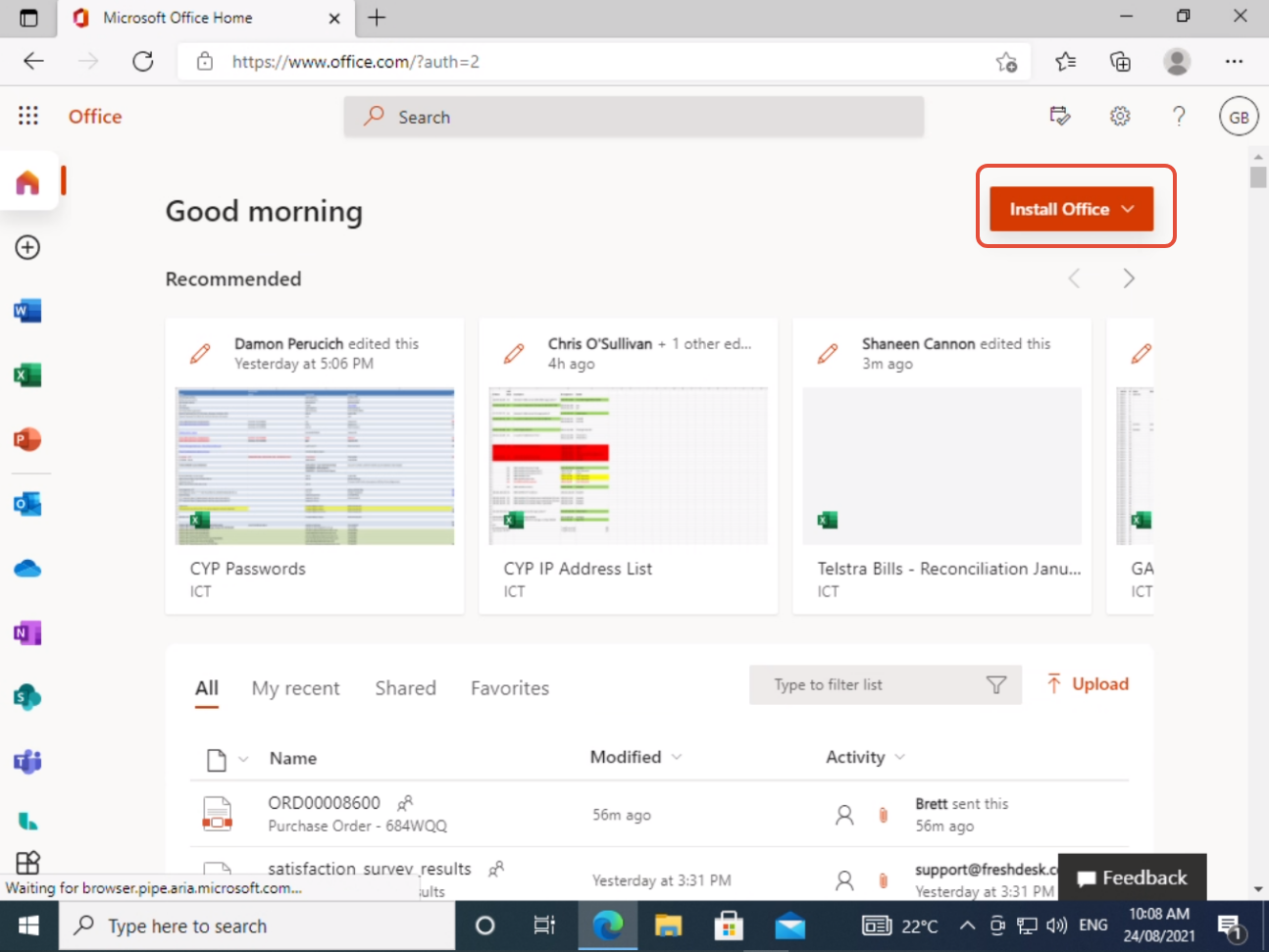
9. A drop-down box will appear, of the two options, click the "Premium Office apps" option.
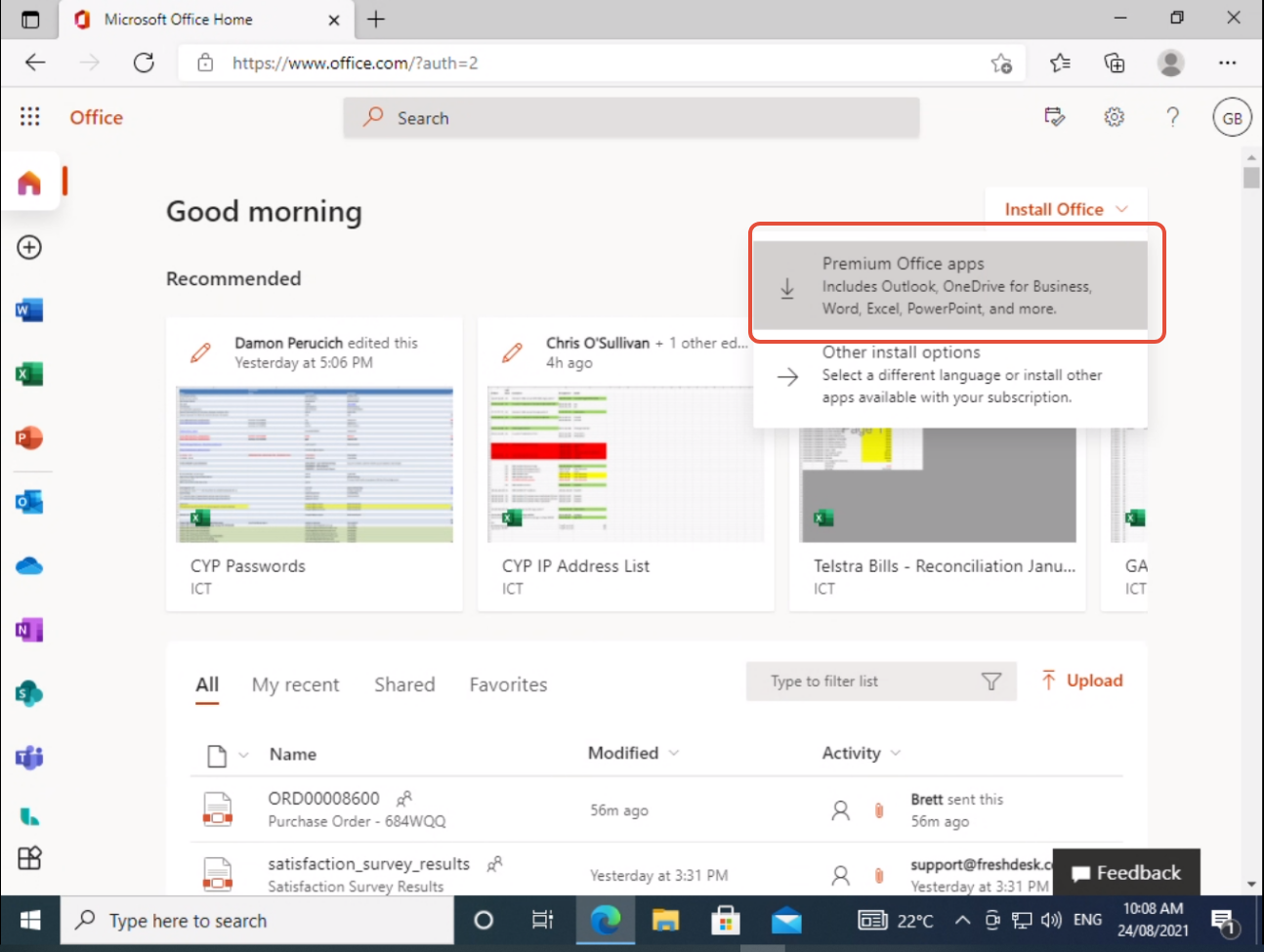
10. Your downloads window will appear and a download will start with the name of the file being "OfficeSetup.exe" please wait for the download to finish.
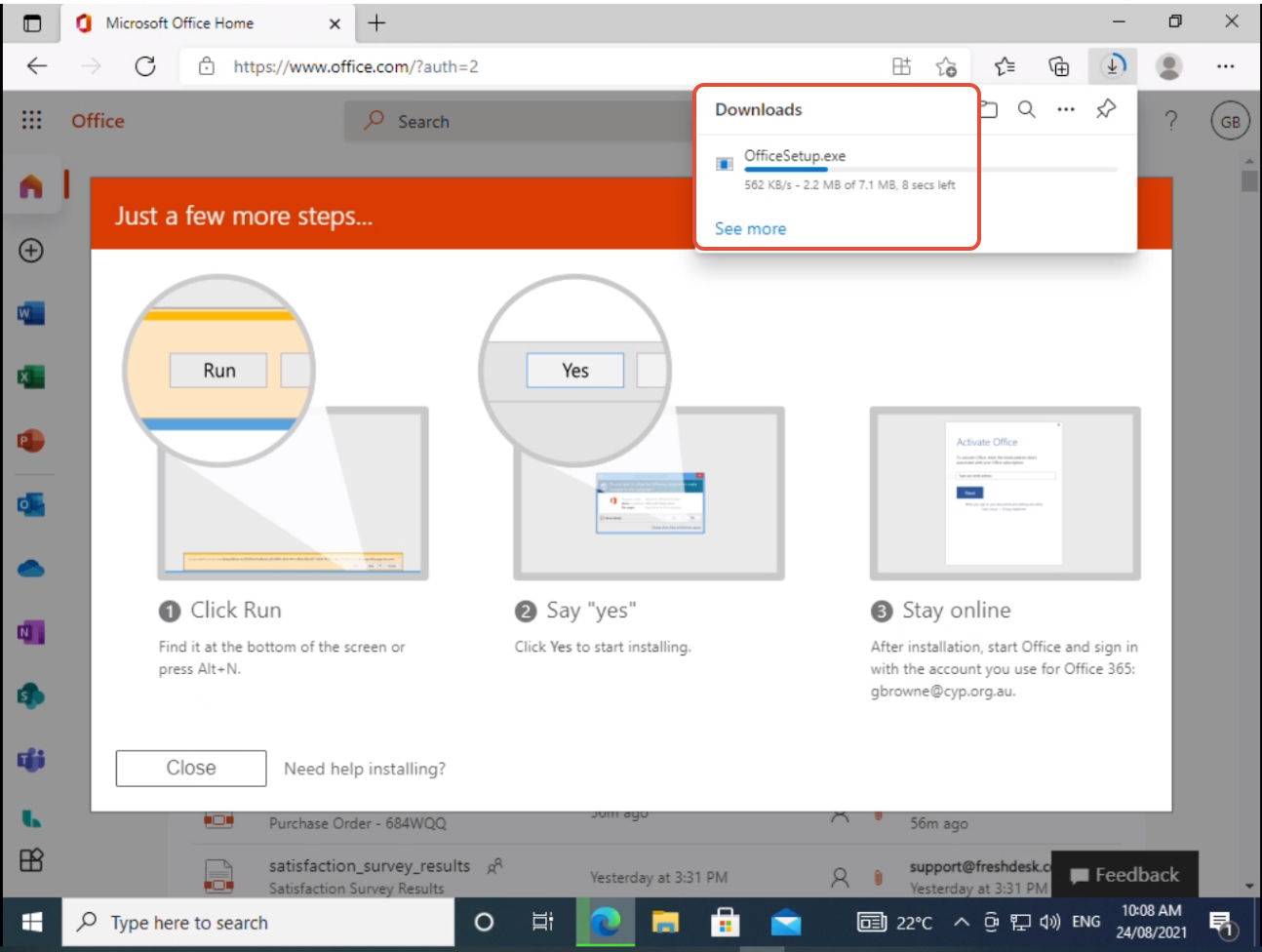
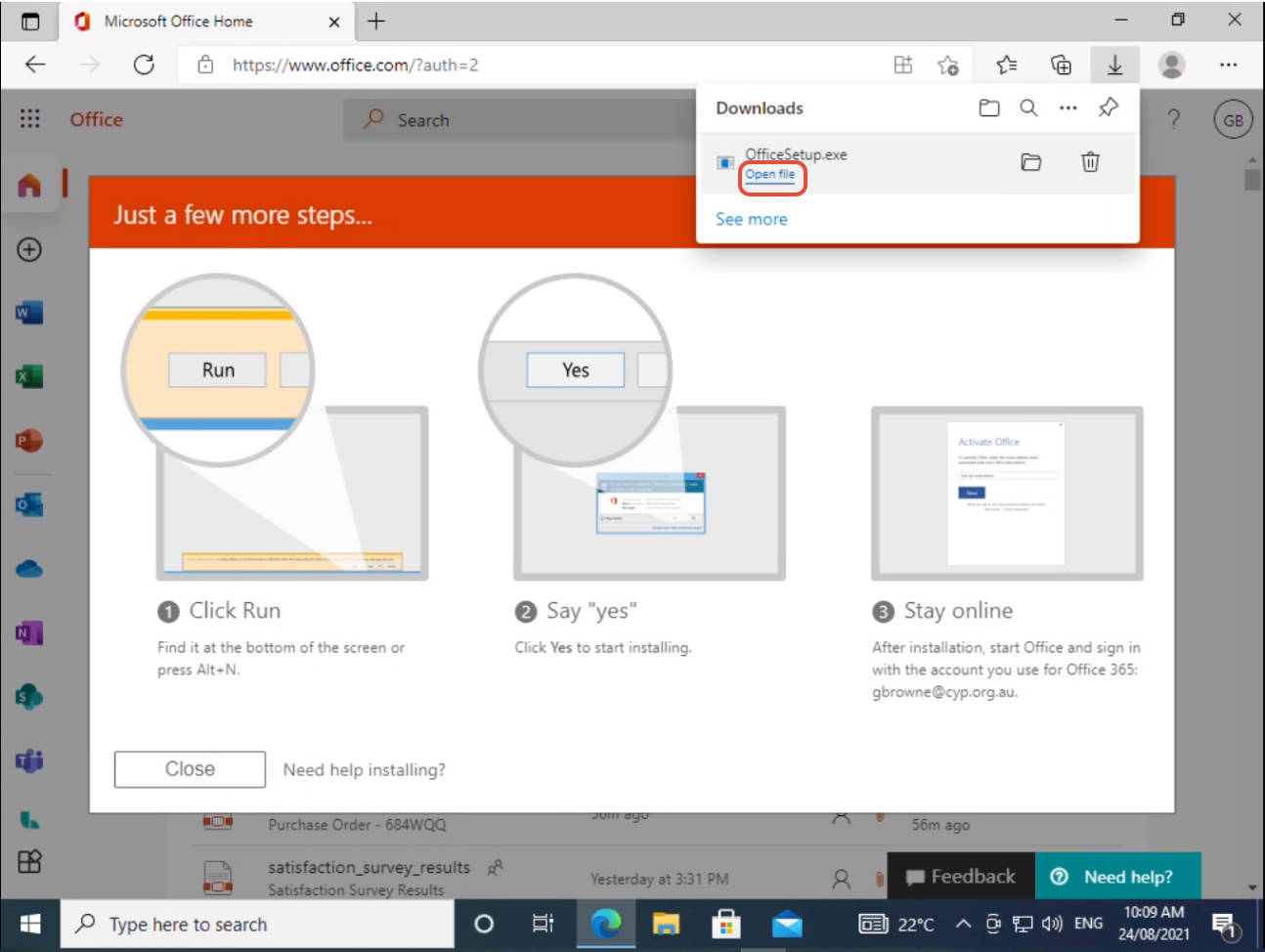
11. Once the download is complete, please click on "Open file"
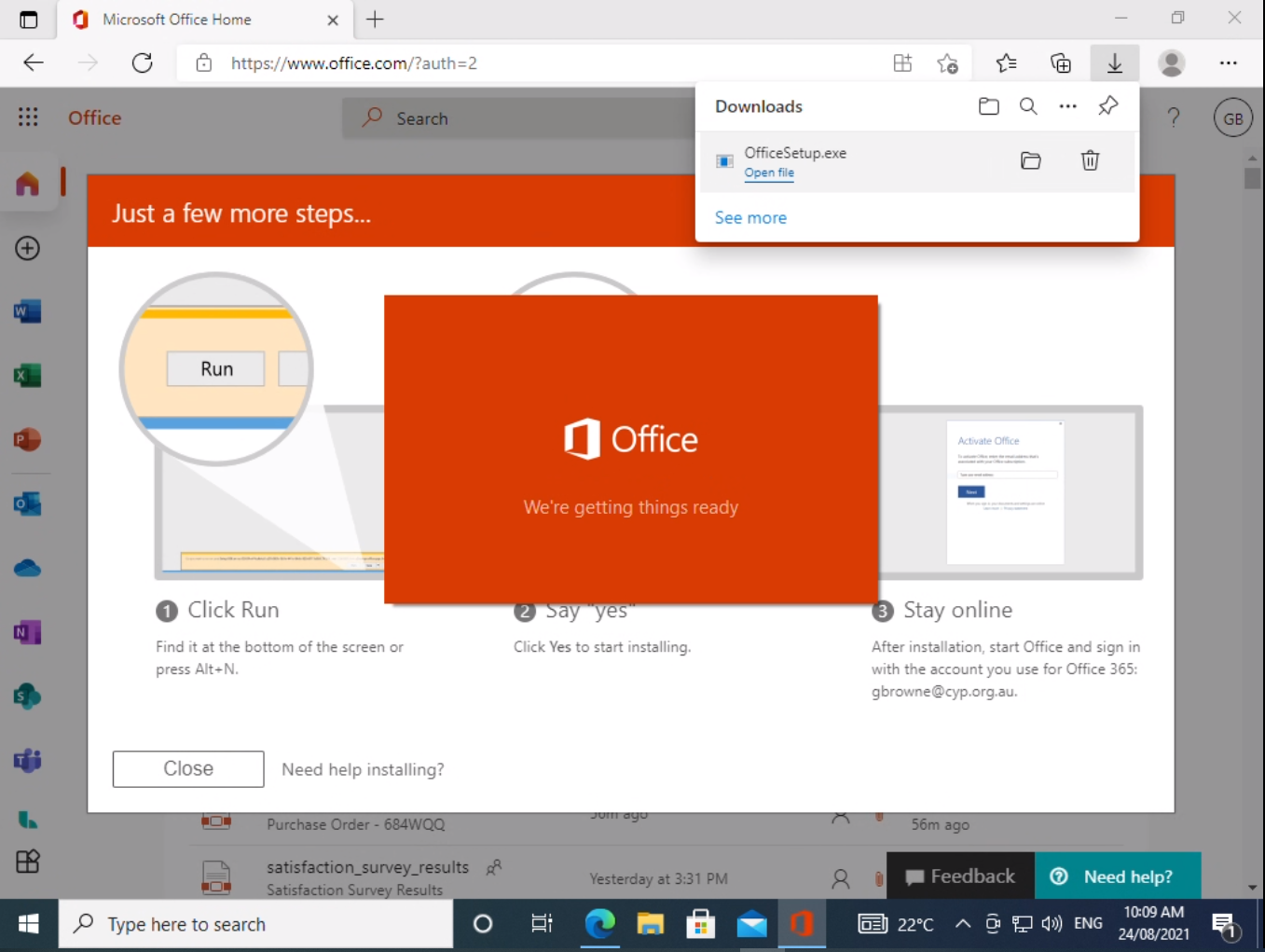
12. The below window will appear explaining that the setup process has started, please wait for the next screen.
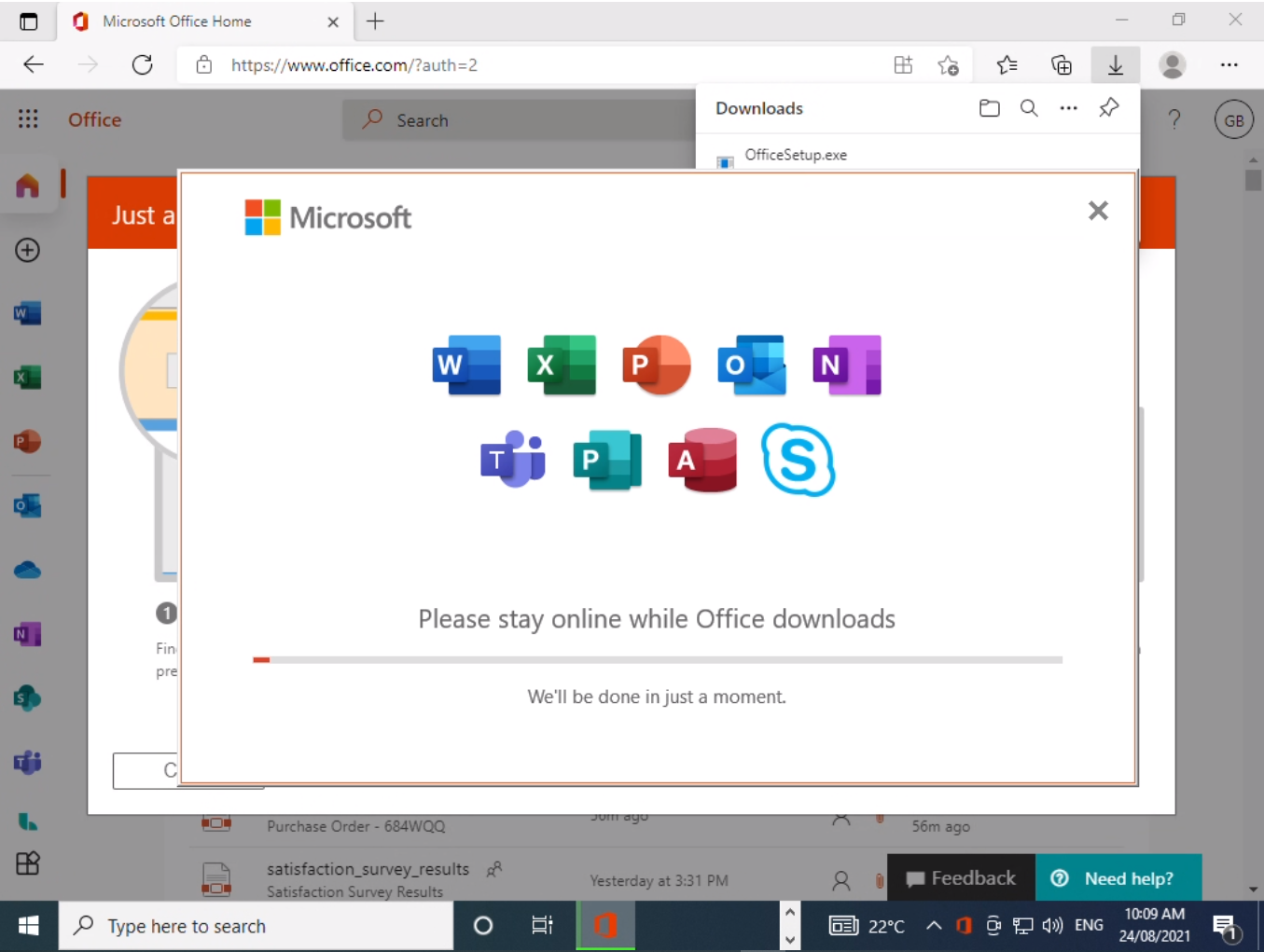
13. The following screen will appear showing that office is now installing. Please wait for the installer to finish and ensure that you remain online for the duration of the installation.
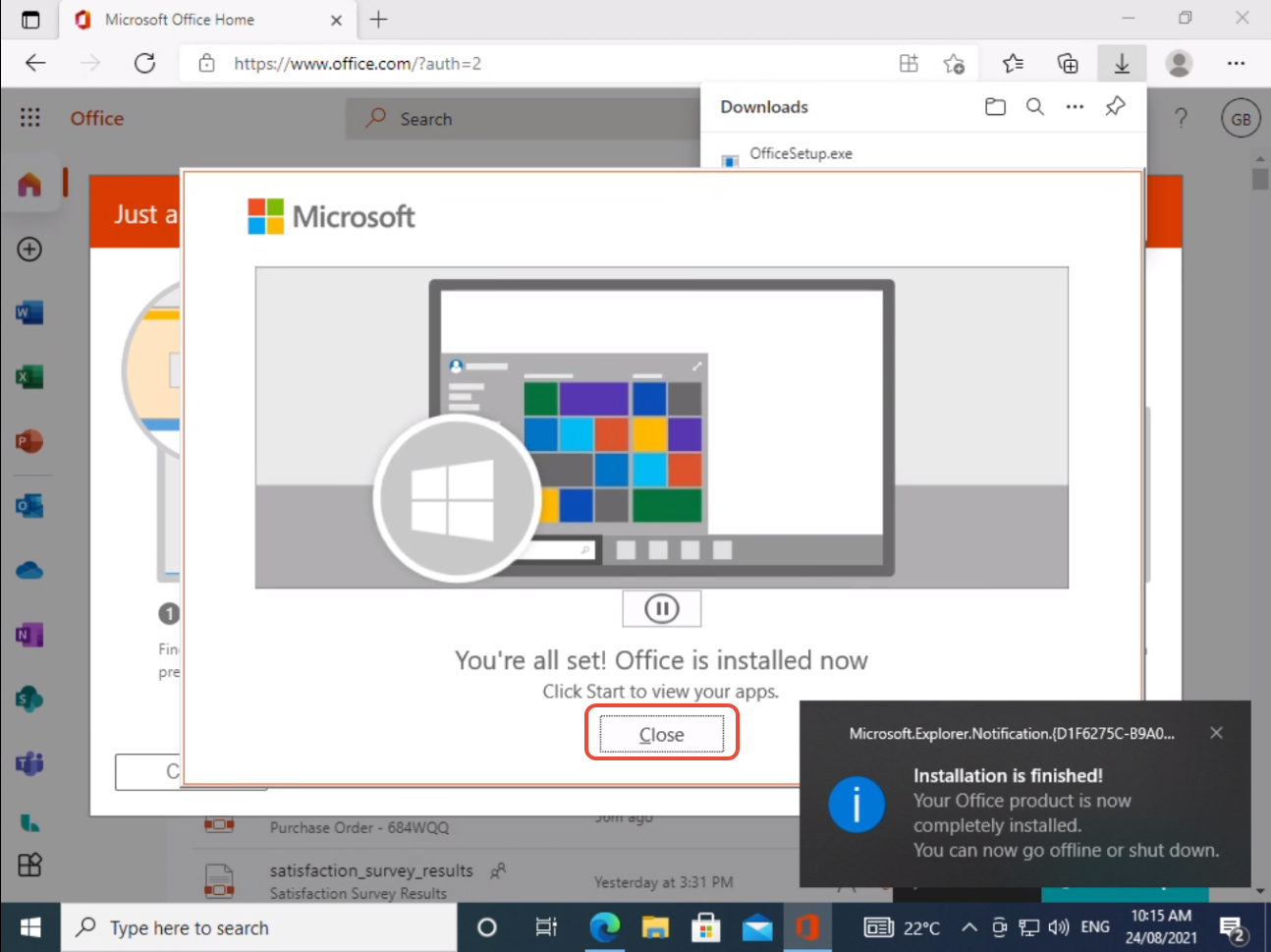
14. The final window will be open showing that the apps are now all installed. Please click the "Close" button.
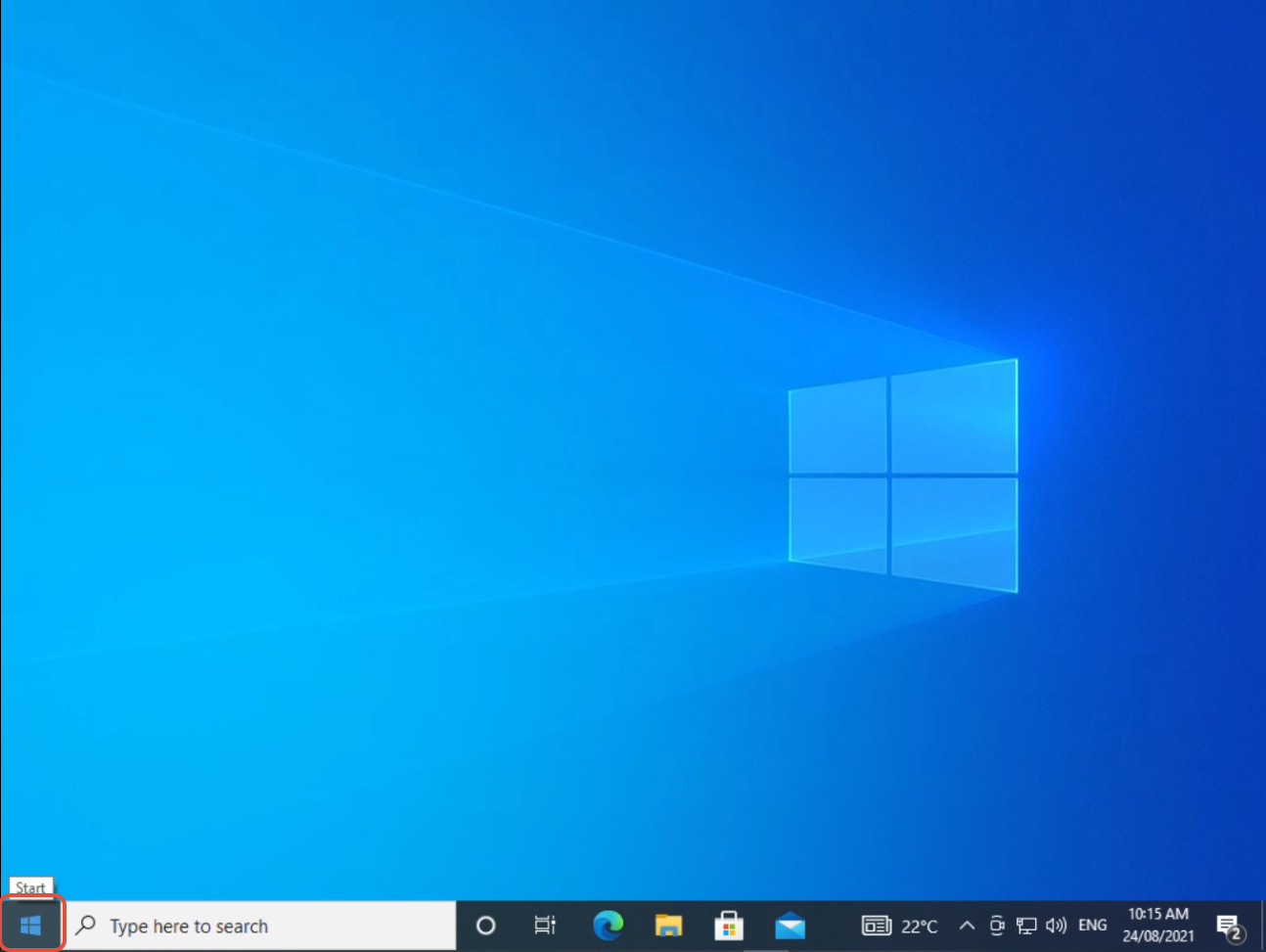
15. Now we will open Outlook, click on the start menu (Windows Icon)
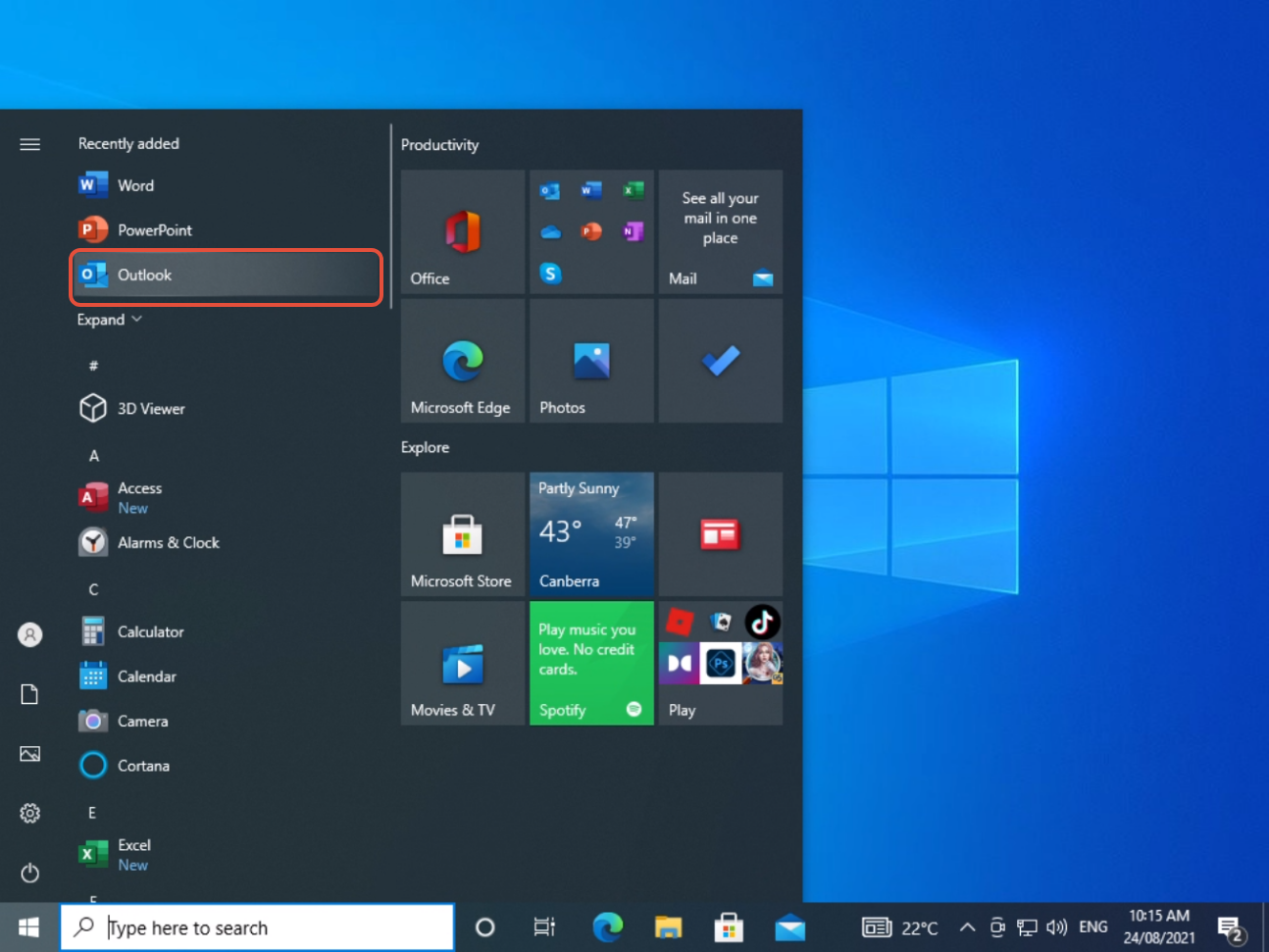
16. The outlook icon should appear on the top of the list, or you can start typing "Outlook" and it will be revealed at the top. Open Outlook by left-clicking the icon.
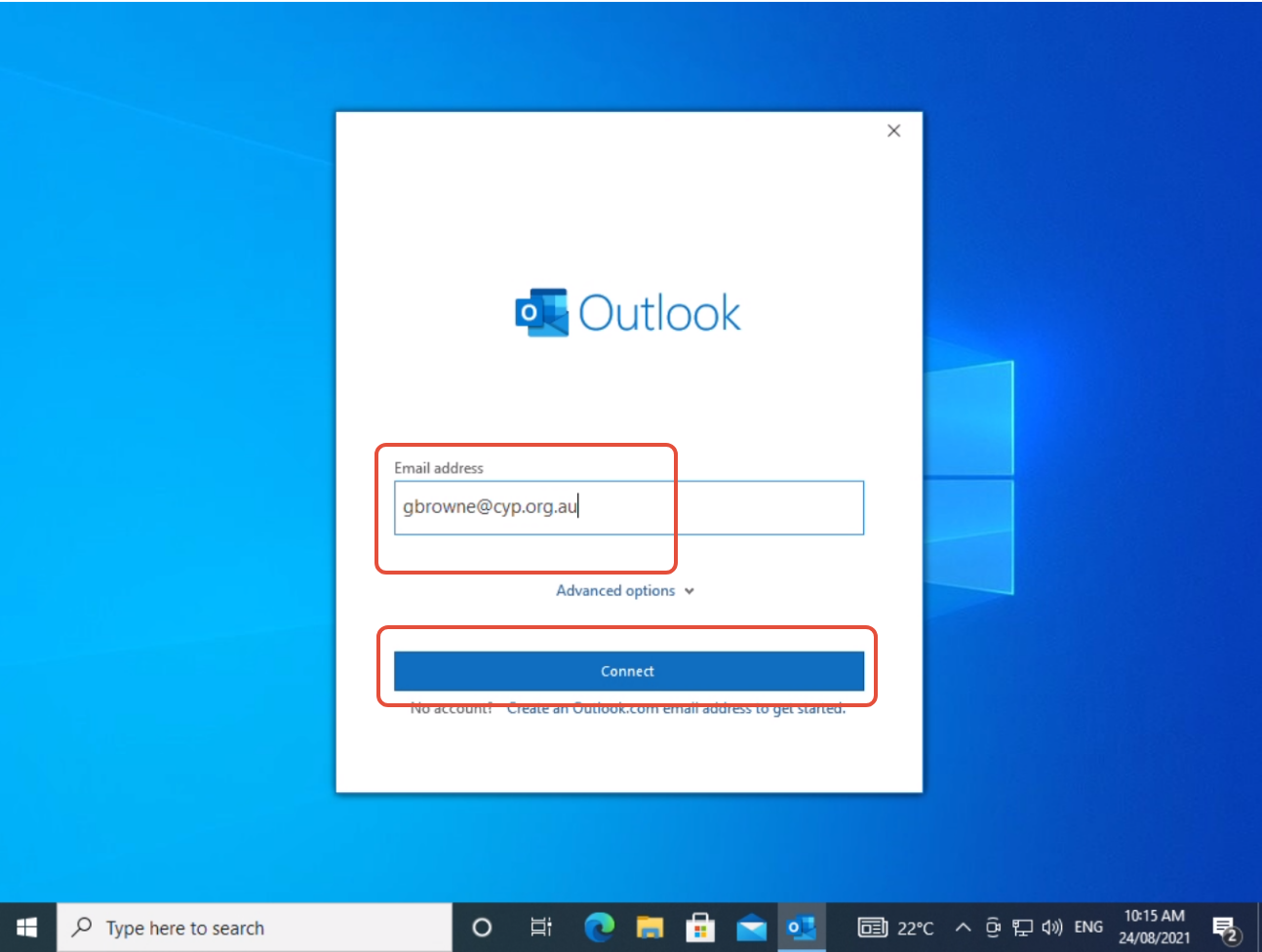
17. At the next screen, enter your work email address. Then Click "connect" An example of one is below..
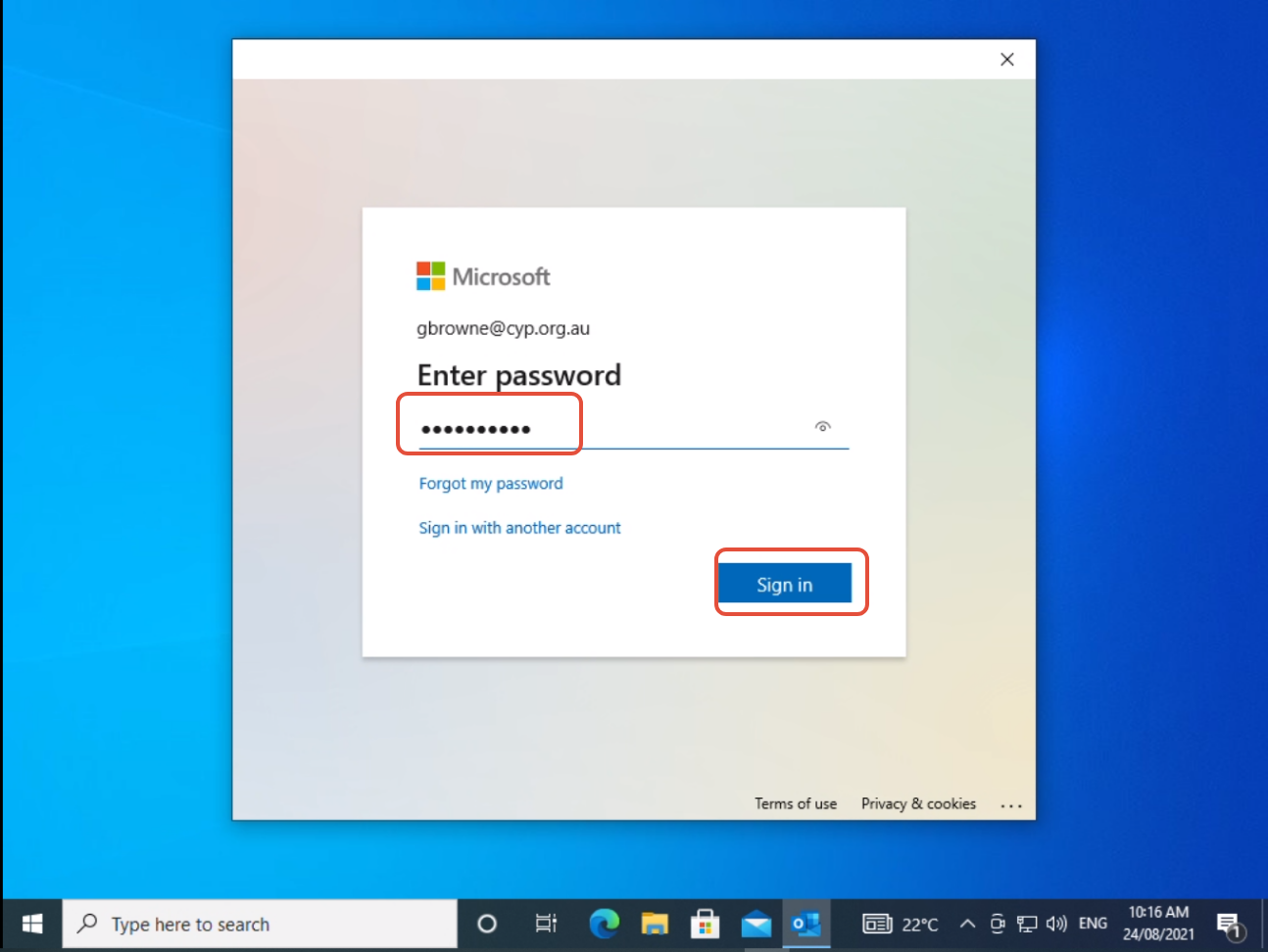
18. Next, enter your password that you use to login to your laptop everyday and then click "Sign In"
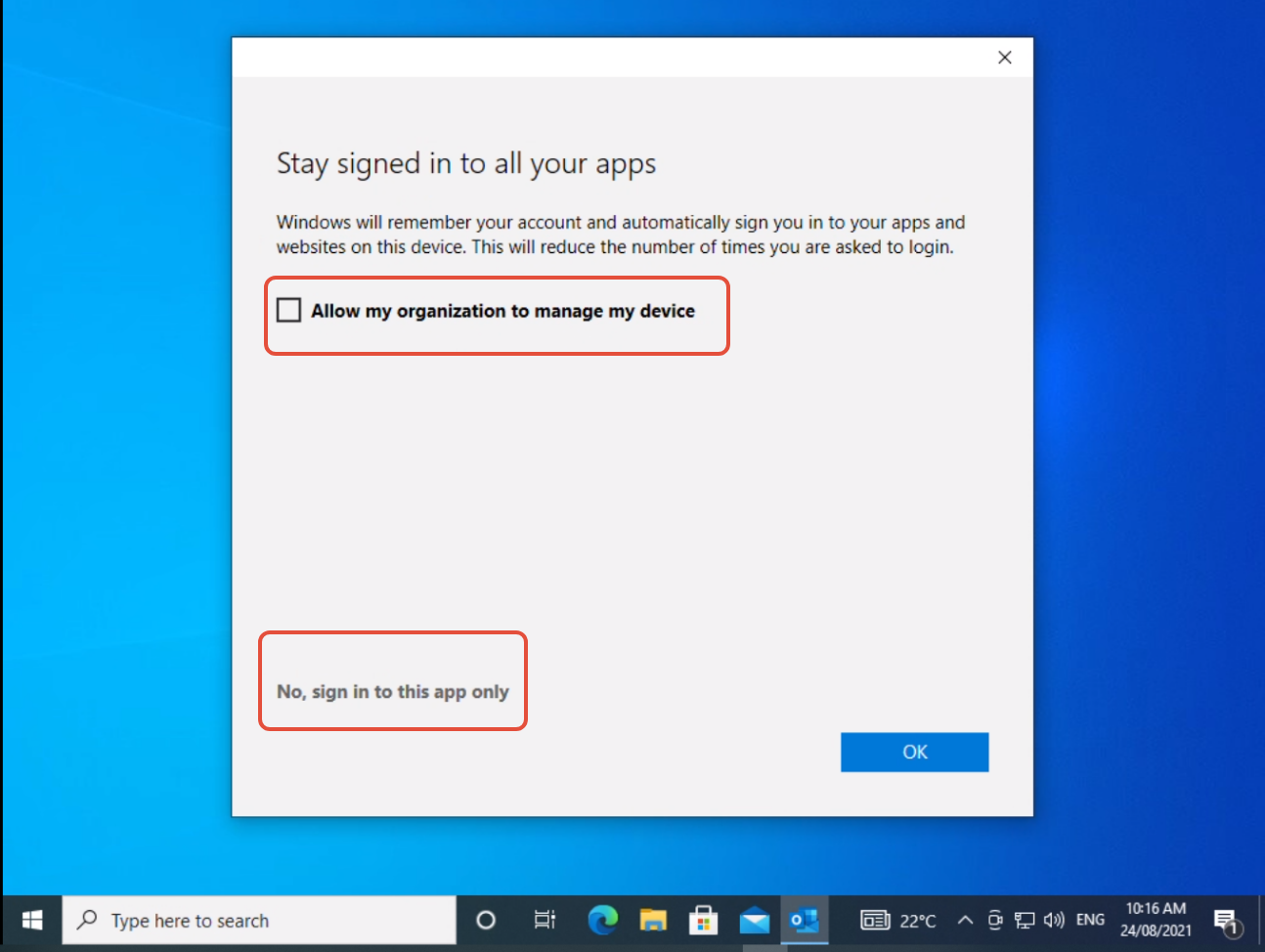
19. At the next screen, Un-tick or Un-check the "Allow my organization to manage my device" and then click on the "No, sign in to this app only".
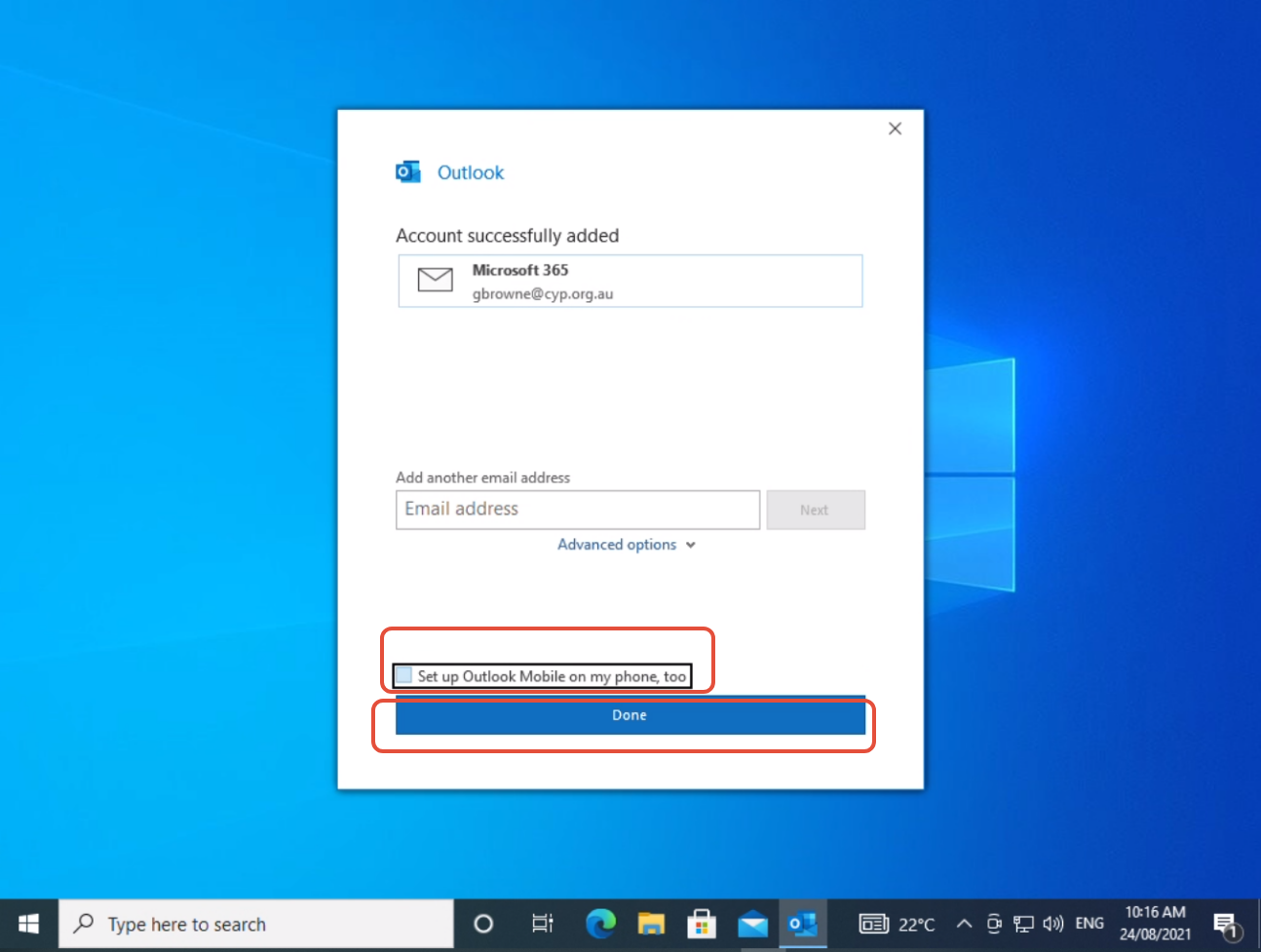
20. At this screen, uncheck "Setup Outlook Mobile on my phone, too" and then Click "Done"
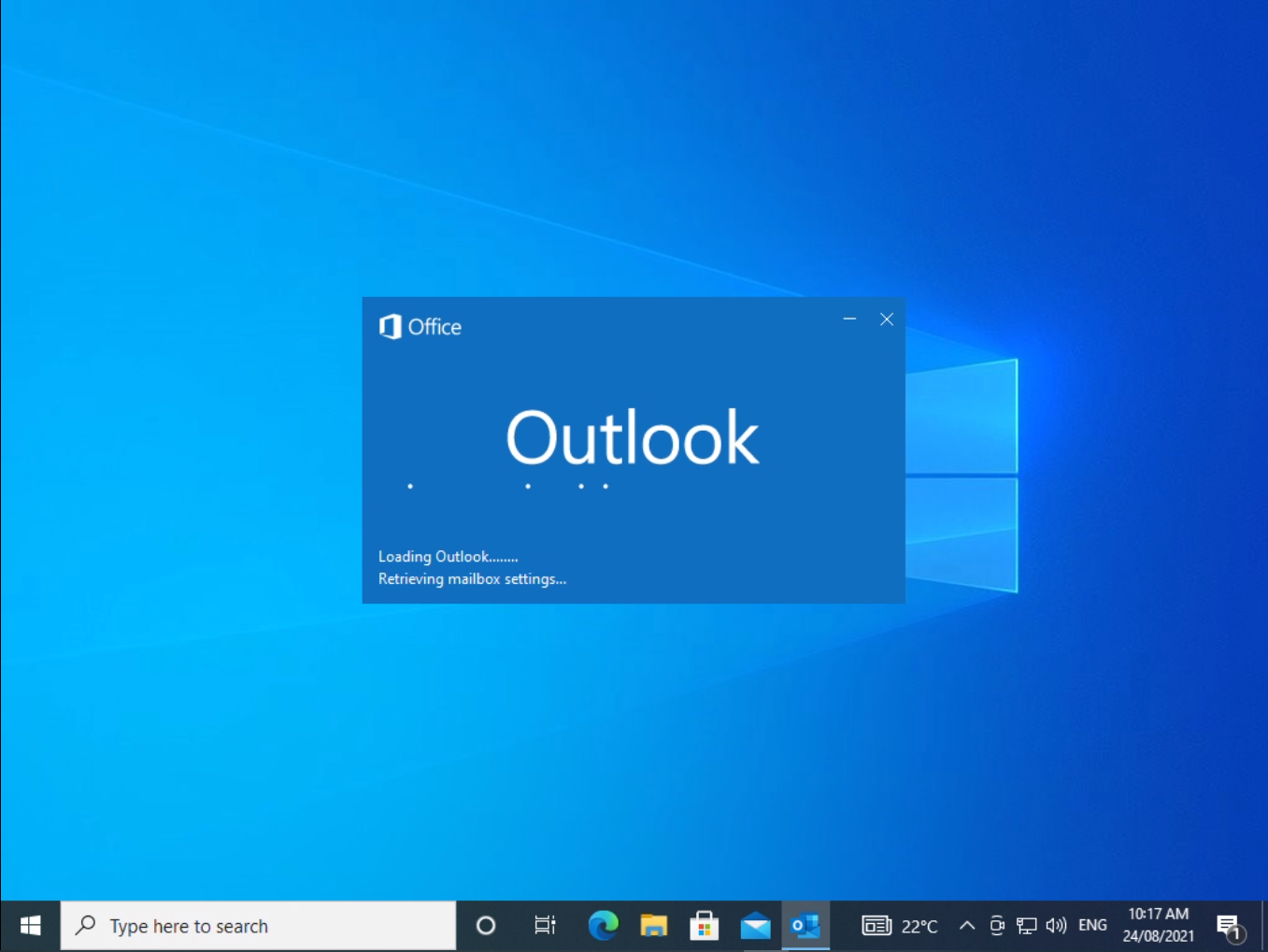
21. Outlook will now load, this may take some time while it is setting up your mailbox, please wait for this process to finish..
22. Outlook will now open, if you are familiar with the classic outlook toolbar, we recommend clicking on the little arrow highlighted in red below, this will give outlook a more classic feel.

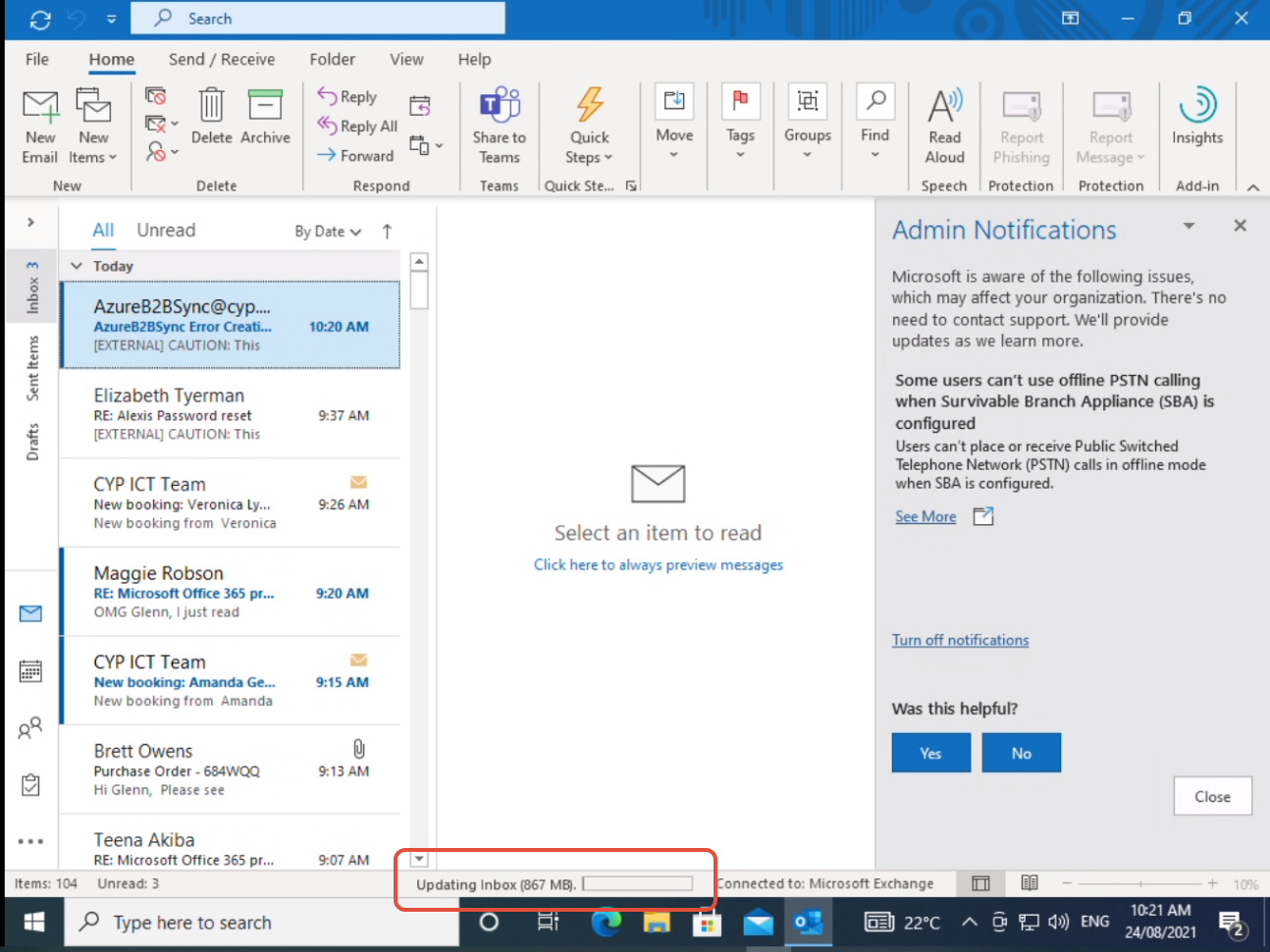
23. Outlook should be now ready to use, Please be aware that your inbox will take some time to download all of the emails, how long depends on how big your inbox is. Most mailboxes should take up to 15 minutes. Larger inboxes could take longer.