
The Purpose of this guide is to give users a Step by Step guide on how to Change (or update) your email signature in Outlook.
This guide has been created as email signatures are not centrally managed and are created and updated on a Per Users basis (this means that IT has to remote connect to each users computer to change their email signature) and sometimes IT are not available or aware of position changes within the organization.
Outlook Application
The steps below detail how to change your email signature in the Outlook Application. If you are using Outlook Online (through a web browser), see the steps for this at the bottom of the page:
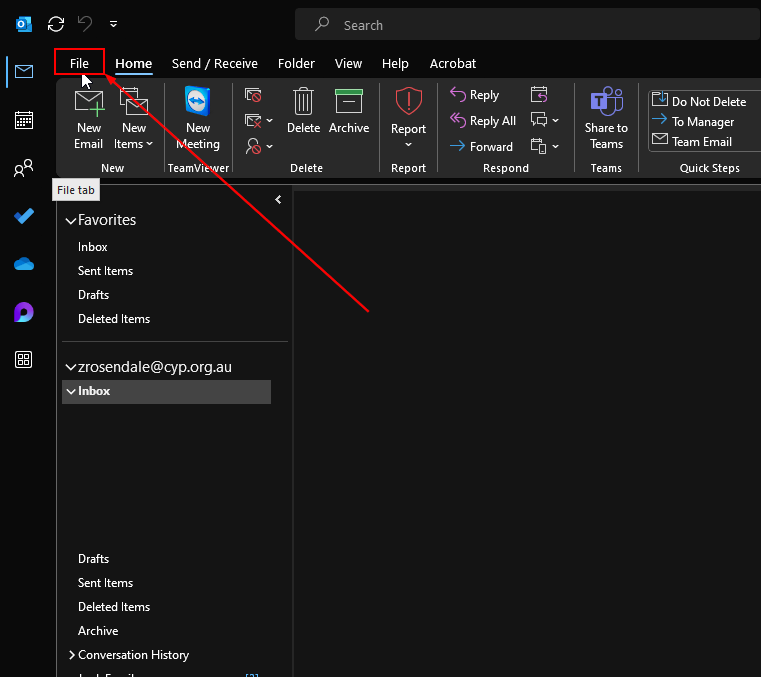
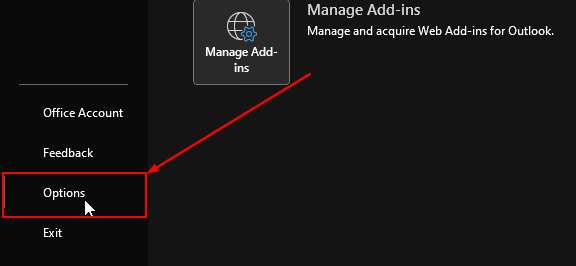
- In the Outlook Application, click on the "File" Tab and then Options at the bottom of the page
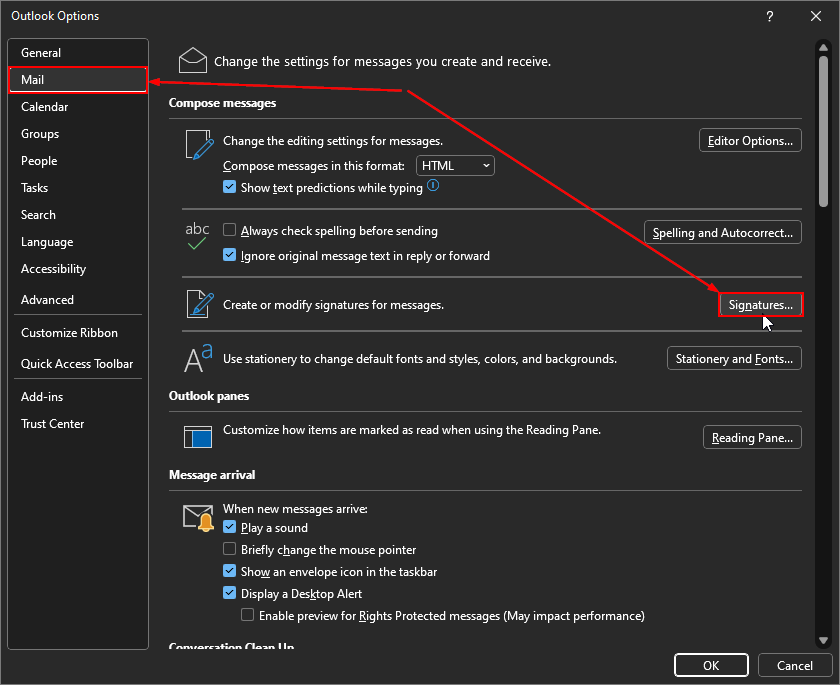
- In the Options menu, select the "Mail" section and then the "Signatures..." option
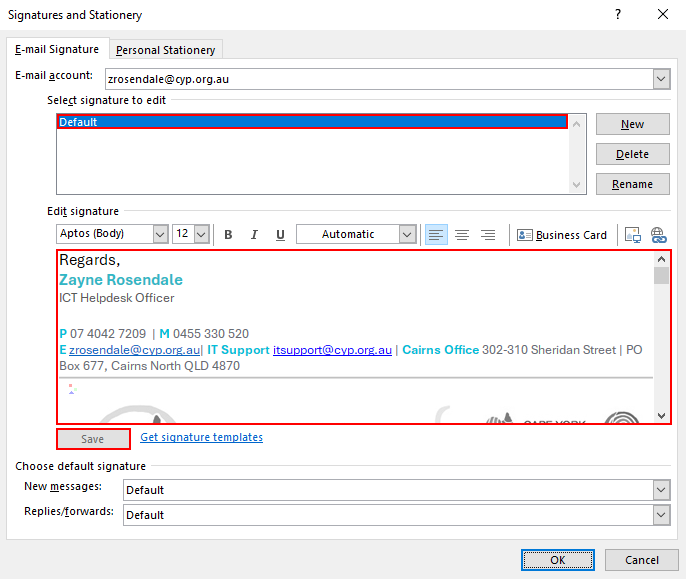
- Select the "Default" signature (this is created for most staff upon employment by the IT team) and make whatever changes you require and click on "Save" and "OK" once you have finished. If the "Default" signature is not there, please contact IT
Outlook Online
The steps below detail how to change your email signature in Outlook Online:
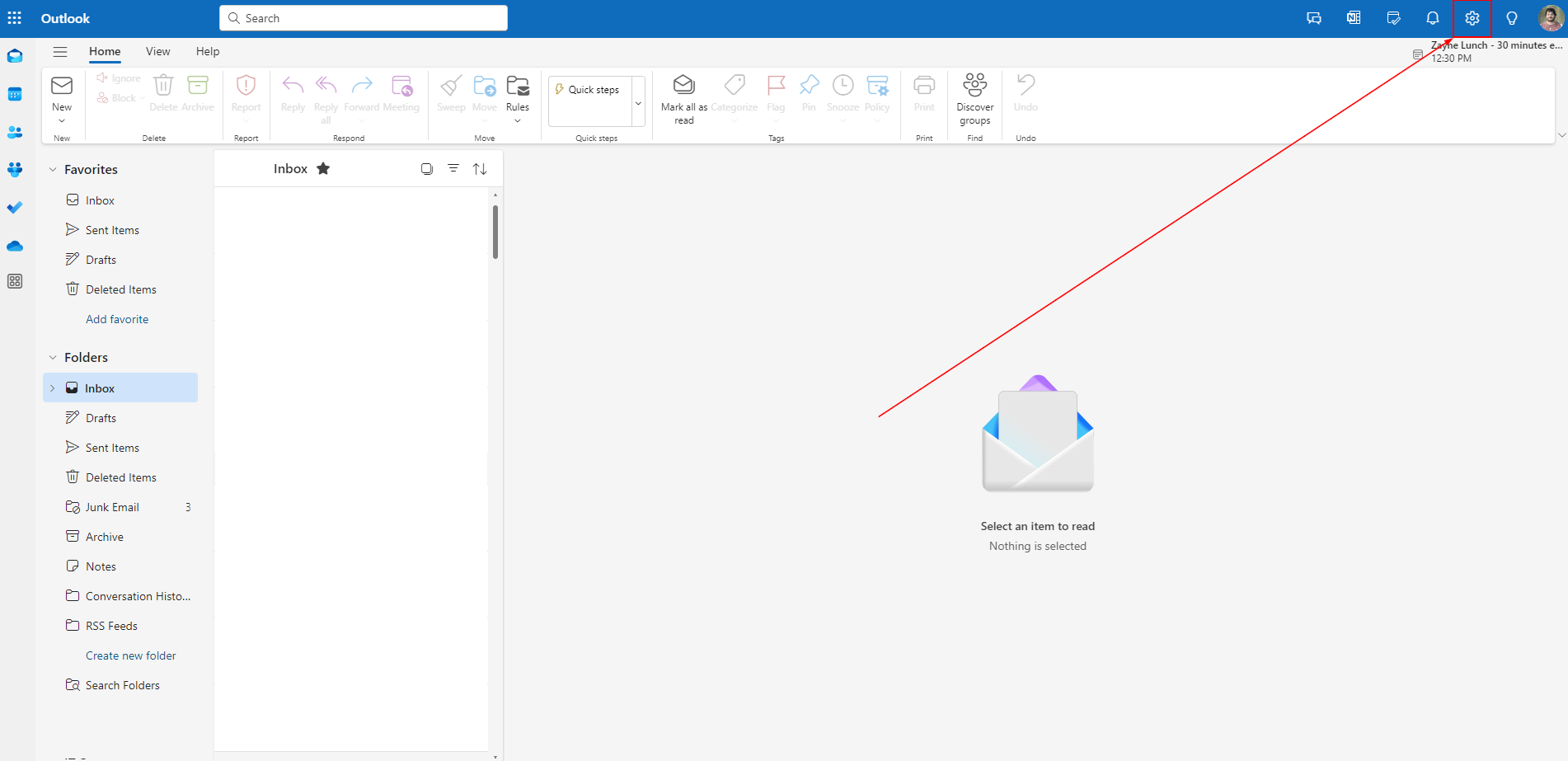
- In Outlook Online, select the Settings cog in the Top Right Hand Corner
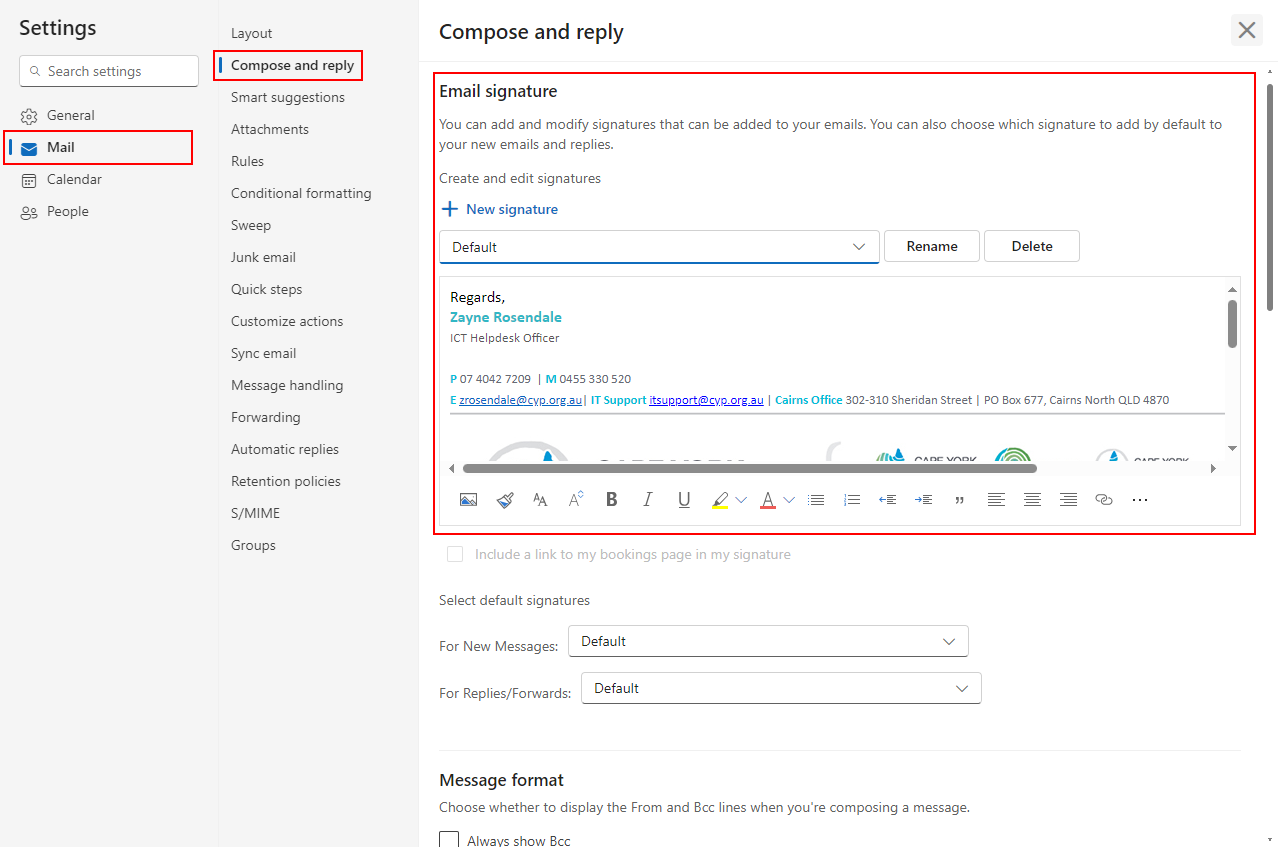
- Go into Mail > Compose and reply, make sure the "Default" signature (this is created for most staff upon employment by the IT team) is selected and make the changes required. Once you have done this, the changes will save automatically. If the "Default" signature is not there, please contact IT
If you have any issues or are not able to make the changes, please contact IT via itsupport@cyp.org.au or 07 4042 7272