
Here’s a brief overview on how to grant access to other staff, as well as checking what the current access is..
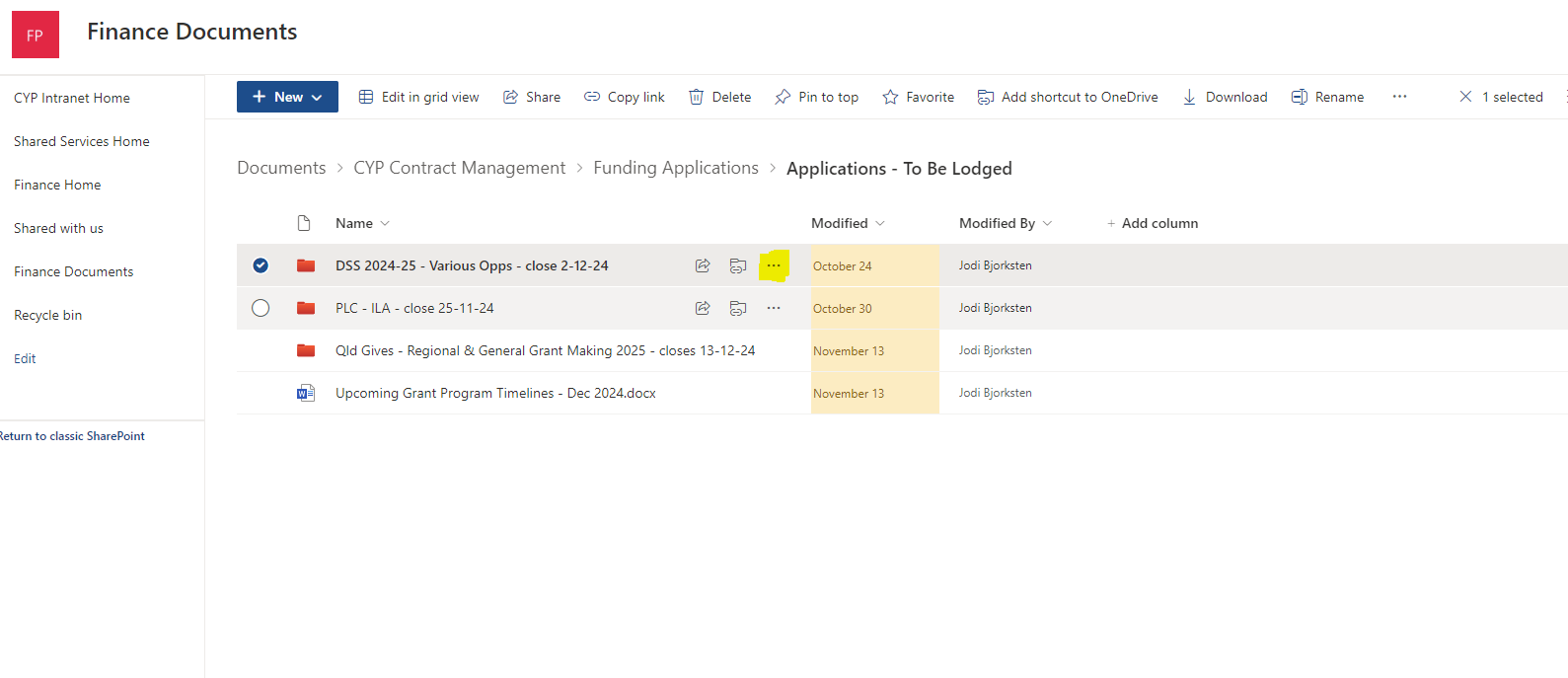
- Locate the folder in question in sharepoint.
- Click on the 3 dots to open the context menu for that folder.
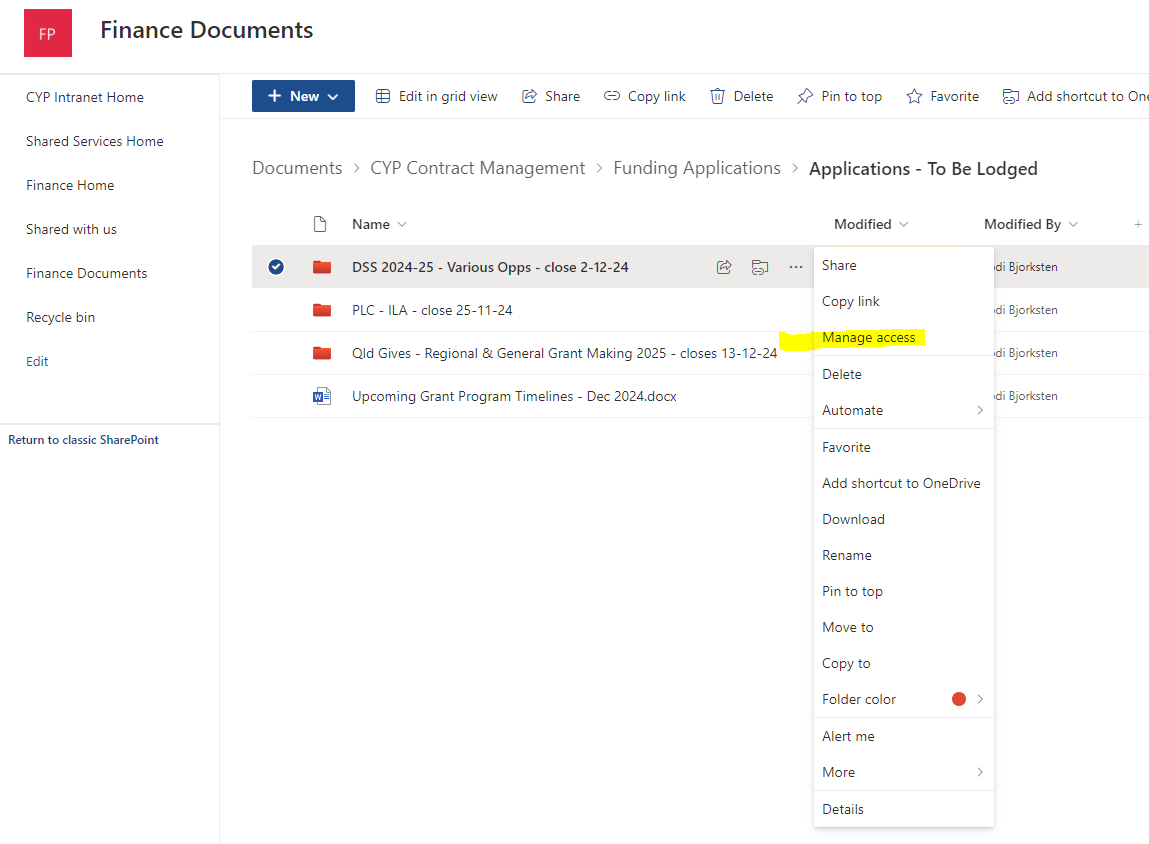
- Click on Manage Access.
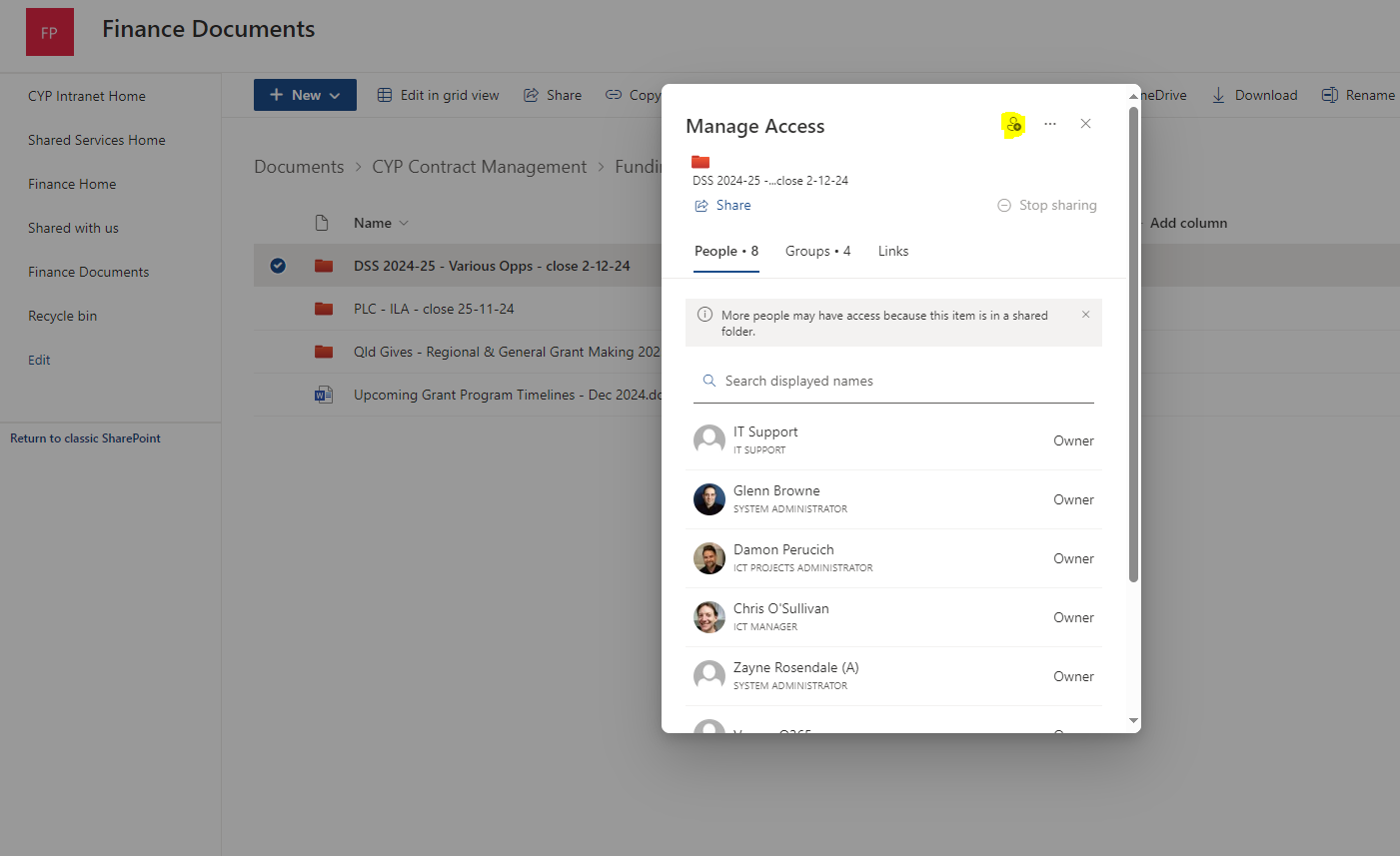
- Check through the users list, to see if the user has access and weather they have the appropriate access, if not, we need to add the user.
- Click on the “Add User” Icon at the top right hand corner..
- Start Typing the users name in, they should appear in a pop up list underneath. Select the user. If the person you would like to share the document with is an external user, type in their email address in full, and it should appear as a pop up underneath, click on it to ensure it is entered correctly. Optionally, you can add a message and opt to notify the user that they now have access. The user should receive a link to the folder directly in an email.
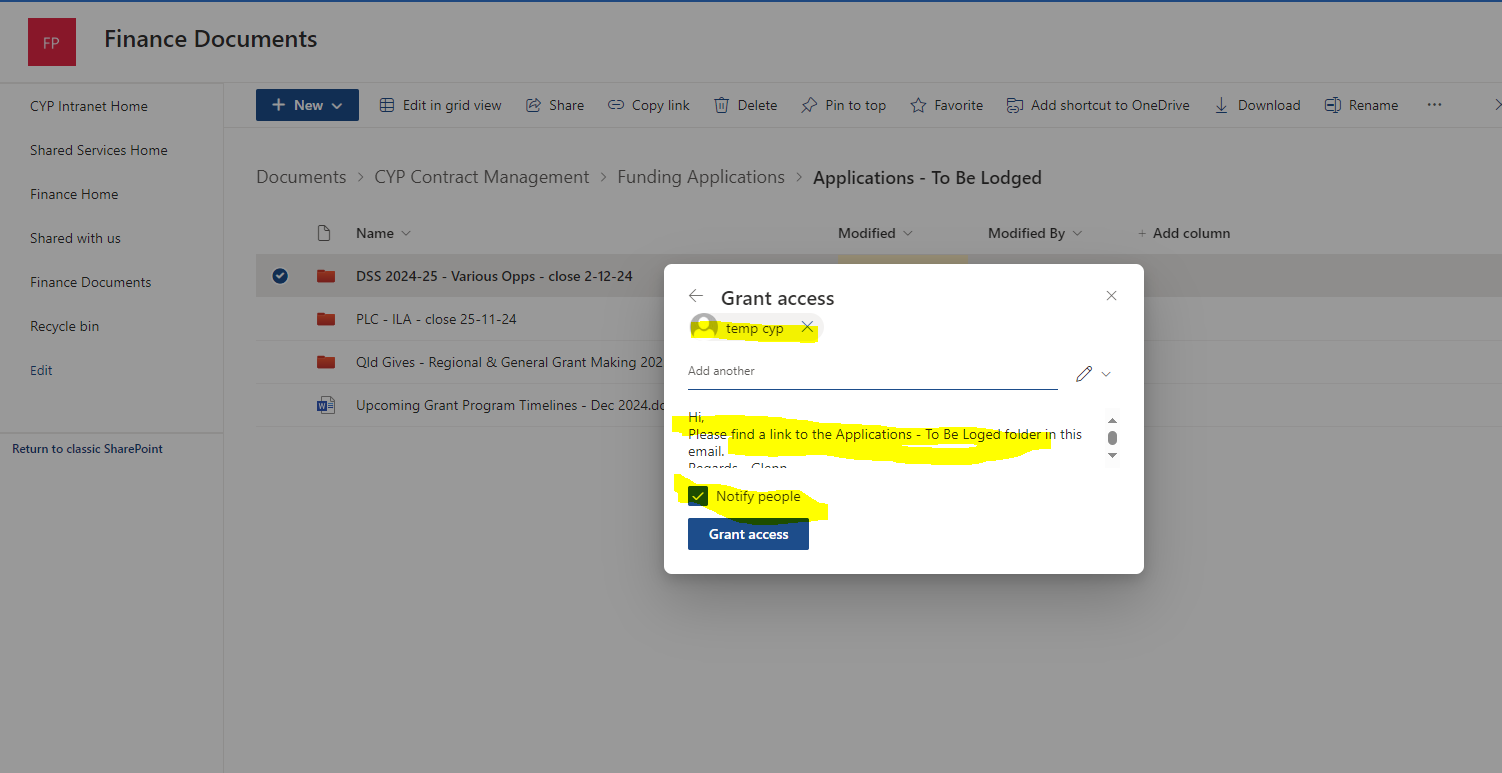
- Click on the Pencil icon to provide either “can view” “Can edit” or “Can’t Download” access.
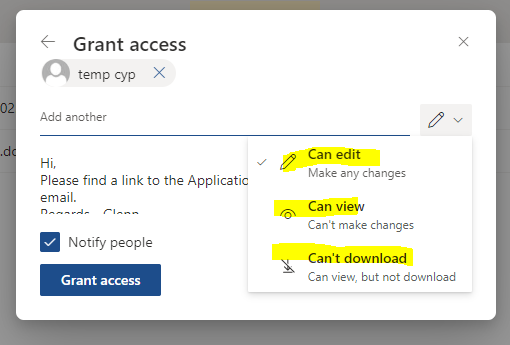
- Click the “Grant Access” button and now your designated user should have access.