
Guide for connecting doors that are not connected to the Titan Security system and configuring them to Open at specific times
NOTE: This guide does not cover connecting new doors to the Titan System
In Titan, for the doors to work at specific times (configured in Challenger > Time Zones), the doors in question need to be connected to an existing Relay (found under Challenger > Map Relays). If you are unsure of what doors are connected to the Titan System, this information can be found under Challenger > Arming Station.
To connect a door to a Relay, follow the steps below:
- Remote connect to the Titan Security box - (192.168.0.20, details in KeePass)
- Open the "Map Relays" menu under Challengers >Map Relays
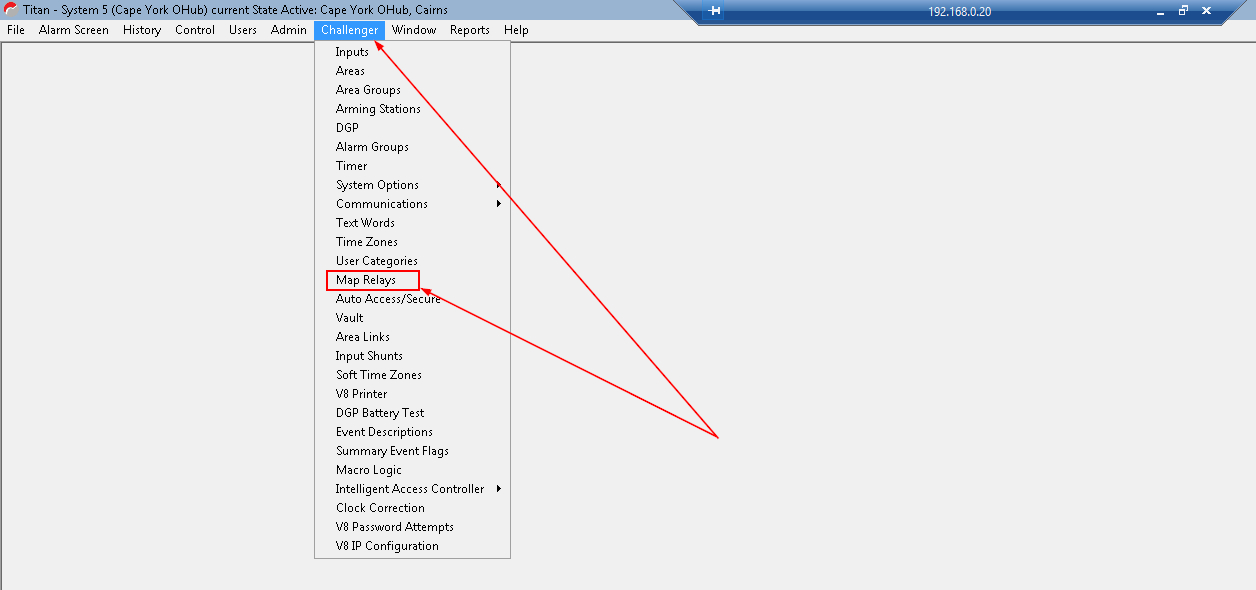
- Take note of the Named Relays that already exist and the numbers listed beside them (Open the list view by selecting the hand pointing left button, highlighted in Screenshot)
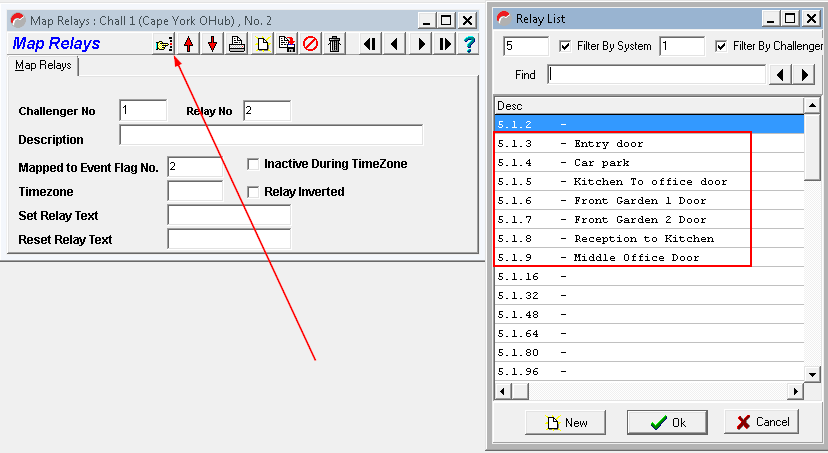
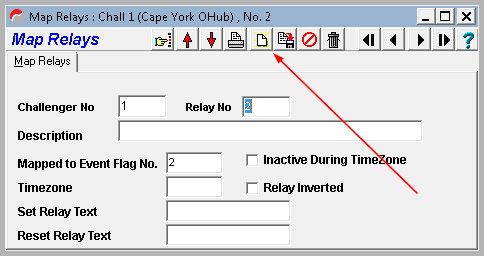
- If required, create a new Relay by clicking the blank pages button and take note of the number (add onto the end of the existing ones)
- Open the "Arming Stations" menu under Challenger > Arming Stations
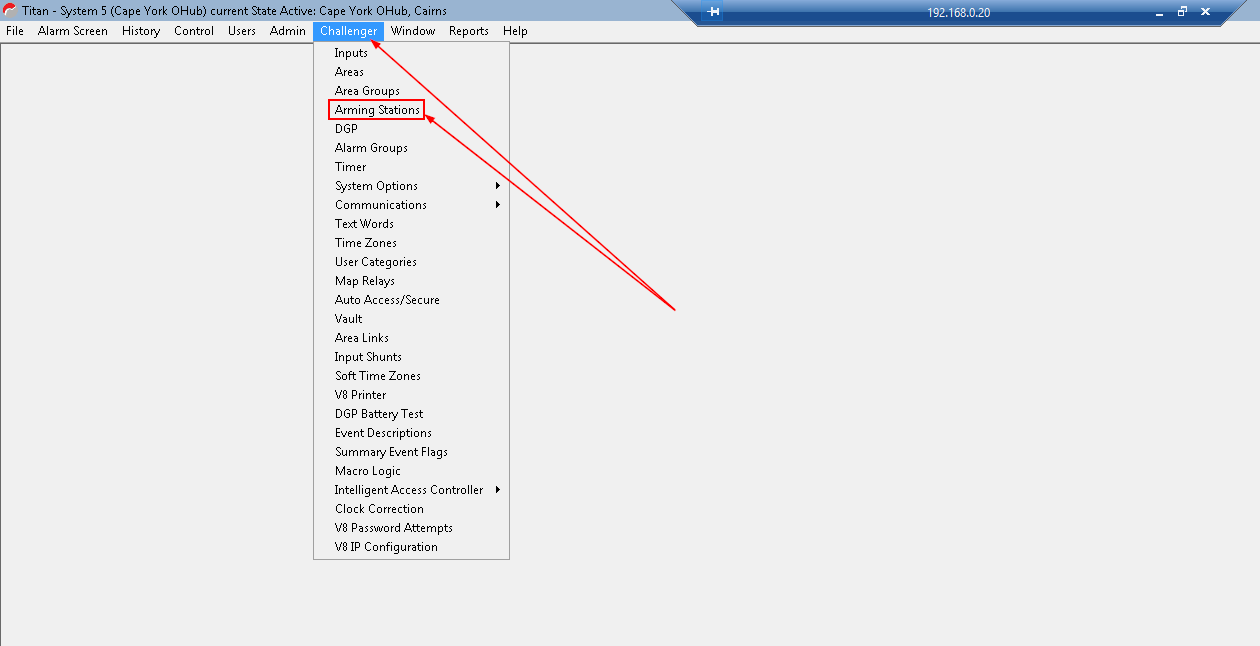
- Find the door that is not working or missing from the Map Relays list and enter the new Relay number into the Relay No field in the Arming Station menu and Save this
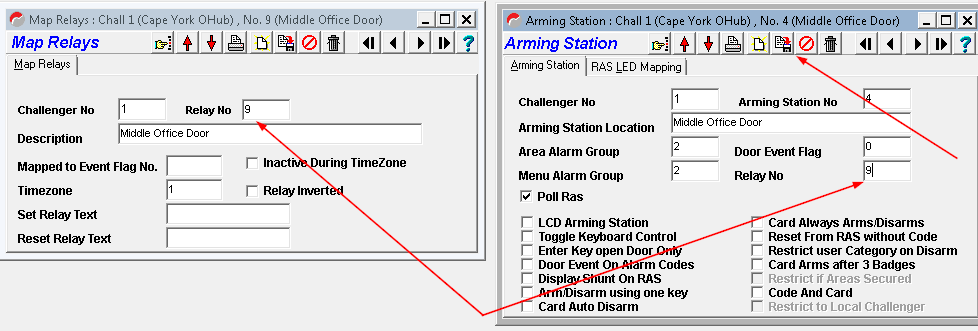
- In the Map Relays menu, enter the correct Timezone
The Current existing doors/Challengers that are connected to the Titan System are as follows (as of 21/02/2025):
5.1.1 - Keypad
5.1.2 - Entry Door
5.1.3 - Reception to Office Door
5.1.4 - Middle Office Door
5.1.5 - Car Park Entry
5.1.6 - Front Garden 1 Door
5.1.7 - Front Garden 2 Door
5.1.8 - Reception to Kitchen
Further Support Articles for Titan:
Kidde Global Solutions Support - Can be searched for Step by Step guides
Triggering a RAS relay with event flag. – Kidde Global Solutions Support - For this exact guide