
Source
Setup
Select a server in the local domain.
- Create new destination folder such as 'C:\DATA\PowershellScripts\AD and Azure Accounts - 45 day login expired'
- Ensure to delete the inherited permissions from the C:\DATA folder.
- Copy the '45 Day deactivation.ps1' file from source to destination folder. Add suffix to the name eg " - BAMA".
- Open powershell (as admin) and CD to the new destination folder in step 1.
- If module isn't installed
> Install-Module microsoft.graph
> Get-WindowsFeature -Name RSAT-AD-PowerShell | Install-WindowsFeature
- Create self signed certificate on server
> $certName = "GraphAutomationCert-BAMA"
> $cert = New-SelfSignedCertificate -Subject "CN=$certName" -CertStoreLocation "Cert:\CurrentUser\My" -KeyExportPolicy Exportable -KeySpec Signature -KeyLength 2048 -KeyAlgorithm RSA -HashAlgorithm SHA256
> $cert.thumbprint
- Export the certificate (without private key) to a file.
> $cert | export-certificate -Type CERT -FilePath "$certName.cer"
- Log into Entra for the appropriate tenant.
- App registrations > All applications. Check for app called 'GraphAutomationCertificateAuth'. If exists figure out what's using this app and if you can reuse, otherwise create new but you'll need to change the name of the new app to something else.
- New registration
- Name: GraphAutomationCertificateAuth
Select: Accounts in this organizational directory only
Click Register - API permissions > Add a permission > Microsoft Graph > Application permissions
AuditLog.Read.All
Directory.Read.All
User.ReadWrite.All - Delete User.Read permissions.
- Grant admin consent for Bama Services > Yes
- Certificates & secrets > Certificates > Upload certificate
Description: Automation on [insert SERVERNAME] - Overview. This will display the application and tenant IDs
- Update the script parameters :
$TenantId = "enter the tenant id shown in step 16"
$ClientId = "enter the client id shown in step 16"
$CertificateThumbprint = "enter thumbprint as shown in step 6" - Test script using whatifmode param:
> & '.\45 Day deactivation.ps1' -WhatIfMode
- Update the IgnoreList.csv file. Put on-prem SAM accounts in the first column; Put 365 UPNs into second column.
Column row needs to be:OnPremSamAccountName,CloudUPN
egOnPremSamAccountName,CloudUPN testaccount ,testupn@bama.net.au
- Always test changes using -whatifmode
- Use Task Scheduler to schedule the script to run daily.
If the TS folder doesn't exist create "Powershell Tasks" folder.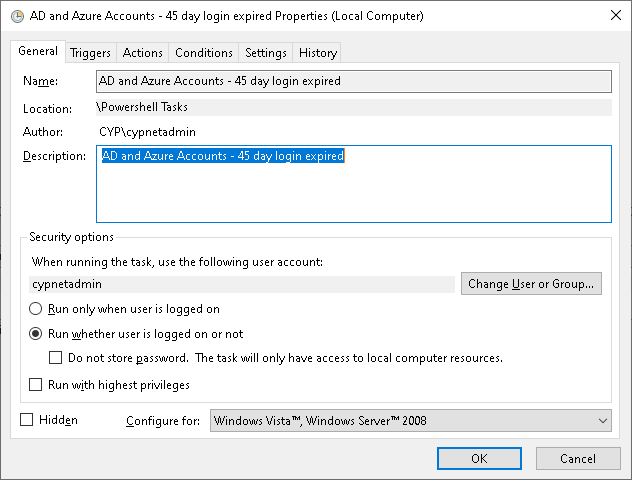
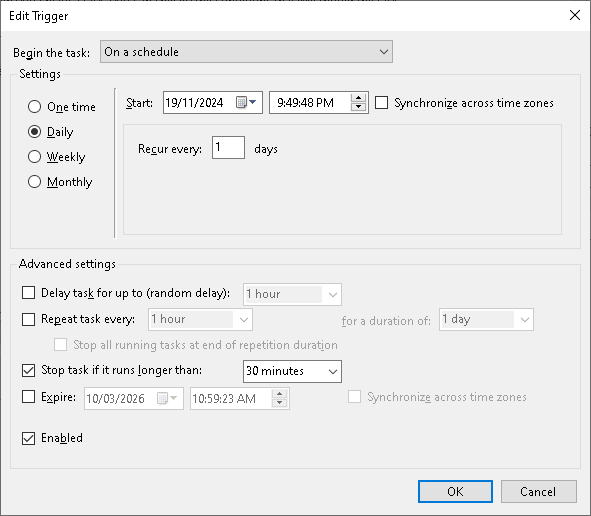 Start a Program: %SystemRoot%\system32\WindowsPowerShell\v1.0\powershell.exe
Arguments: -NoLogo -ExecutionPolicy Bypass -file "C:\DATA\PowershellScripts\AD and Azure Accounts - 45 day login expired\45 Day deactivation - CYP.ps1"
Start in: C:\DATA\PowershellScripts\AD and Azure Accounts - 45 day login expired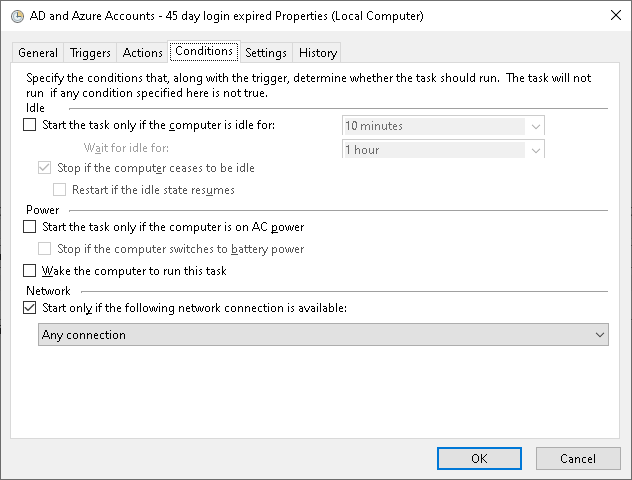
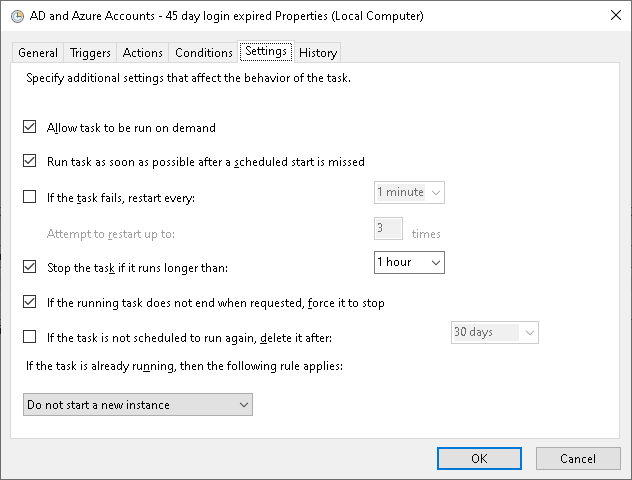
Currently configured on:
SVRBAMA09 - BAMA Domain
SVRCYH02 - CYH/Ngak Min Domain
SVRCYP09 - CYP Domain