
This guide shows the steps for turning a Scanned PDF document into an editable PDF Document. This also reduces the PDF File Size.
Please first ensure that you have Adobe Pro (at date of writing this, 2020, blue icon) installed and as your Default PDF reader, contact IT if you do not have this on your computer.
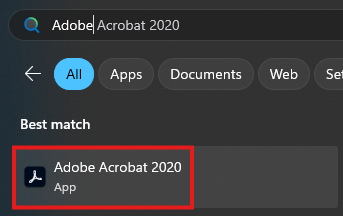
How to Optimise and Reduce PDF Size:
Step 1: Open the PDF in Adobe Pro
Step 2: Click on the "Optimize PDF" option in the Tool Bar.
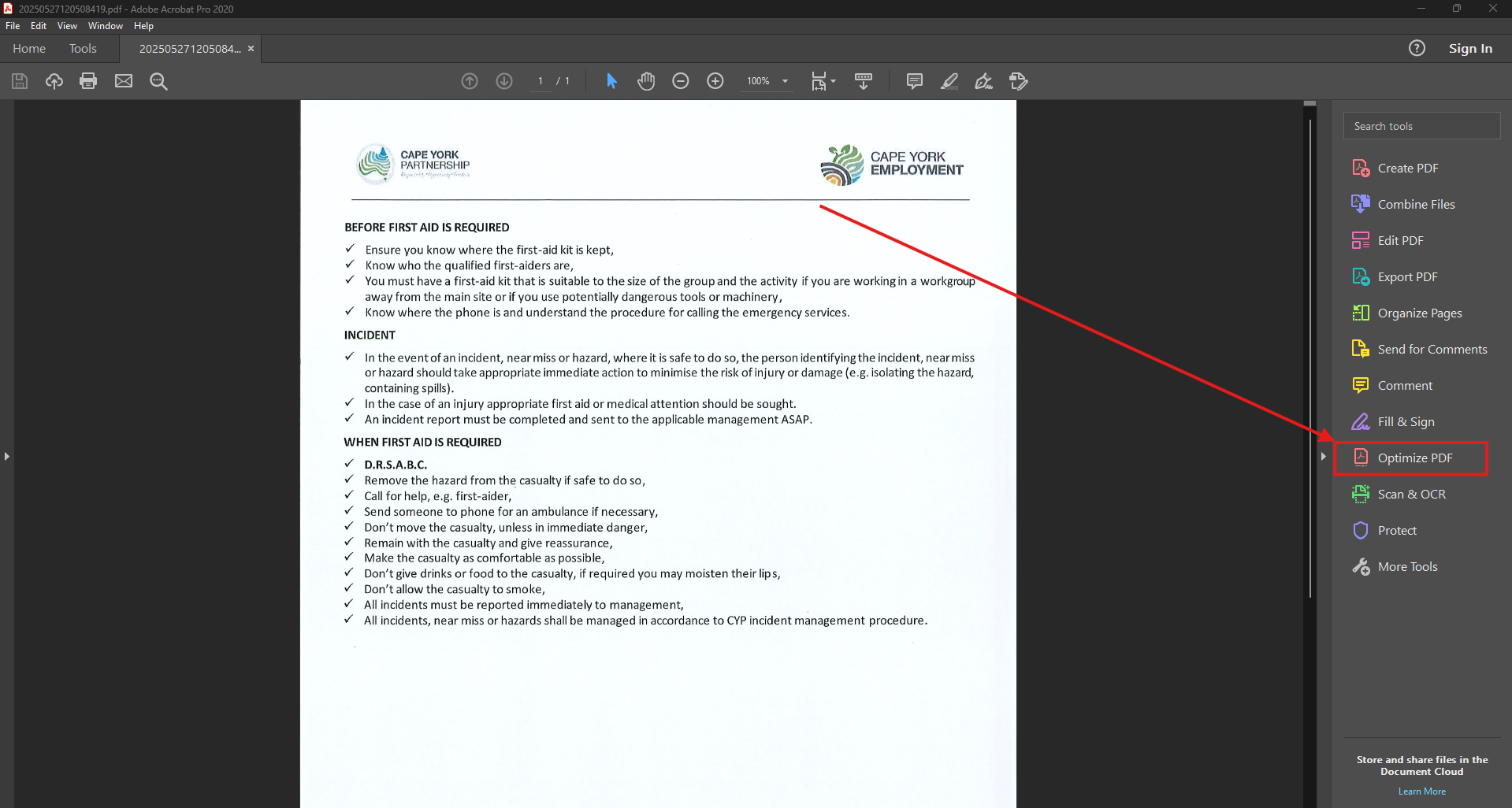
If this is not here, add this by going into the "Tools" menu, scrolling to "Protect & Standardize" and adding the "Optimize PDF" Tool.

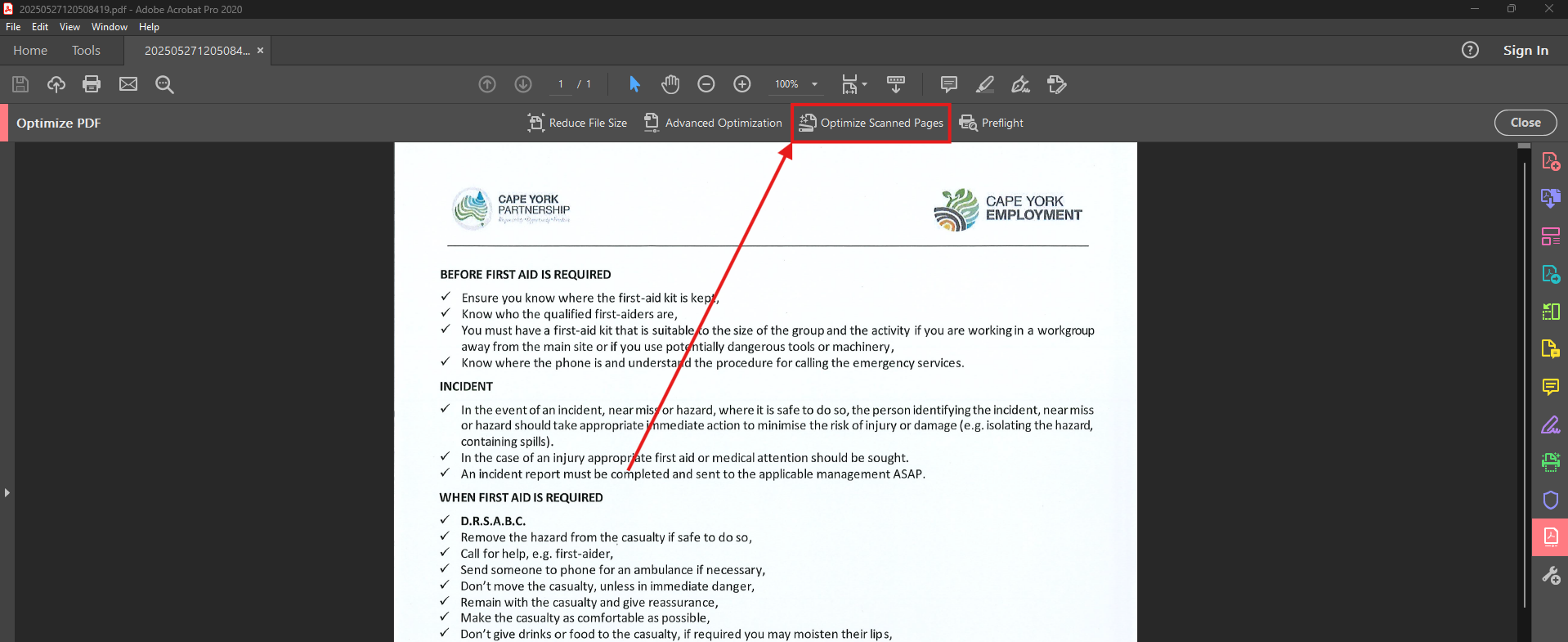
Step 3: Select the "Optimize Scanned Pages" option
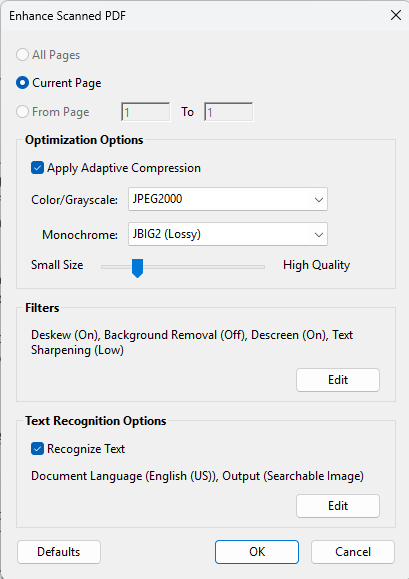
Select "All Pages" and leave all other settings as is, ensuring that the "Recognize Text" option is checked, then wait for the process to finish
Step 4: Reduce the File Size after saving the document
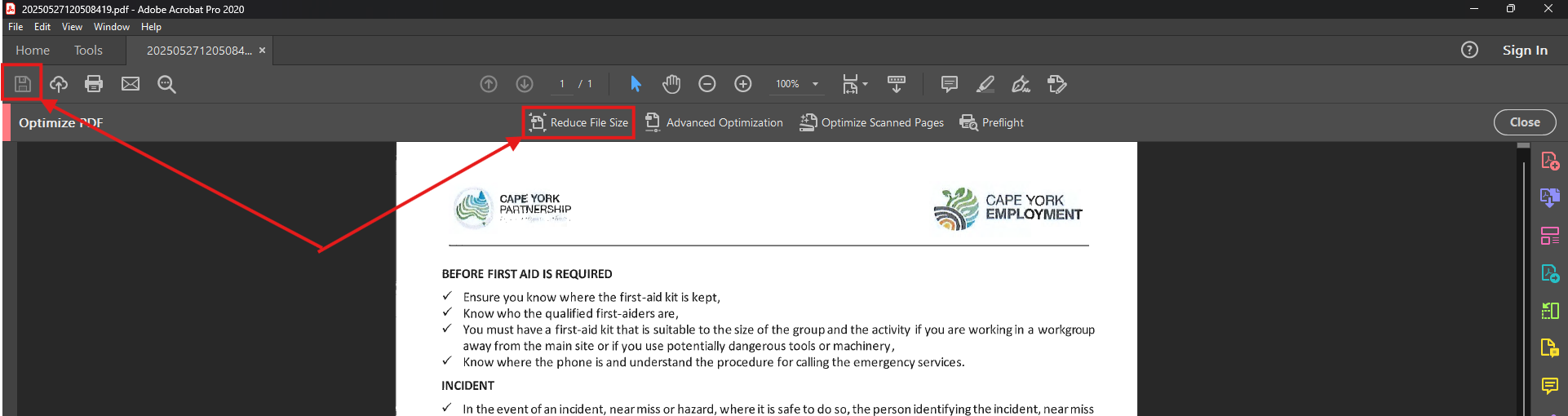
Retain Existing and OK
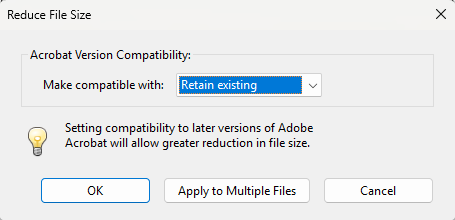
Save the file as required and compare the size difference (there is not much of a difference in this example as this is a single page document)
