Quick Start Guide: Scanning to Email
Device: Brother MFC-L3760CDW
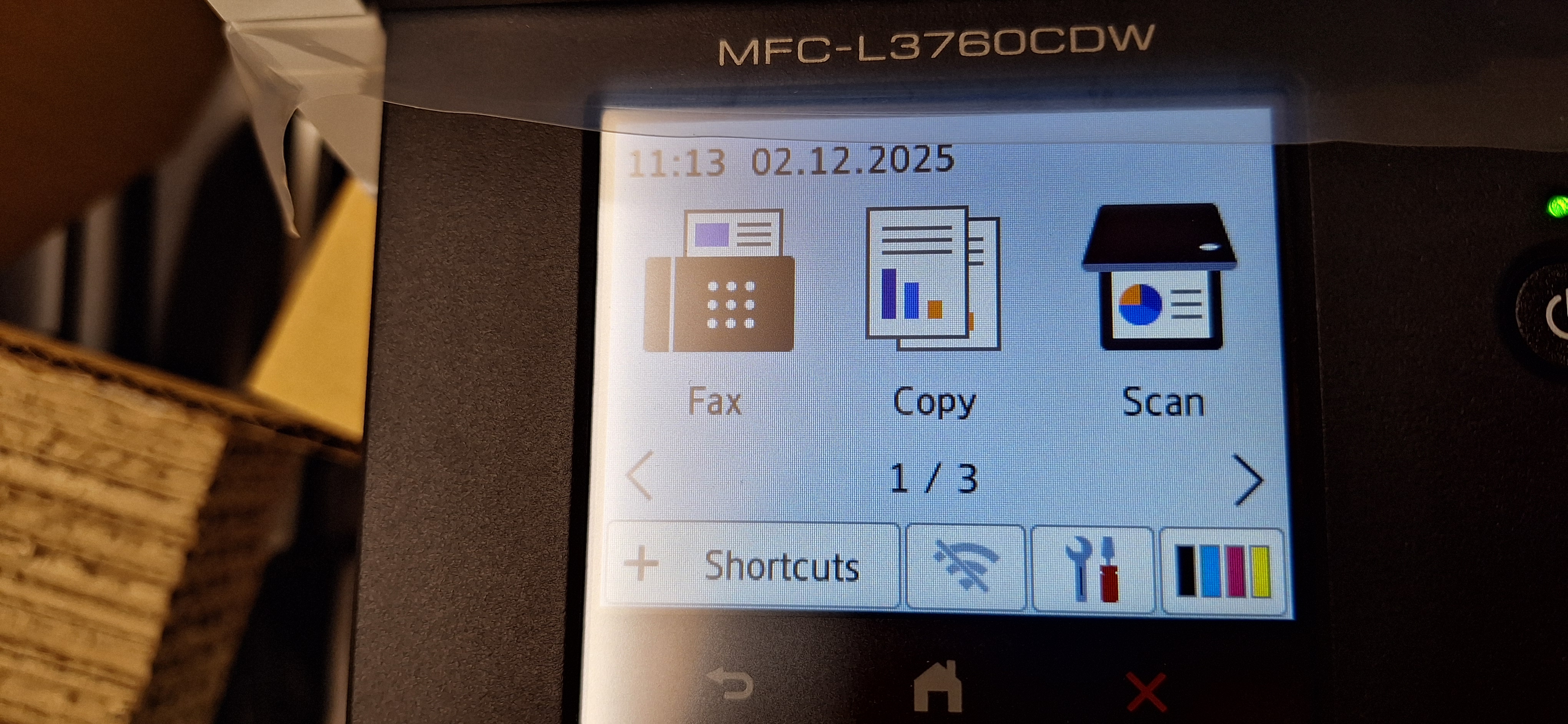
Step 1: Select Scan From the main Home screen, press the Scan icon.
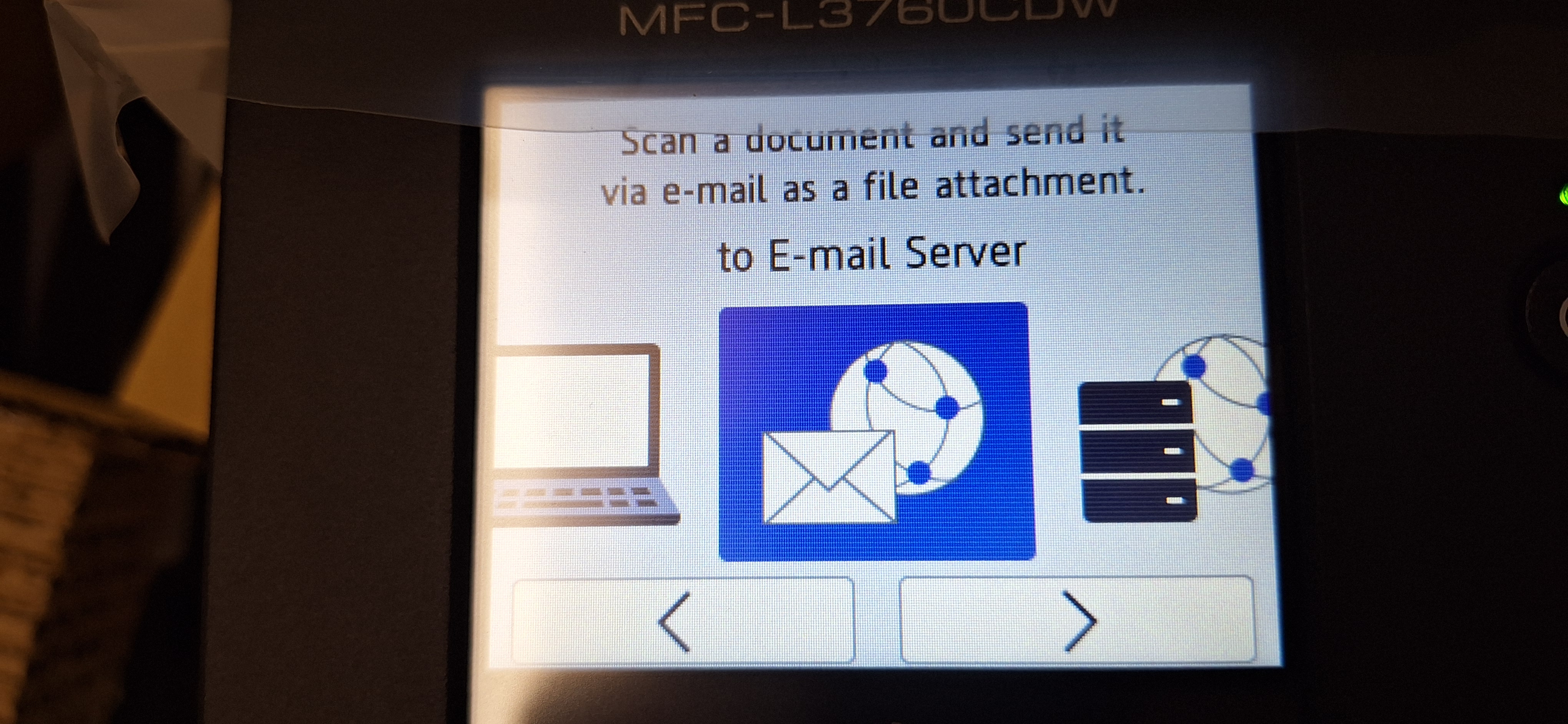
Step 2: Choose Destination Select the middle option labeled to E-mail Server (icon with the envelope and globe).
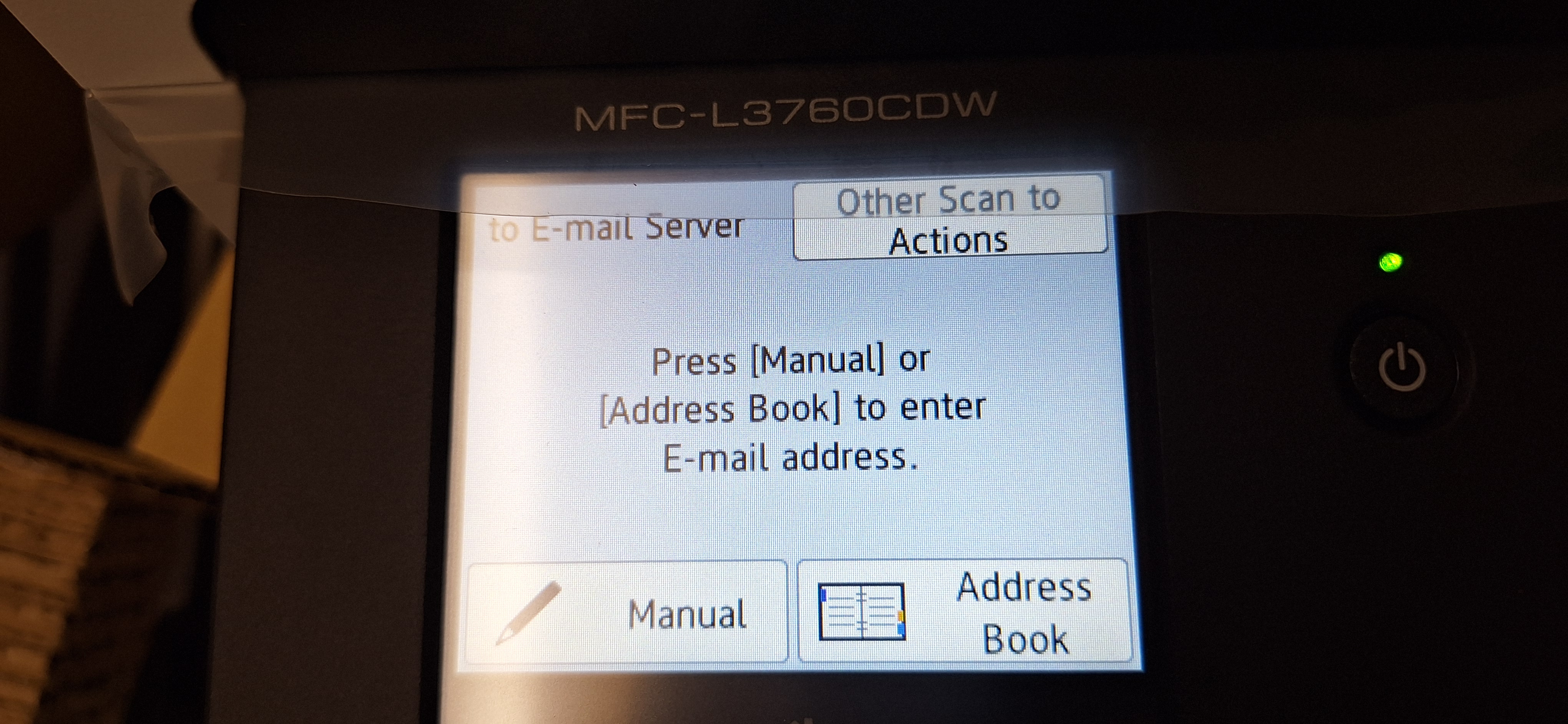
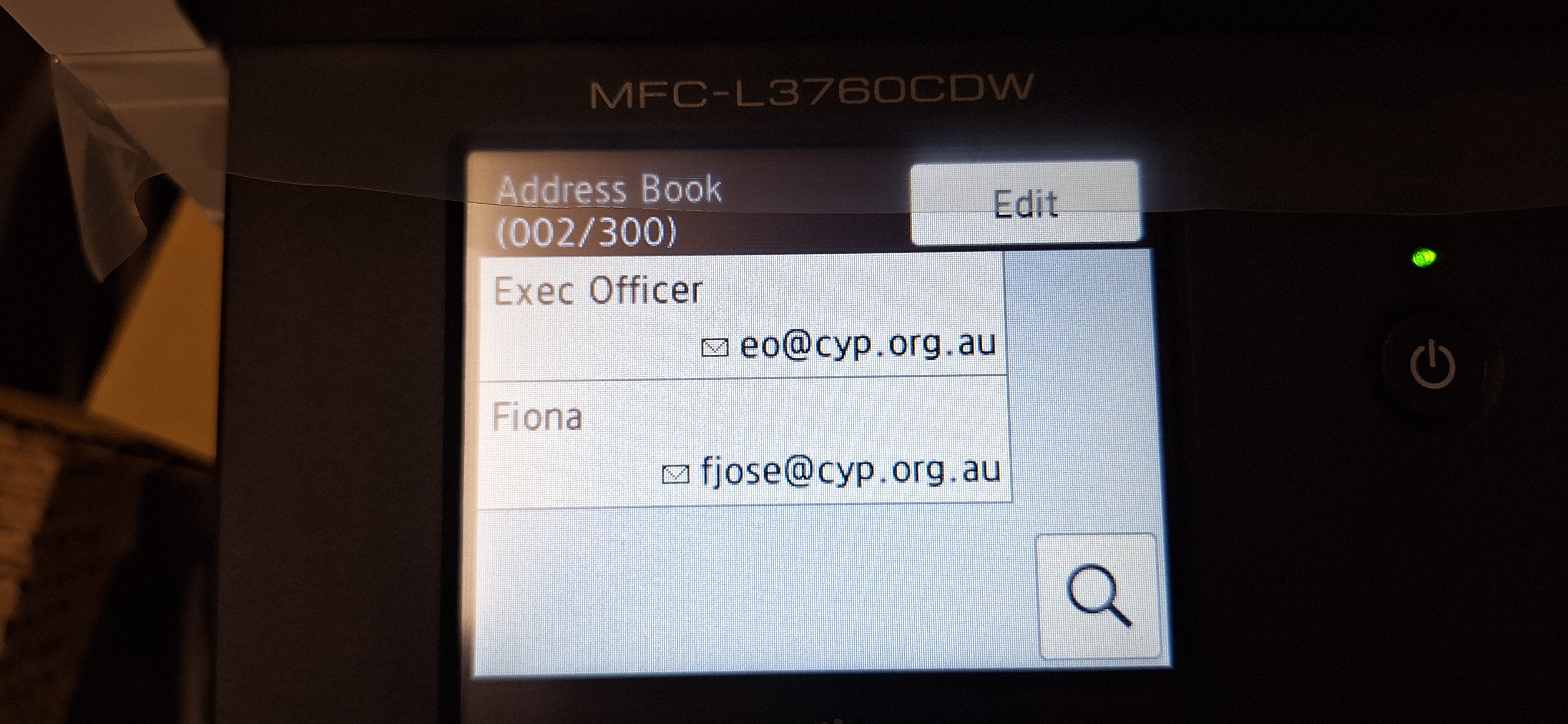
Step 3: Find the Contact Press Address Book to choose a saved contact from the list.
Step 4: Select Recipient Find the name of the person you wish to email (e.g., Exec Officer) and tap their name.
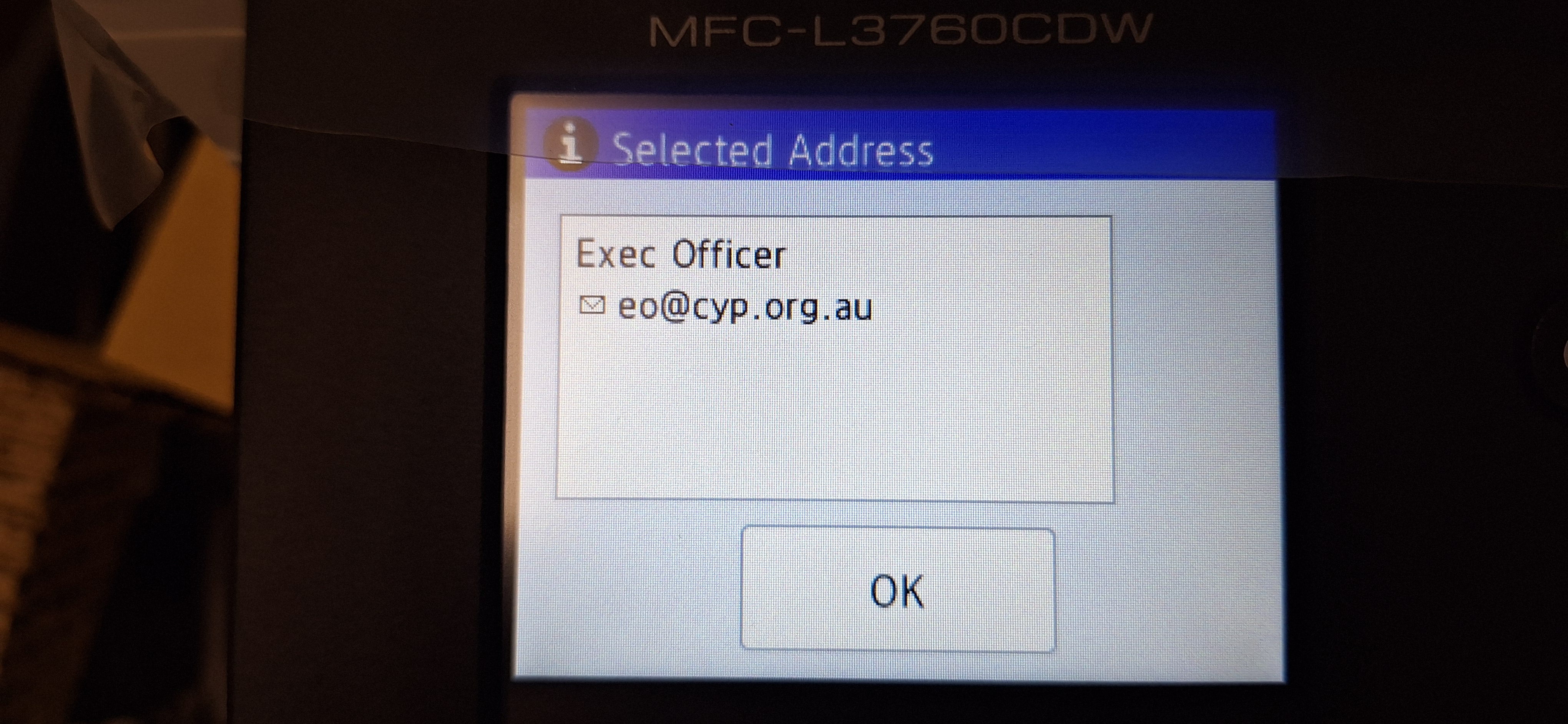
Step 5: Confirm Selection A box will appear showing the selected email address. Press OK.
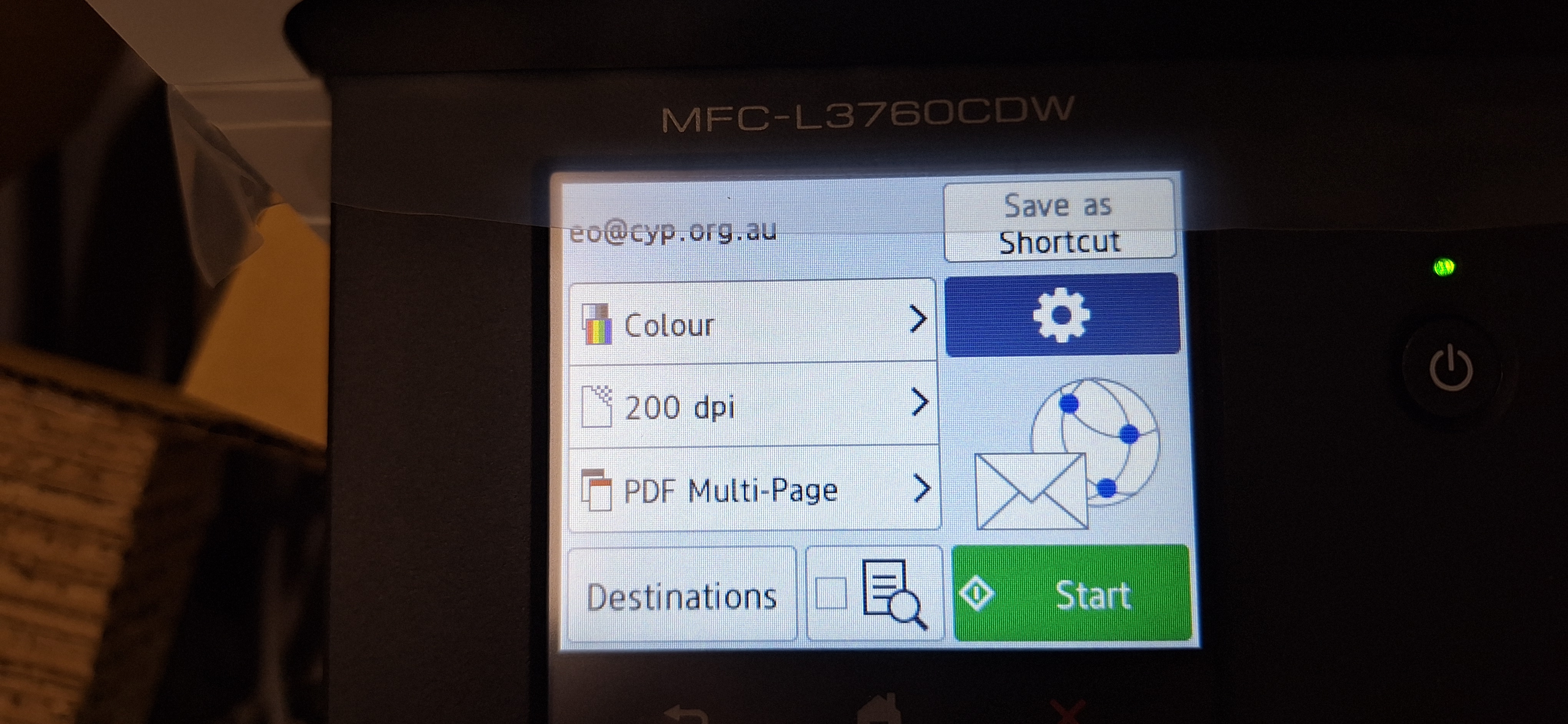
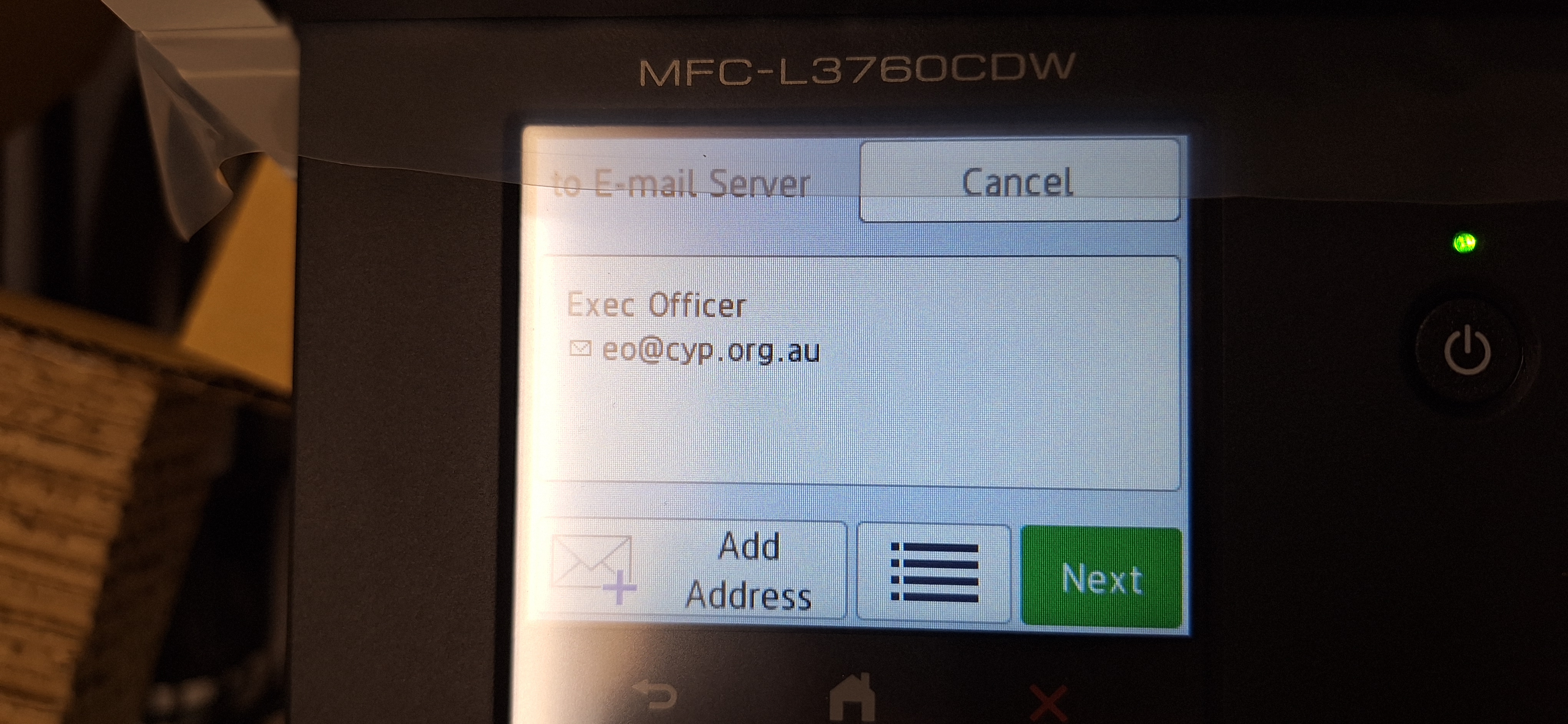
Step 6: Proceed to Send You will see the email added to the list. Press the green Next button.
Step 7: Start Scan Press the green Start button to begin scanning. Here, scanning settings can be changed, such as double / single sided scanning, changes to the DPI (quality) and scan in black & white or colour mode.